Everything Booked can do.
The New in 1.6.2 label marks features from the latest version.
Formats and library
FB2 and EPUB are supported, including FB2 in ZIP archives.
FB2 and EPUB
Footnotes, contents and covers come from the book itself. EPUB keeps the chapter structure: headings, lists, quotes.
Covers or list
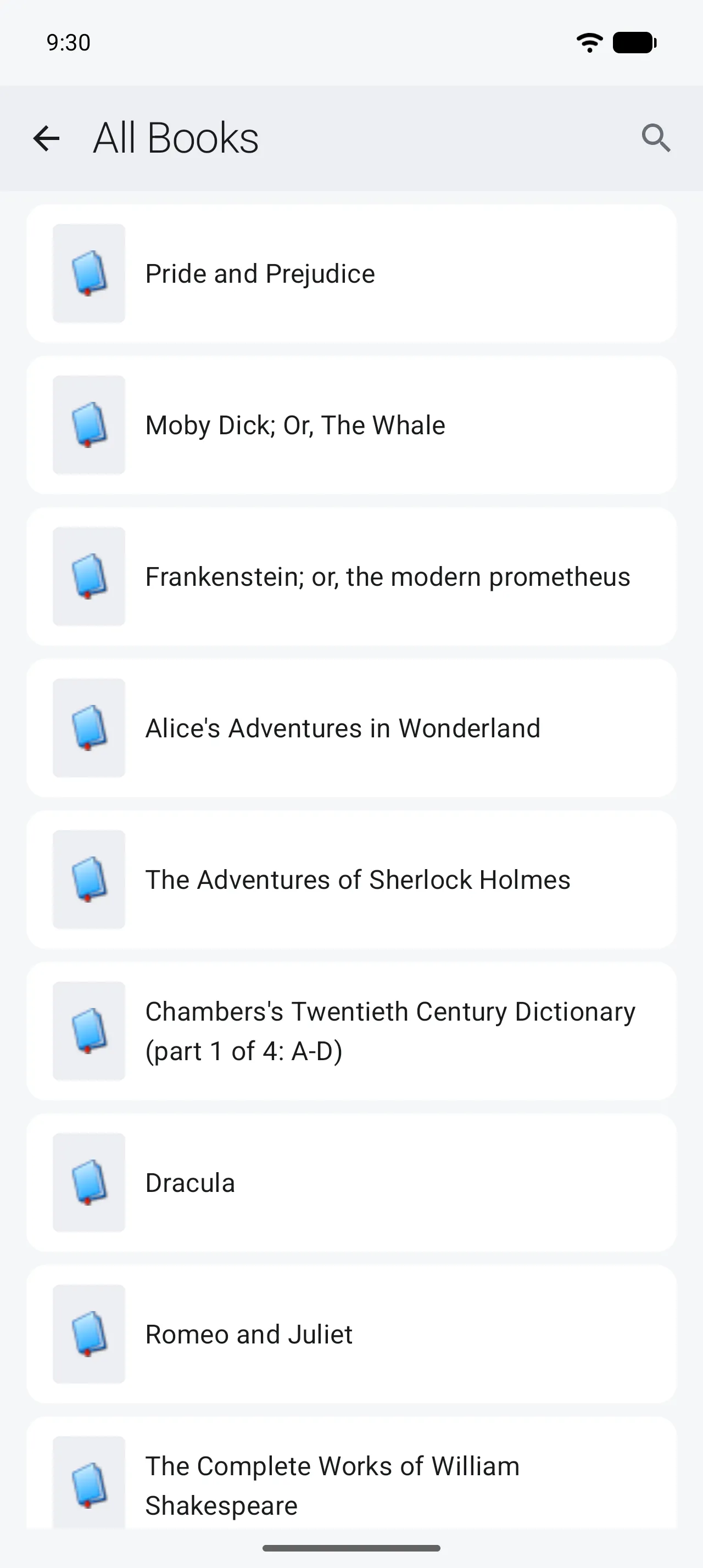
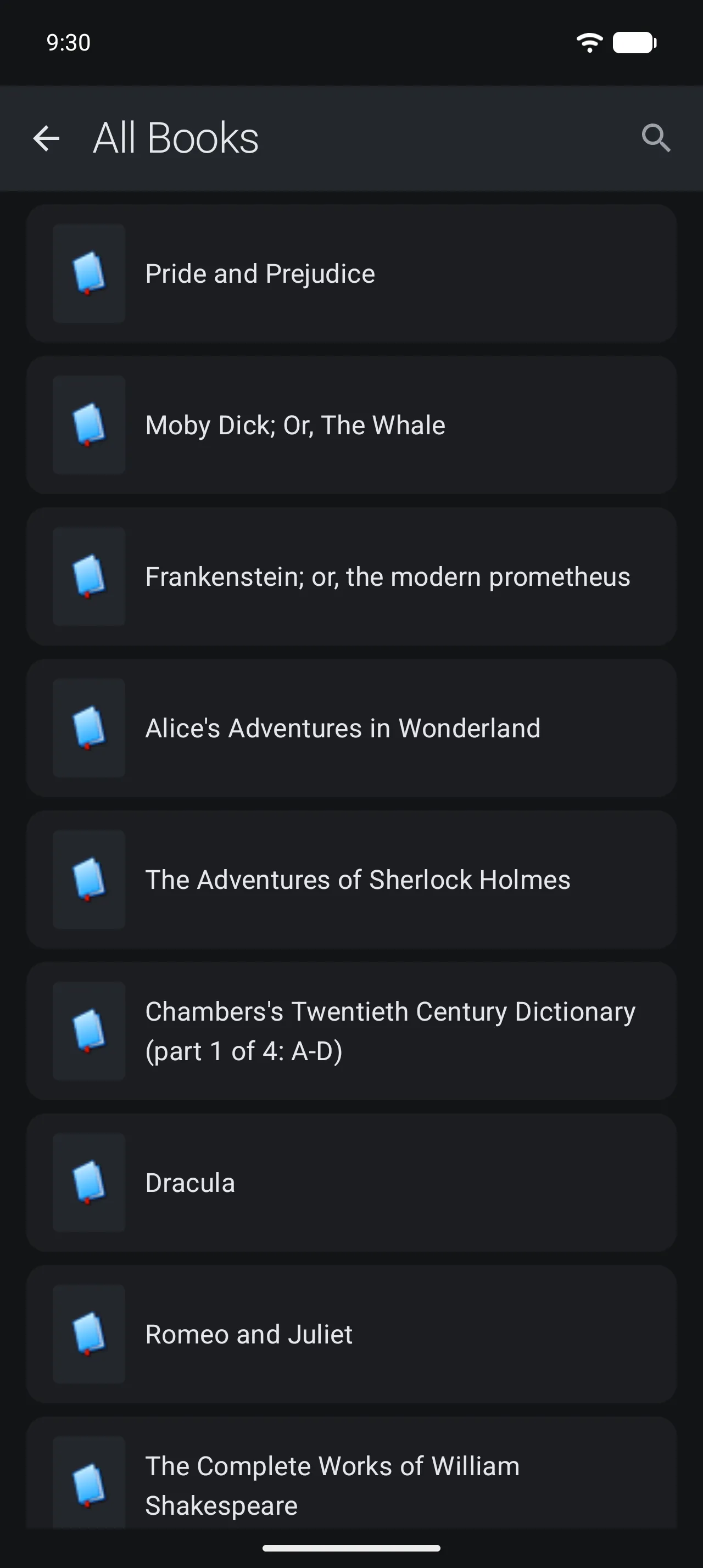
Switch the library view under Settings → Library → Layout. A large system font does not cut off labels.
Status and queue
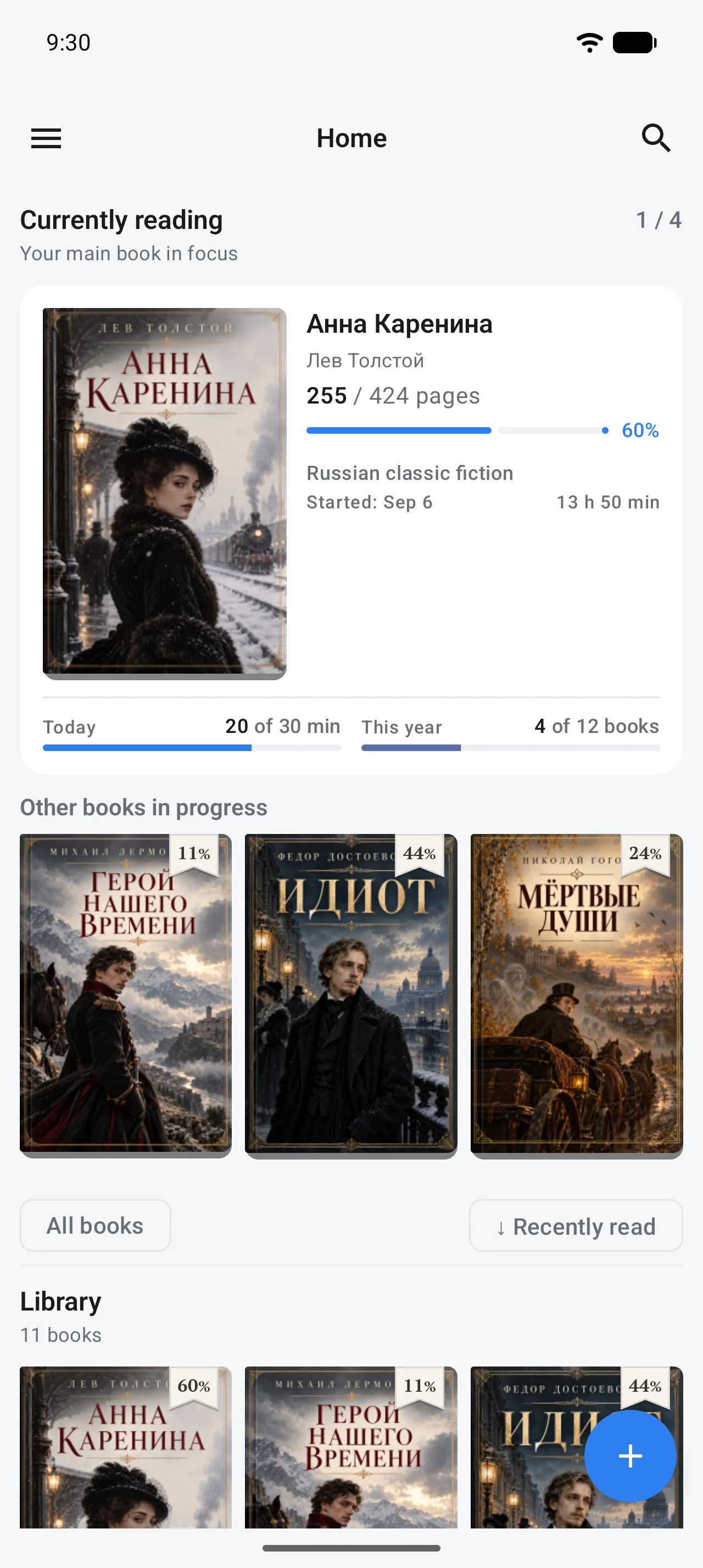
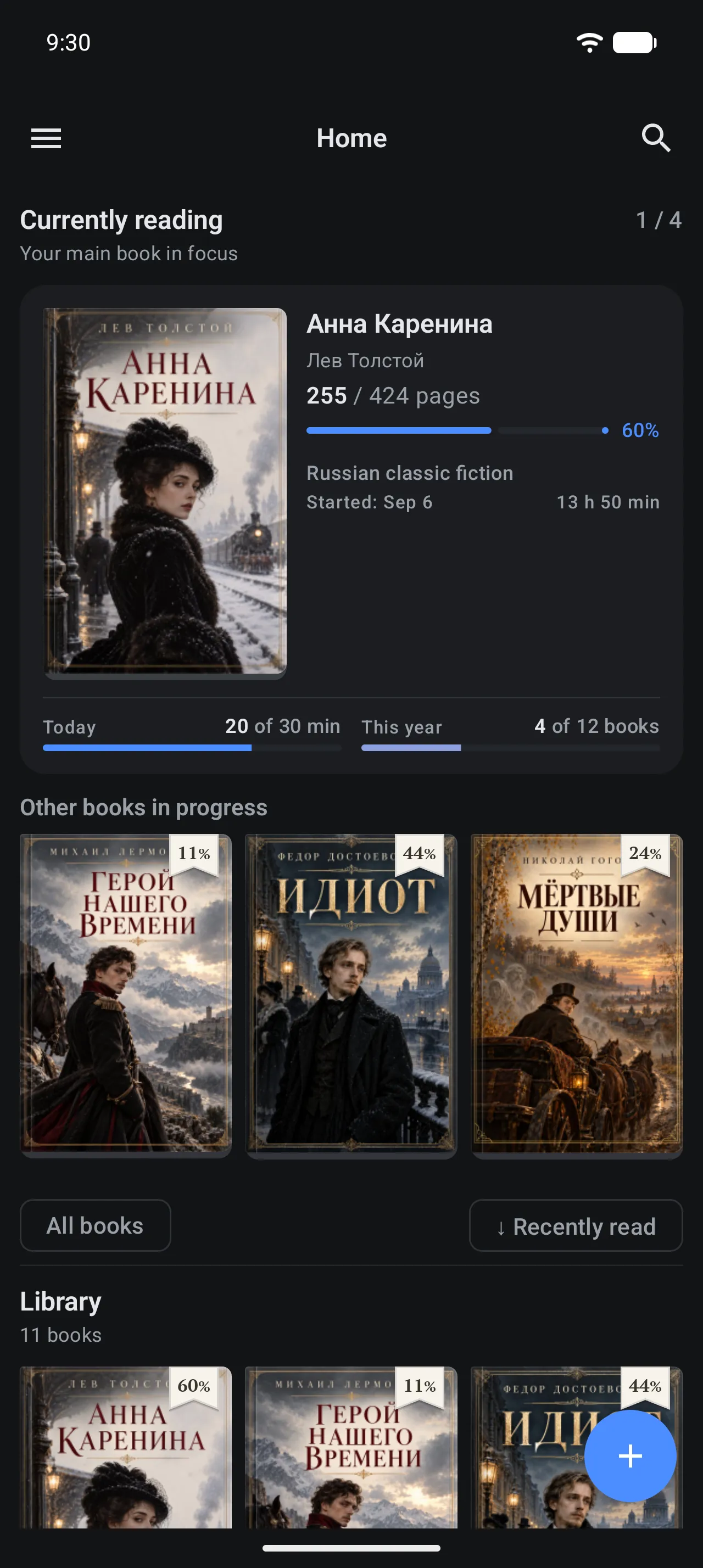
“To read”, “Reading”, “Finished”. In “Currently reading” on Home, one book is in focus and the other started books sit beside it.
Between books
When a book is finished and the next one is not started yet, Home shows its recap instead of “Currently reading”: date, rating, reading time and length. Below it, “Up next”: books from the same series and recently added ones. Reading goals stay alongside.
Search, filters, sorting
Search the library; filter by status, genre, author, series, format, language, length and rating. Collections: “Finish up”, “Forgotten”, “Short”, “Favorites”.
Book details
A description and “Details”: language, series, format, file size, reading time, speed, progress, start and finish dates.
Finish date and rereading
“Mark as finished” with a date of your choice. “Read again” counts your reads: “Rereading · read #2”. You can delete the current read in the “Reads” list: the book goes back to “Finished” or “To read”, and reading time is kept.
Share
As a Story-format image card — genre, series, length, description and wordmark of your choice, with a description you can shorten or rewrite — or as the book file itself.
Remove from device
“Remove from device (keep in cloud)” frees space: the book and its data stay, and the file downloads again on request.
Delete book data
You can erase only quotes, bookmarks, pinned items, sessions, reads or progress without deleting the book.
Adding books
Open with and Share
Booked appears in “Open with” and “Share” for EPUB and FB2: the book is added to the library and opens at once.
Files from the device
Several files at a time. A repeated file does not create a duplicate: a book is identified by its content, not its name.
Similar books
If the title and author match but the content differs, you can open the existing book or add the new edition. An exact duplicate never creates a second book.
OPDS catalogs
Browse and search online libraries, and choose a download format. Menu → Catalogs.
Calibre over Wi-Fi
Send EPUB and FB2 from your computer to Booked and take the files of downloaded books back to Calibre. Connect from the library; the address and password are saved, and the state and progress of a transfer are shown. Exchange continues while you read and in the background. Settings → Network → Calibre; add it to the main menu with the In main menu switch.
Calibre icon
Once the connection is set up, an icon appears on Home: tap it to connect or disconnect, long-press to open the settings. “Forget” resets the connection parameters.
From a computer over Wi-Fi
The phone opens an address on your network and shows a code and a QR code. In your computer’s browser, drop EPUB, FB2 or FB2.zip files (up to 200 MB) into the window and they land in the library. The page shows the phone’s shelf read-only: covers, progress, search and filters; it also marks books that are already there. Nothing to install; it runs until you stop it (button on the screen or in the notification) or the Wi-Fi network is lost. Add book → From computer over Wi-Fi.
Books over Wi-Fi
Send books between two Booked apps on the same network, with no internet and no server. Devices find each other or connect by address; the transfer starts once the six-digit code matches on both screens. The connection is encrypted, and books the receiver already has are not sent again. The file and edits to title, author, series and language go along; progress and notes do not. Menu → Network → Books over Wi-Fi, or “Send over Wi-Fi” in the card menu.
The Network section
Catalogs and Books over Wi-Fi are grouped under Network in the main menu; Calibre is not shown there by default and is turned on under Settings → Network → In main menu (it stays for those who already set Calibre up). Hide the others there too: the features work without a menu item, and the choice syncs between devices.
Catalog sign-in
A username and password for private catalogs; with an http:// address the app warns that the password is sent unencrypted.
Project Gutenberg
A suggested catalog of public-domain classics, including books in other languages.
From a link
Paste the address of an FB2 file (including one in a zip archive) or an EPUB: the book downloads and is added.
Inbox folder
Put a book into the inbox folder in your cloud: it appears in the library at the next sync.
Import from the cloud
Browse WebDAV storage, pick a book and download it into the library.
Reader
Pages, scrolling, two pages
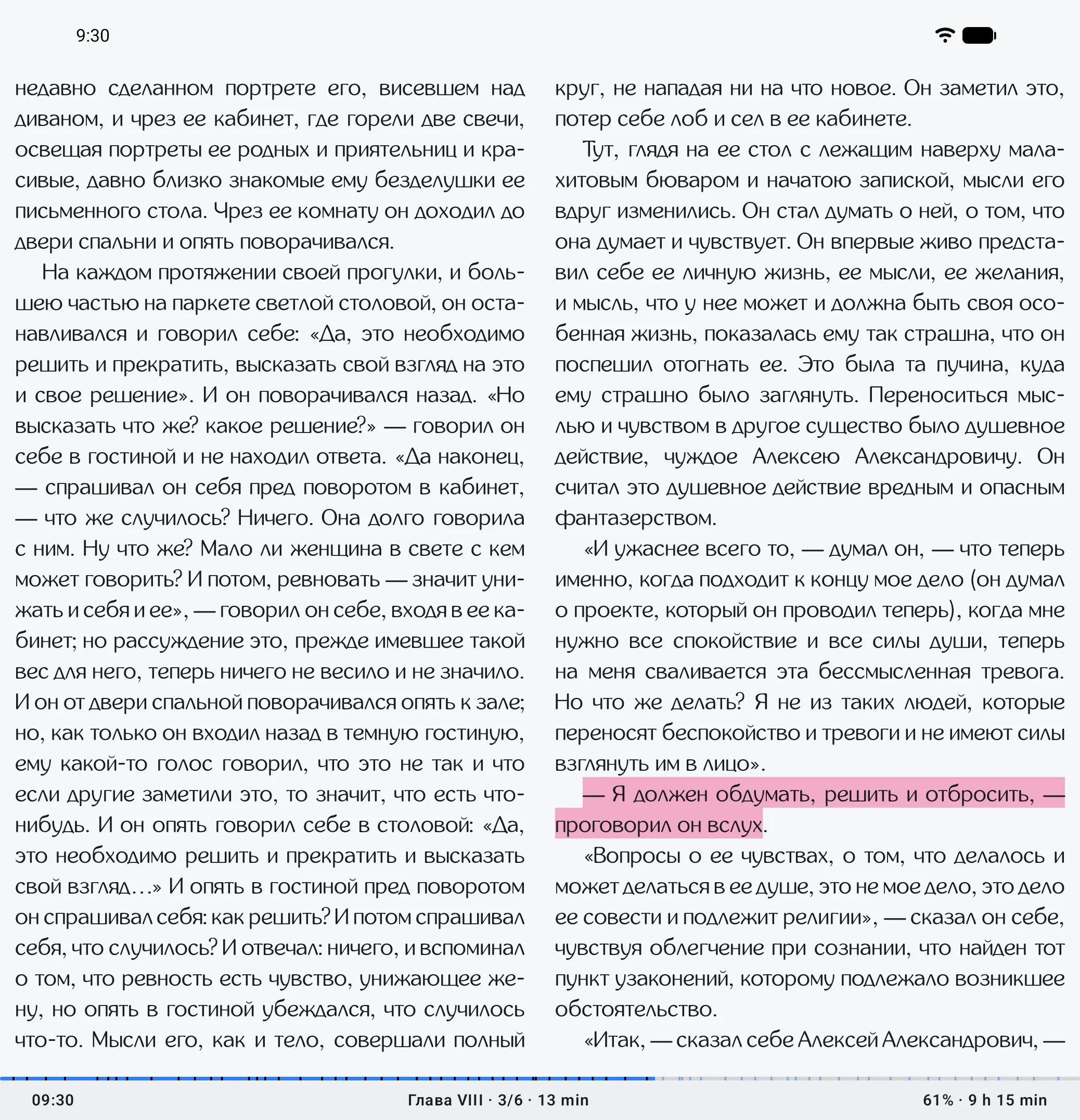
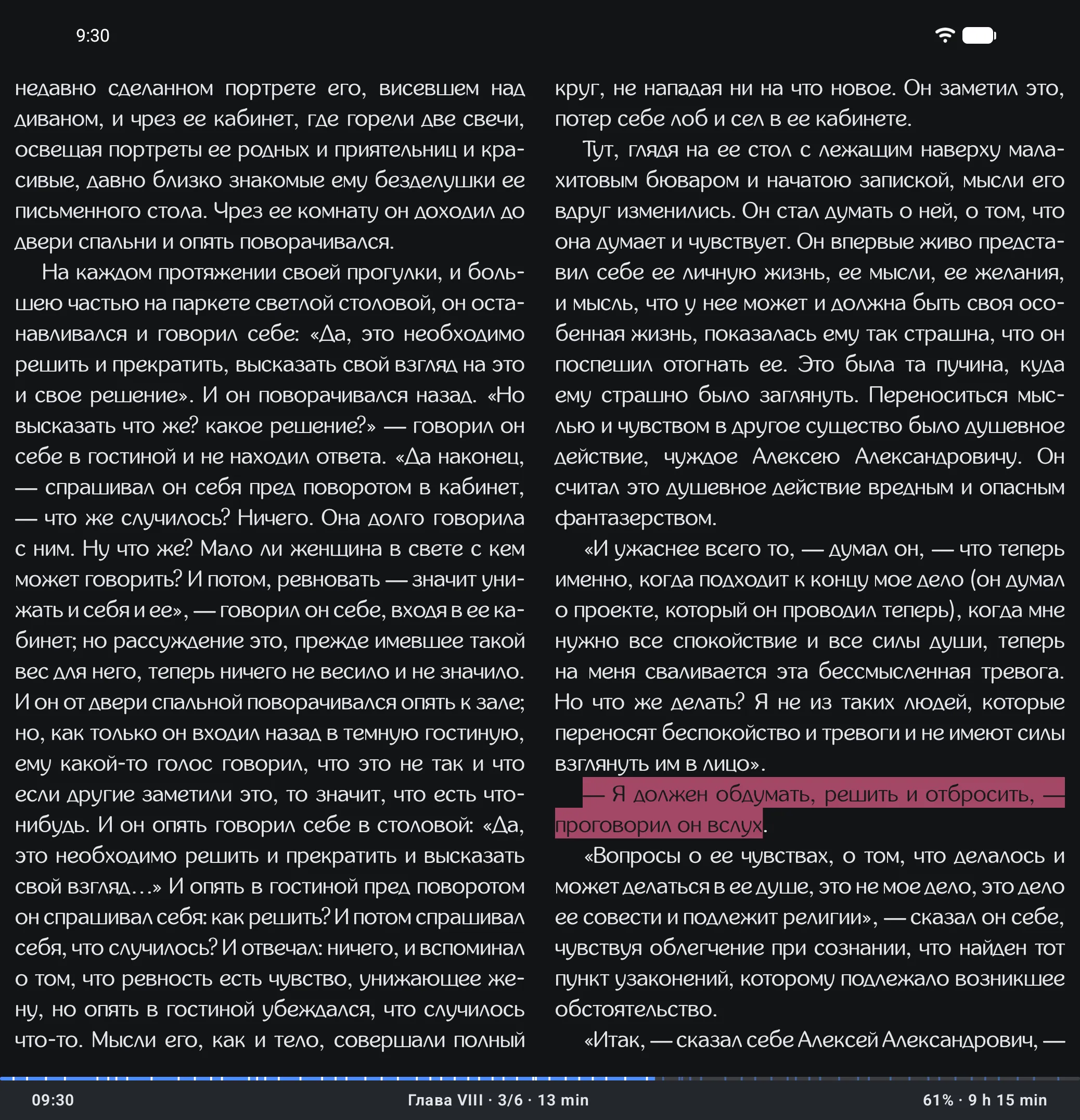
One button switches the mode without losing your place. A two-column spread on a wide screen respects the hinge of a foldable.
Turning with taps and volume
“Left/Right” and “Four zones” layouts, including reversed ones; the size of the zones and the menu is adjustable. The volume buttons turn pages too.
Swipes and screen
Brightness, warmth and font size change with a swipe along the screen edge; choose a side or turn it off. “Keep screen on” and auto brightness are right there.
Your own fonts
Add .ttf, .otf and ZIP files and choose fonts under Settings → Reading → Fonts. Deleting asks for confirmation; showing system fonts is a separate option. Typeface, weight, spacing, margins, hyphenation and paragraph indent are chosen in the reader.
Bionic reading
Emphasis on the beginning of words, gentle or normal. It is turned on in the “Font” panel and off by default; hyphenation and quote highlights are kept.
Bottom bar and progress bar
By default: the clock, the chapter, pages in the chapter and the percentage of the book; on a wide screen also the time left in the chapter and in the book. Elements and zones are set separately for the two screens. The progress bar marks chapter boundaries.
Search and jumps
Search the text with page numbers, go to a page, open the contents. A jump does not change your reading place: a “Preview” label and a “Return” button appear.
Auto scroll
Smooth scrolling at a speed in lines per minute; change the speed with buttons and swipes.
Full-screen illustrations
An image opens full screen and can be zoomed; “Fit image” brings it back whole.
Pinned items
An image or a passage of text can be pinned and kept at hand while you read; the list of pinned items is in the reader menu.
Lock position
The “Position” button locks your reading place: turning pages and jumps do not move it. “Return” goes back to the mark, “Read from here” chooses a new place.
Percentages by pages
The percentage read is counted by pages: in the status bar, on book cards, in “Go to” and in the “Return” and “Newer on another device” labels.
Reader menu
“Edit menu”: buttons can be removed, rearranged and restored. The set and order are saved separately for narrow and wide screens; E-ink mode uses the wide profile. Reset changes only the current profile.
Notes
Bookmarks
A bookmark on a page with one tap; saved bookmarks are in the contents.
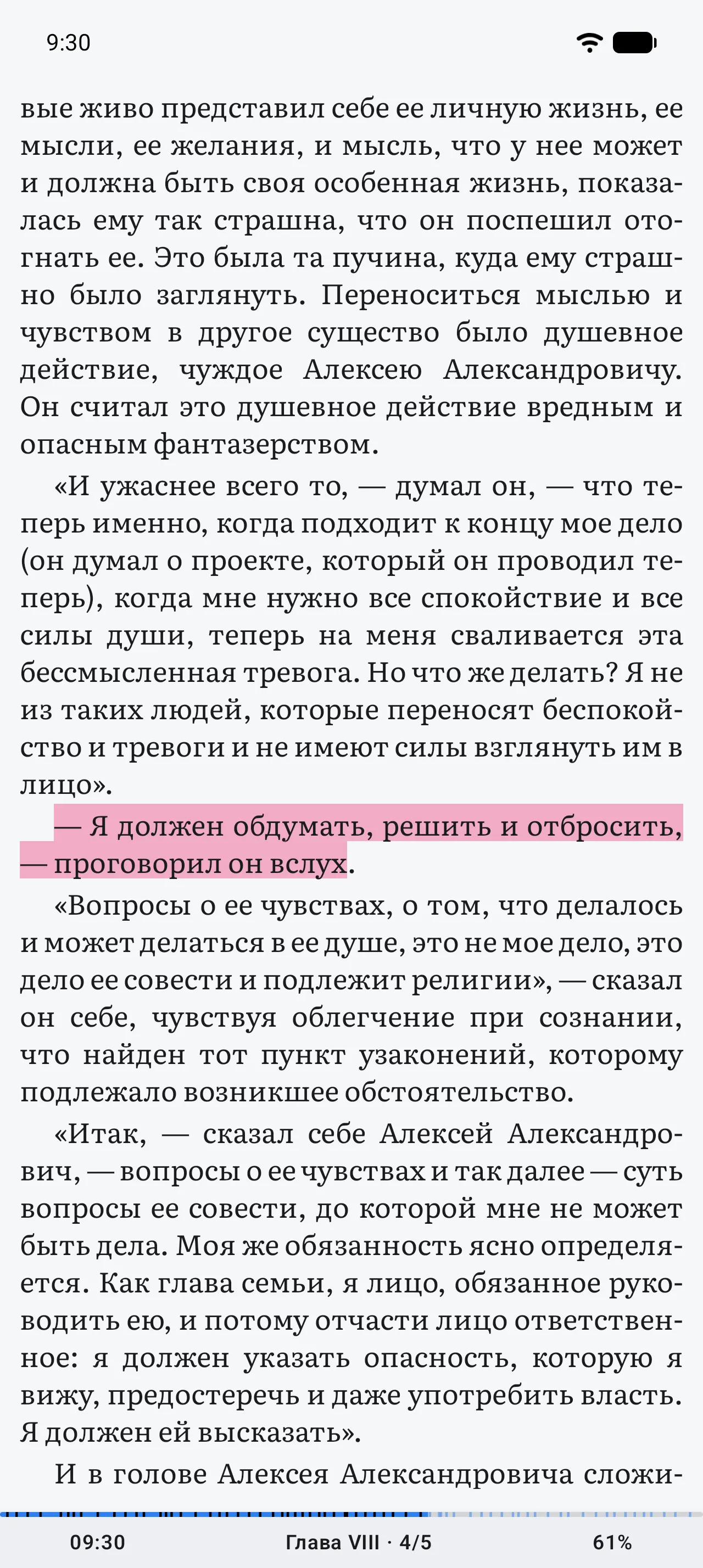
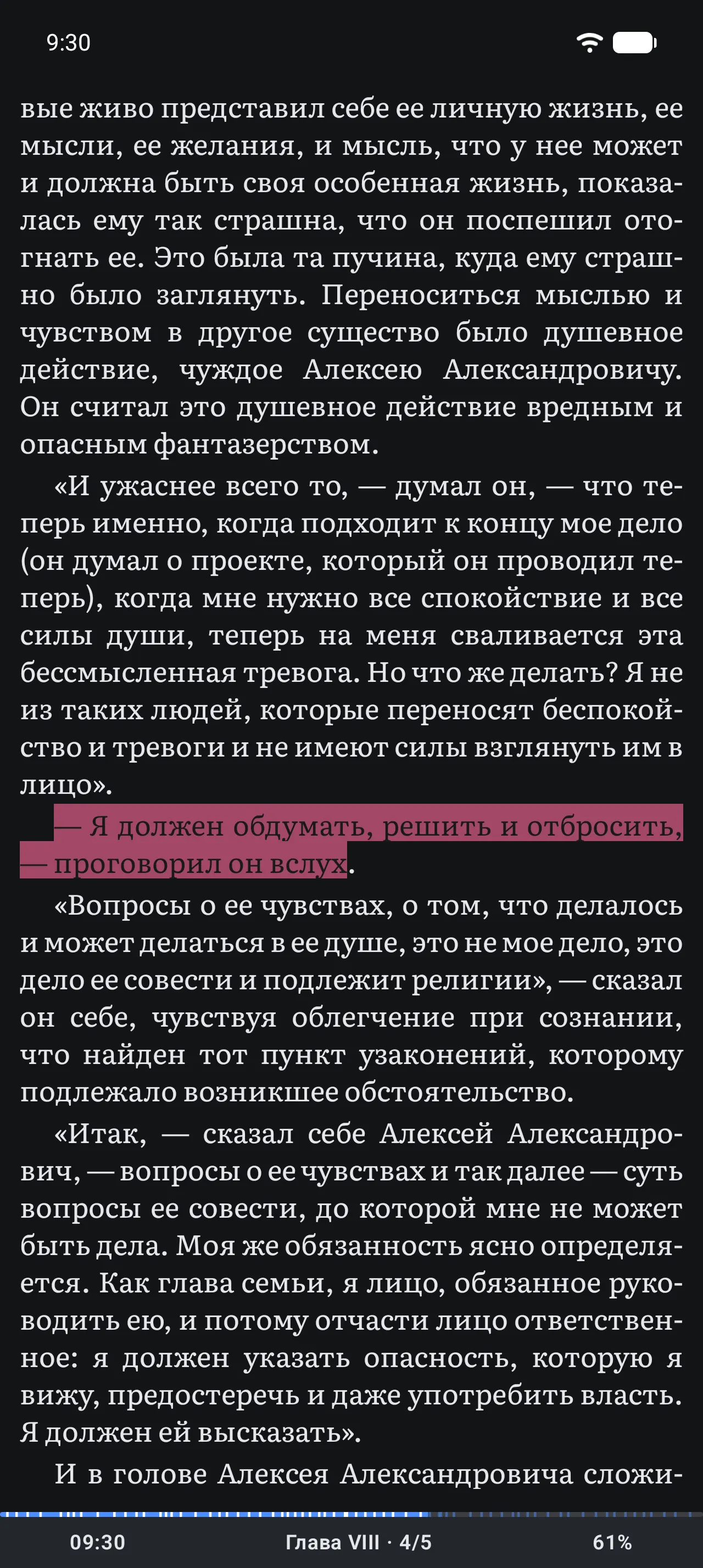
Quotes in five colors
Select text and choose a color: yellow, green, blue, pink, purple. On an E-ink screen the colors are told apart by patterns.
Book notes
Personal text before, during and after reading. It saves itself and syncs between devices.
Versions on conflict
If a note was edited on two devices, both versions are kept: compare them, keep the one you need or merge them.
Overall list
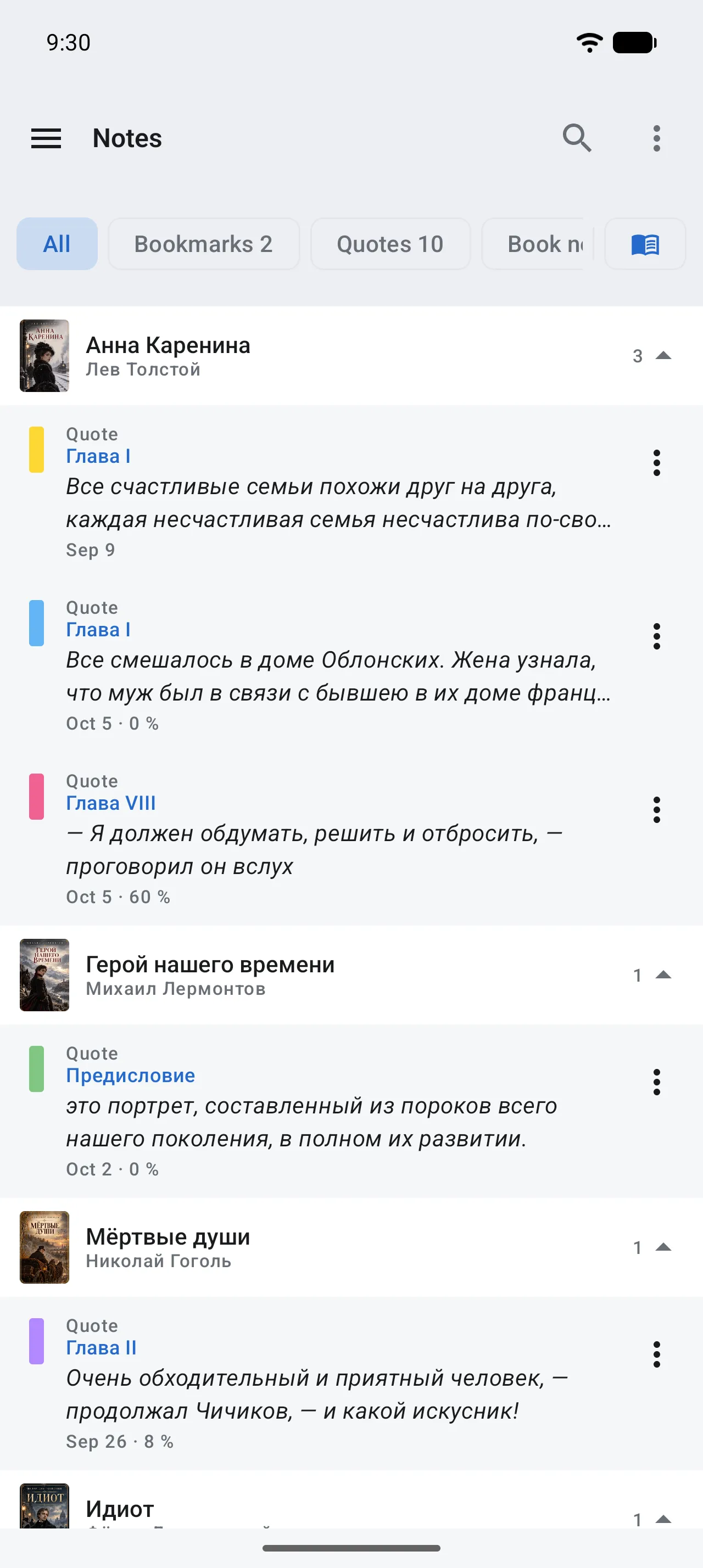
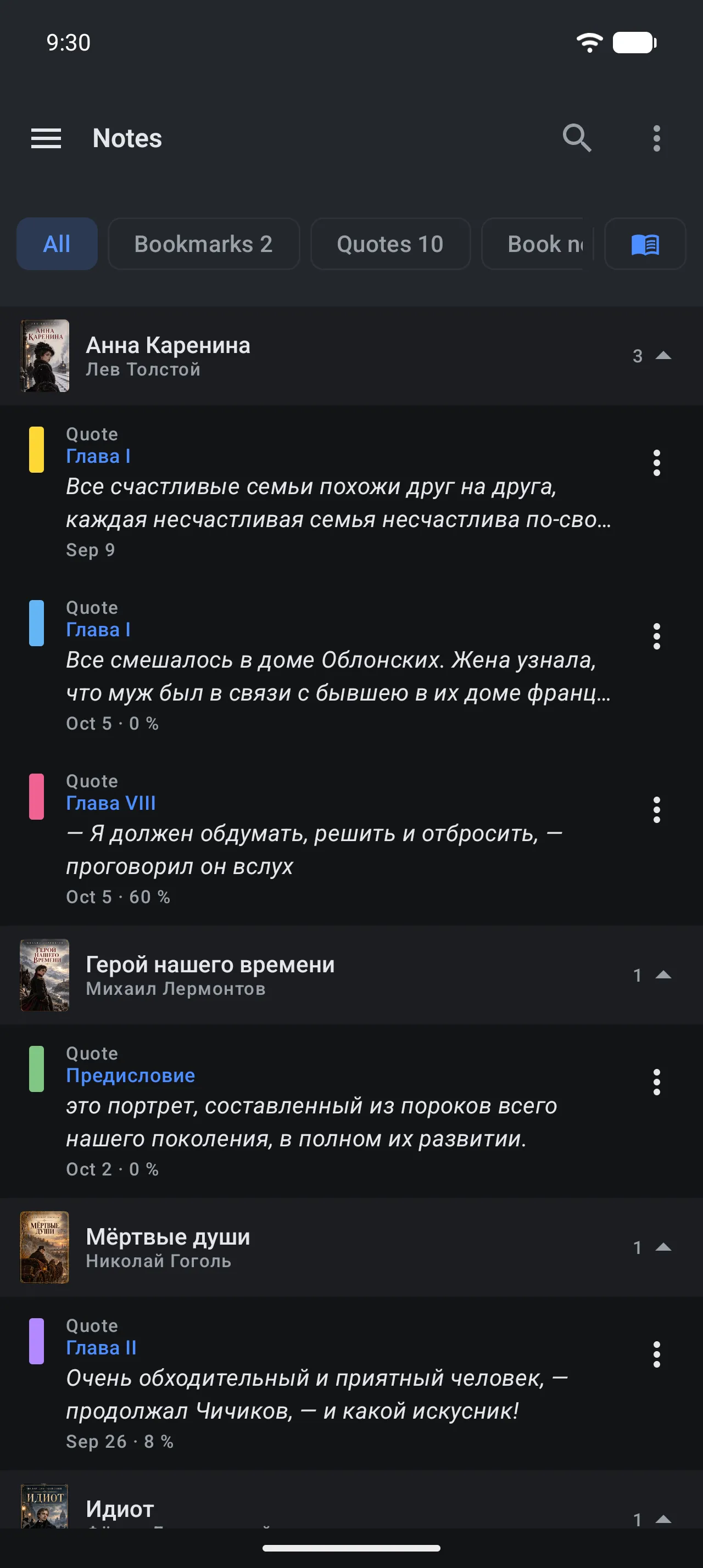
Menu → Notes is a main-menu section, like History and Statistics: all entries from all books, with the tabs “All”, “Bookmarks”, “Quotes” and “Book notes”.
Search and grouping
Search by entry text, chapter and book title; group by book or as a feed by date.
Export and Share
Export all entries, a selection or one book to a Markdown file; an entry can be sent to any app.
Quote card
A quote can be sent as a Story-format image with a “Paper”, “Dark” or “Cover” background and the reader font; a long quote is fitted to size. The “Cover” background takes the book’s palette, “Frame” adds a thin border.
Dictionary, translation and Anki
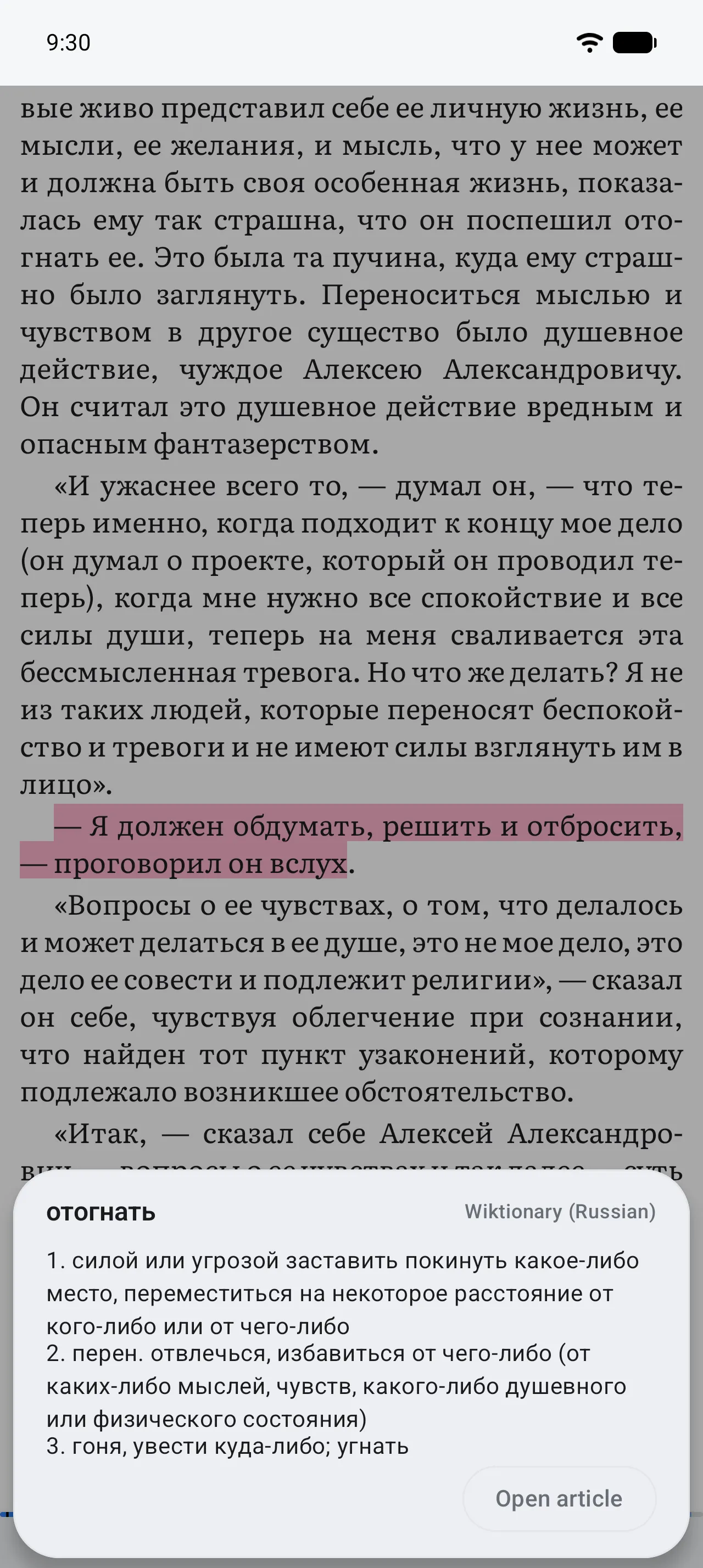
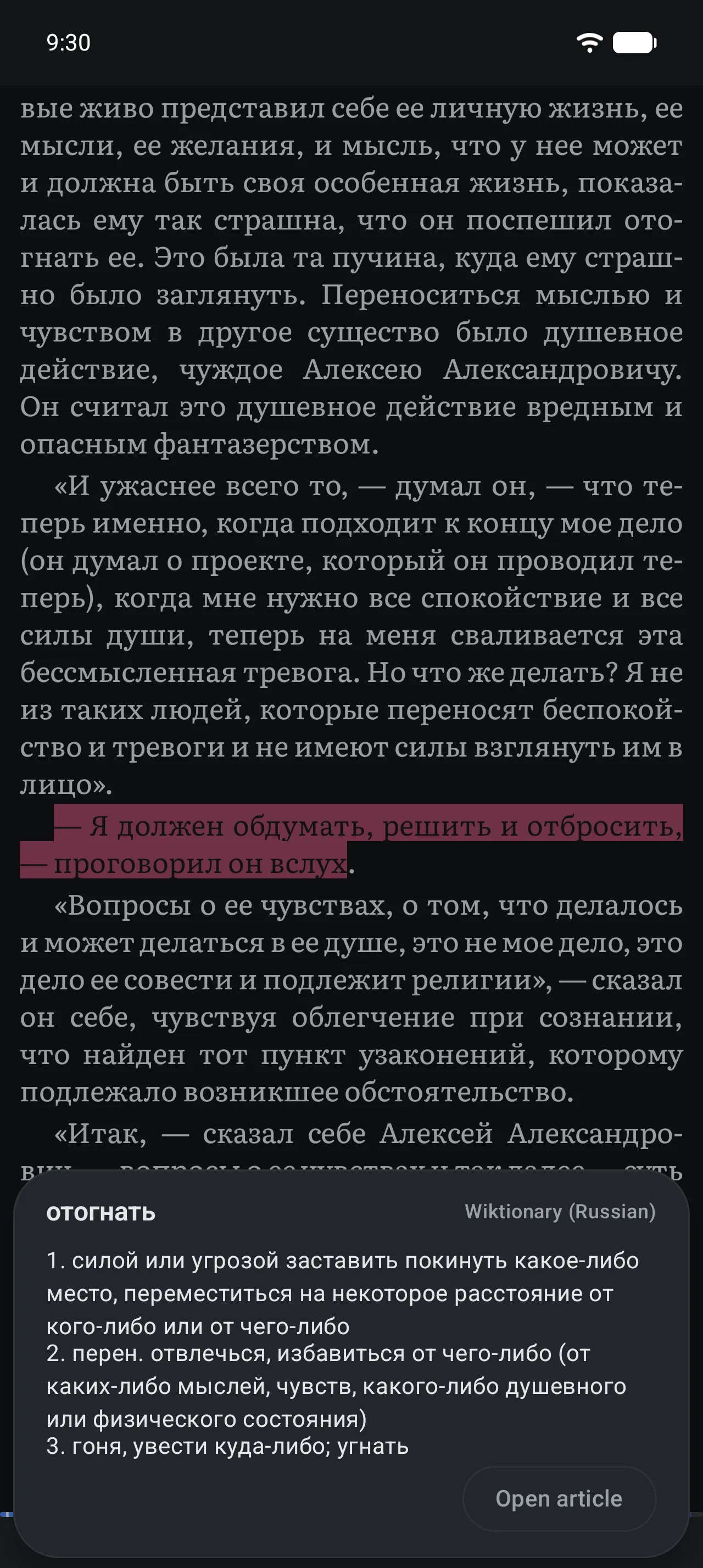
Built-in dictionary
A word’s definition online: Wiktionary first, then Wikipedia.
Your own dictionary app
Instead of the built-in dictionary you can choose an installed app, or choose in the system each time. Settings → Integrations.
Translation
Selected text is translated in the translator app you choose; Booked does not translate by itself.
Anki cards
“To Anki” creates an AnkiDroid card with the word, its translation or meaning, and the sentence from the book.
Translation on the card
A translation copied in the translator is filled into the card automatically; if that is not possible, you enter it by hand.
Deck and access
The default deck is “Booked”, and it is created automatically. Without access to AnkiDroid the card opens in its editor.
Reading aloud
System synthesizer
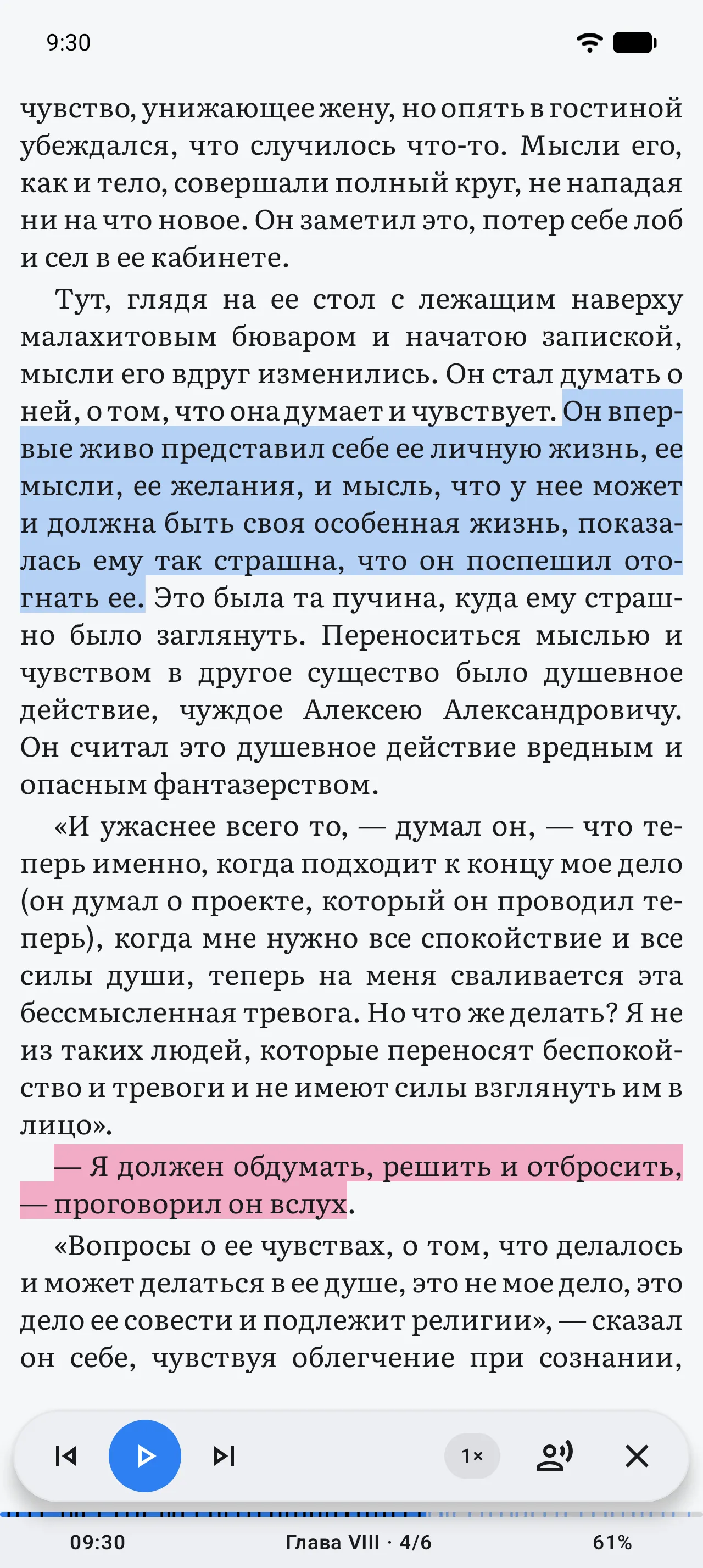
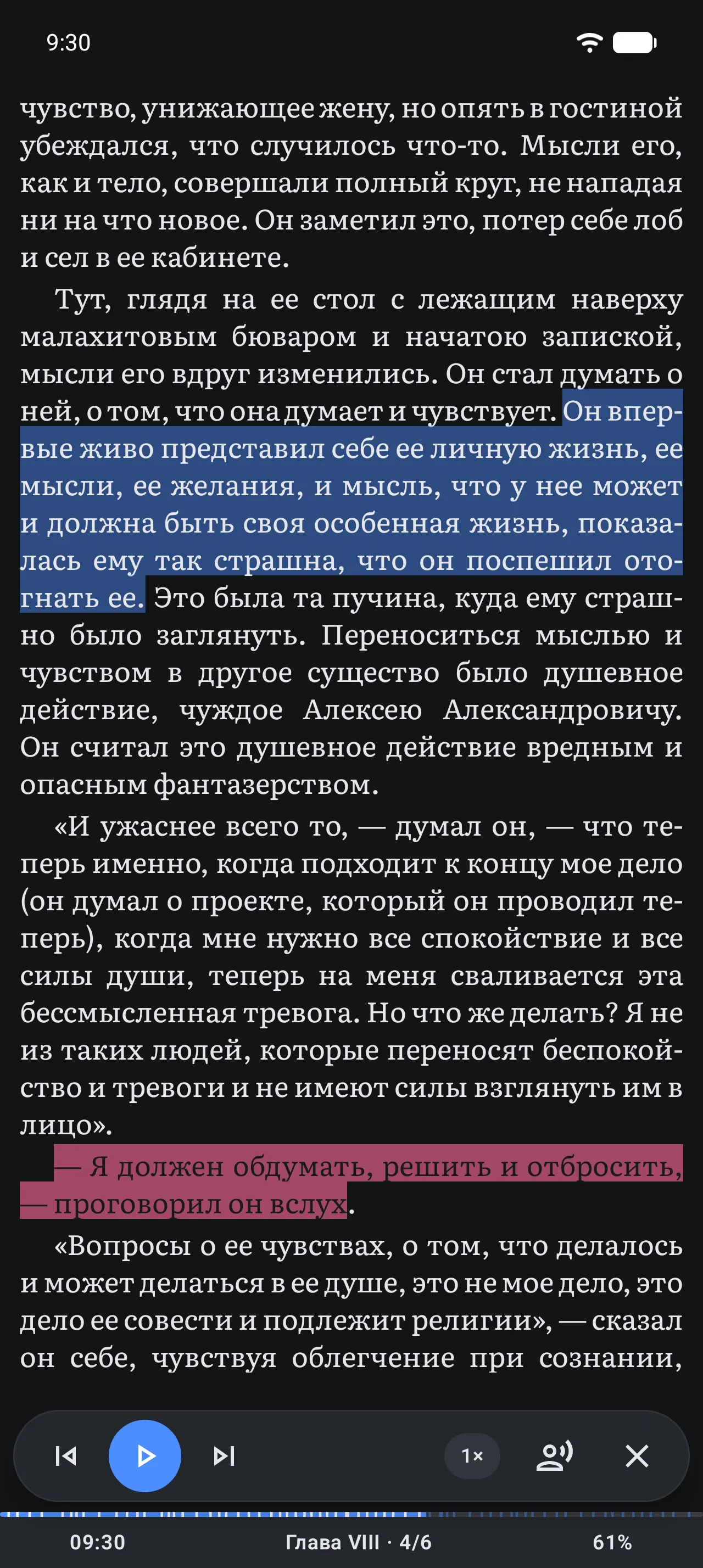
The book is read aloud by the Android speech synthesizer that you chose in the system.
Choosing a voice
A list of installed voices with their quality and gender.
Paragraph back and forward
“Previous paragraph” and “Next paragraph” buttons, pause and stop.
Controls in the notification
Reading aloud works in the background; you can control it from the notification with the screen off.
Back to the book being read
Home shows a reading-aloud indicator with the cover, title and pause state. Tapping it returns you to the book with the controls active.
Pause when headphones disconnect
When wired or Bluetooth headphones disconnect, reading aloud pauses instead of switching to the speaker.
Following the text
The passage being spoken is highlighted and stays on screen: pages turn, and scrolling follows the text near the bottom edge. Reading through MultiTTS is supported.
Honest statistics
Reading aloud and auto scroll do not distort the estimate of your reading pace.
Reading journal, statistics and goals
History
Finished books by year and month, with covers. Use “+” to add a physical book without a file: it appears in History, its note is available in Notes, and it counts towards statistics and the yearly goal, but does not appear on the library shelf or in library search.
Time and speed
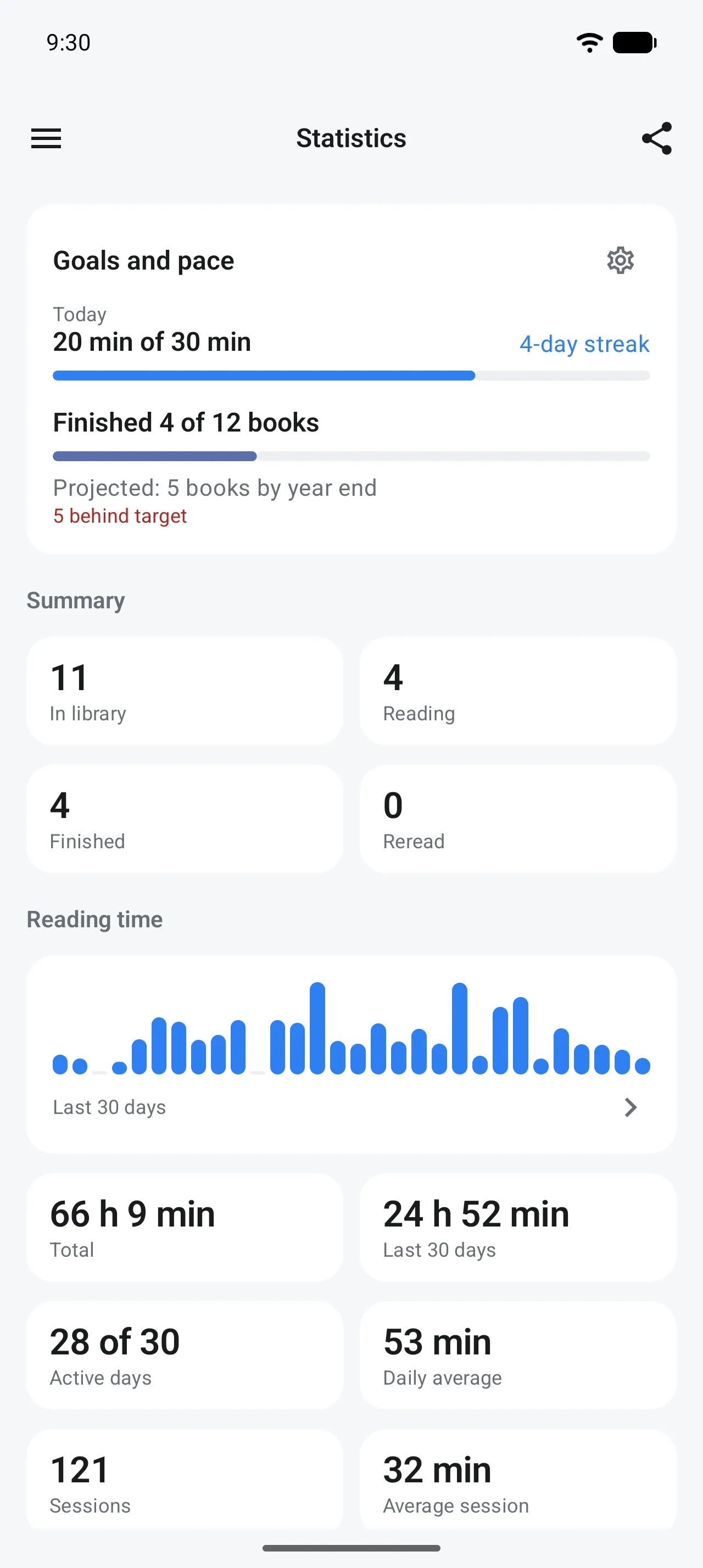
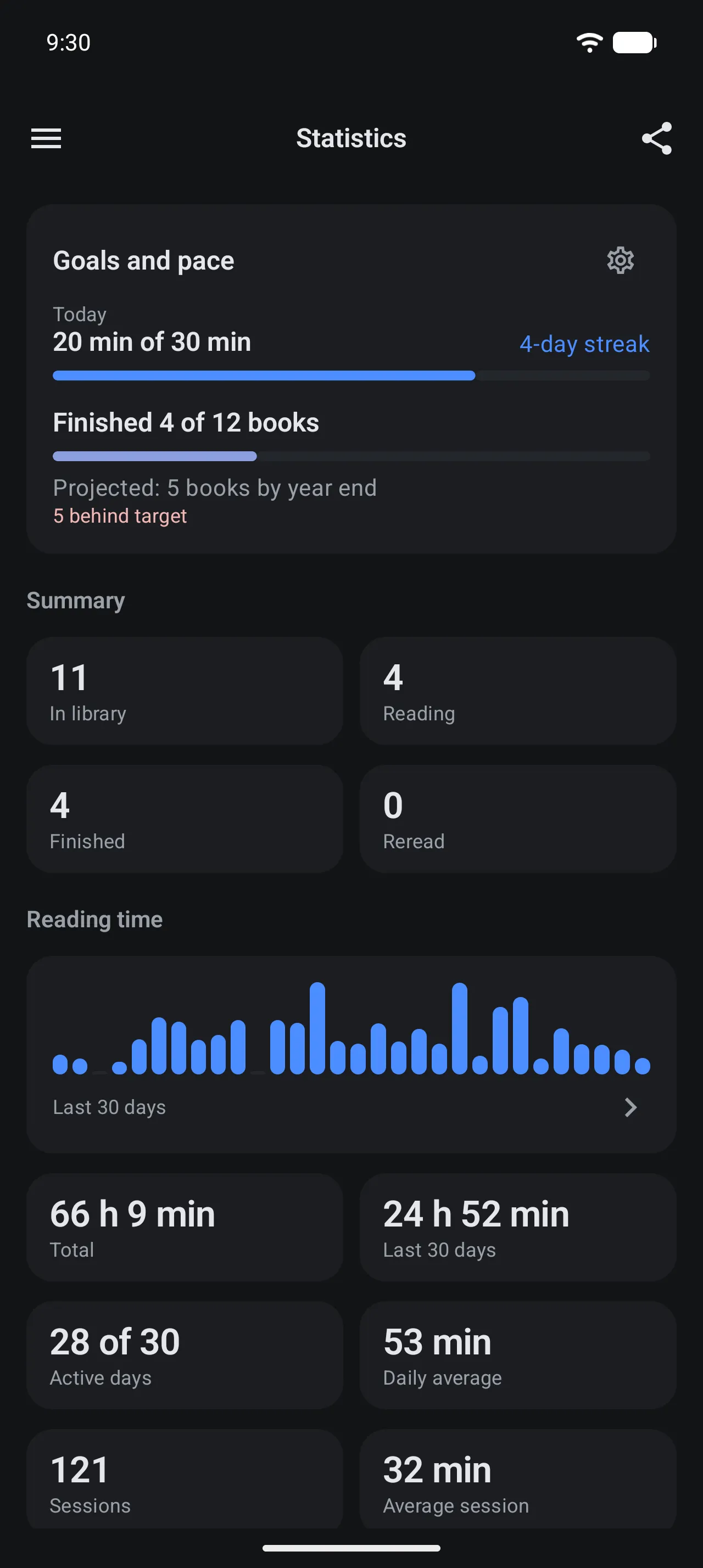
Reading time, number of sessions, average and longest session, speed in pages per hour.
Activity over 30 days
A chart by day with the total, the average and the maximum.
Year in review, ratings, genres
What you read this year, the average rating, “Top-rated books” and top genres.
Favorites
Your favorite author and “Rereads”: books you return to.
Daily and yearly goals
Minutes per day and books per year: ahead of or behind the plan, a day streak, a forecast for the end of the year. On Home — as rows or rings.
Reading recaps
A Story-format image card for a month or a year. “Shelf” and “Calendar” layouts, physical-book reading days based on start and finish dates, fields of your choice, a light or dark background; on the shelf, any book’s cover can become the background.
Sync
Booked has no server of its own: your data stays in your cloud.
Four storages
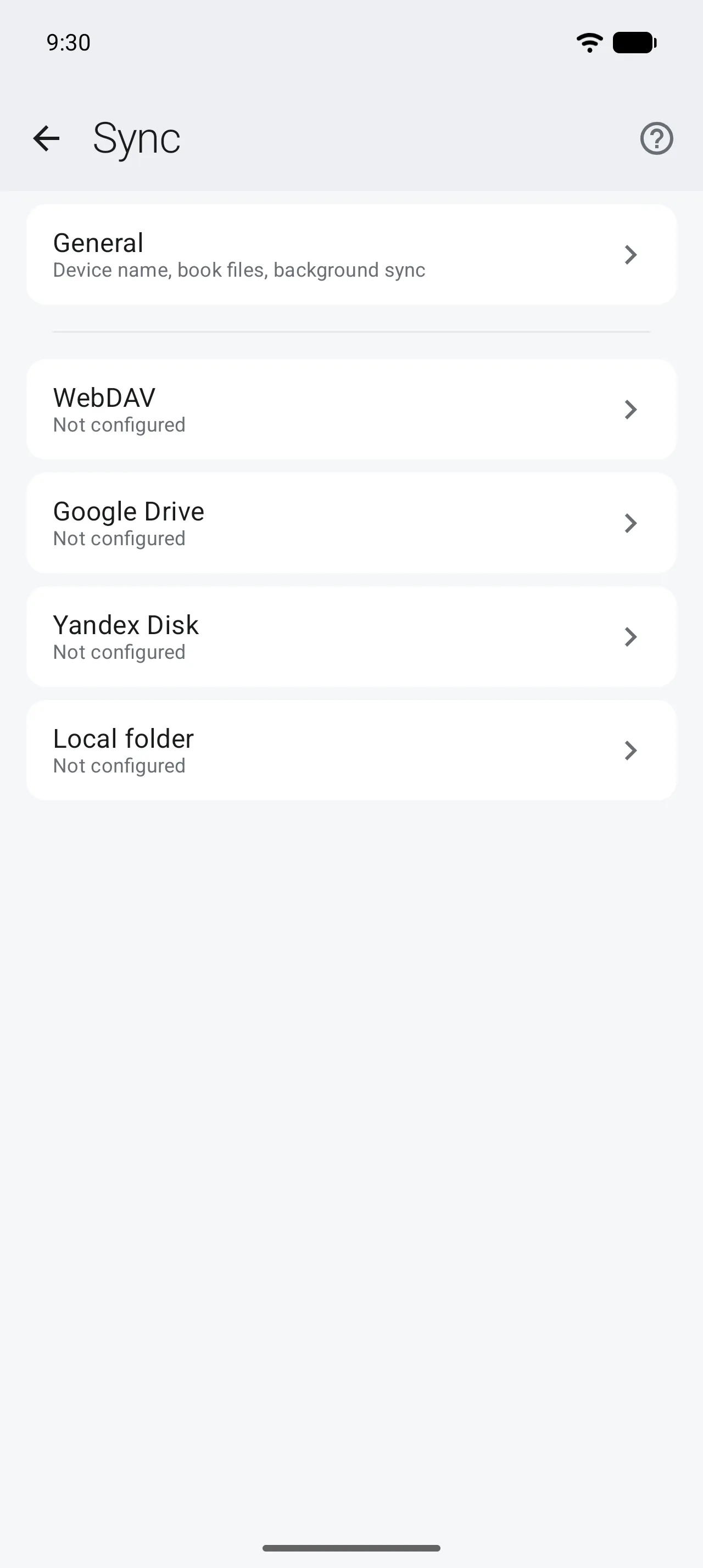
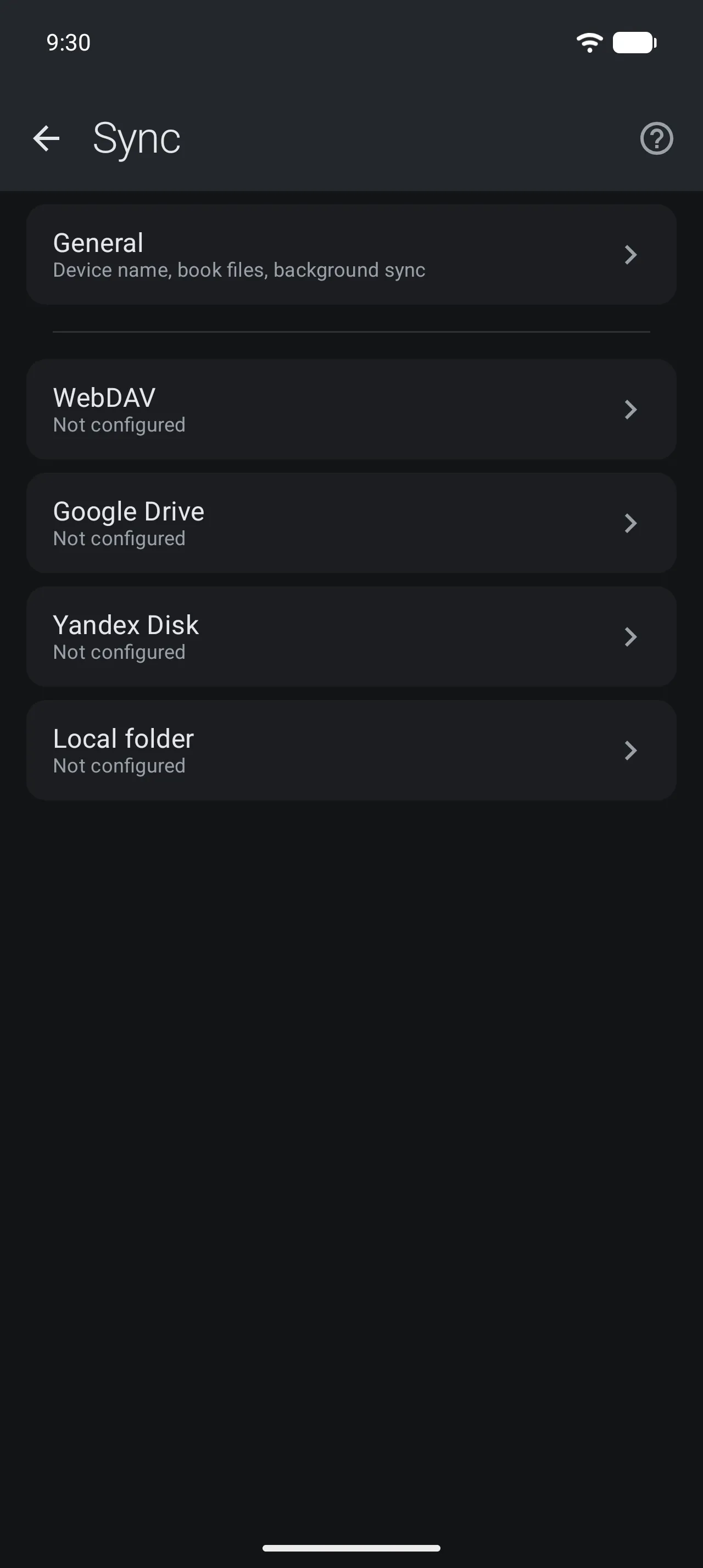
WebDAV, Google Drive, Yandex Disk and a local folder on the device. Yandex Disk works without Google services.
S3 · Experimental
Experimental sync, off by default; enabled separately on each device in Developer mode. Compatibility tested with MinIO over HTTP and HTTPS; AWS S3 compatibility has not yet been verified. Your S3-compatible storage with an explicit HTTP/HTTPS endpoint: bucket, region, prefix and access keys. HTTP sends data without encryption. For HTTPS, SSL certificate verification is on by default; it can be disabled for this connection with the risk of data interception. For HTTP, the switch is disabled and its choice is retained for HTTPS. There are no redirects or automatic switches to HTTP. A separate connection check tests reading, writing and deletion; book files and fonts are optional.
Several at once
Storages can be connected at the same time: data goes to all of them, and a failure of one does not block the others.
What is synced
Progress, statuses and ratings, bookmarks, quotes, pinned items, notes, reading sessions, deletions and, optionally, settings.
Font sync
Added fonts and their removal move between devices with a separate switch: Menu → Sync → General → Font sync.
Book files
A book added on one device appears on the others. Transfer can be limited to Wi-Fi.
Background sync
On a schedule: every hour, 2, 6 or 12 hours, or daily. Manually — with the icon in the header.
Icons on Home
The sync and Calibre icons can be hidden independently in the settings of each connection.
Devices
Each device has its own name; devices you no longer need can be “Forgotten”.
Conflicts without rollbacks
The newer entry wins; progress never rolls back, and “Finished” does not turn back into “Reading”.
Your position catches up with you
If your reading place is newer on another device, Booked offers to go to it.
Signing out revokes access
Google Drive: the app sees only the files it created; “Sign out” revokes access on Google’s side.
Appearance and E-ink
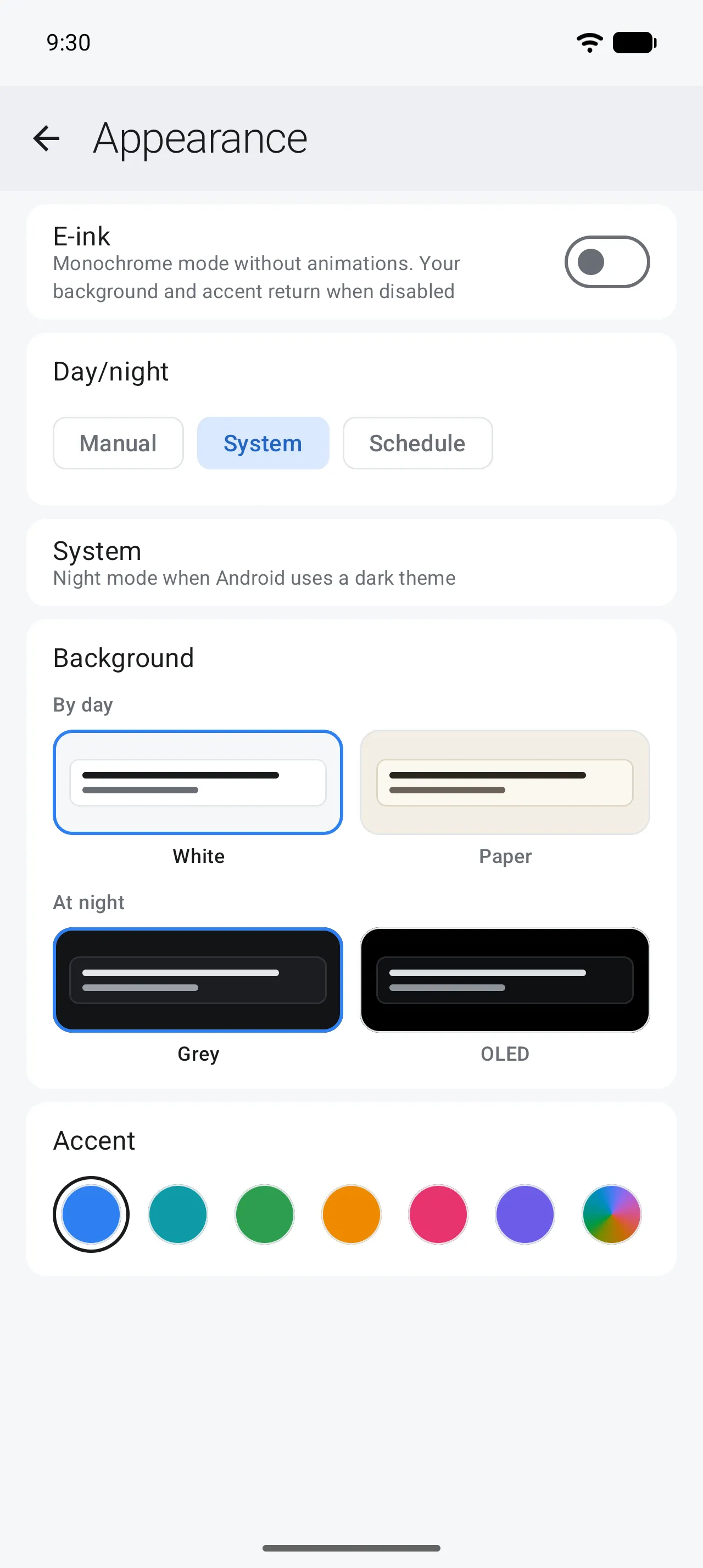
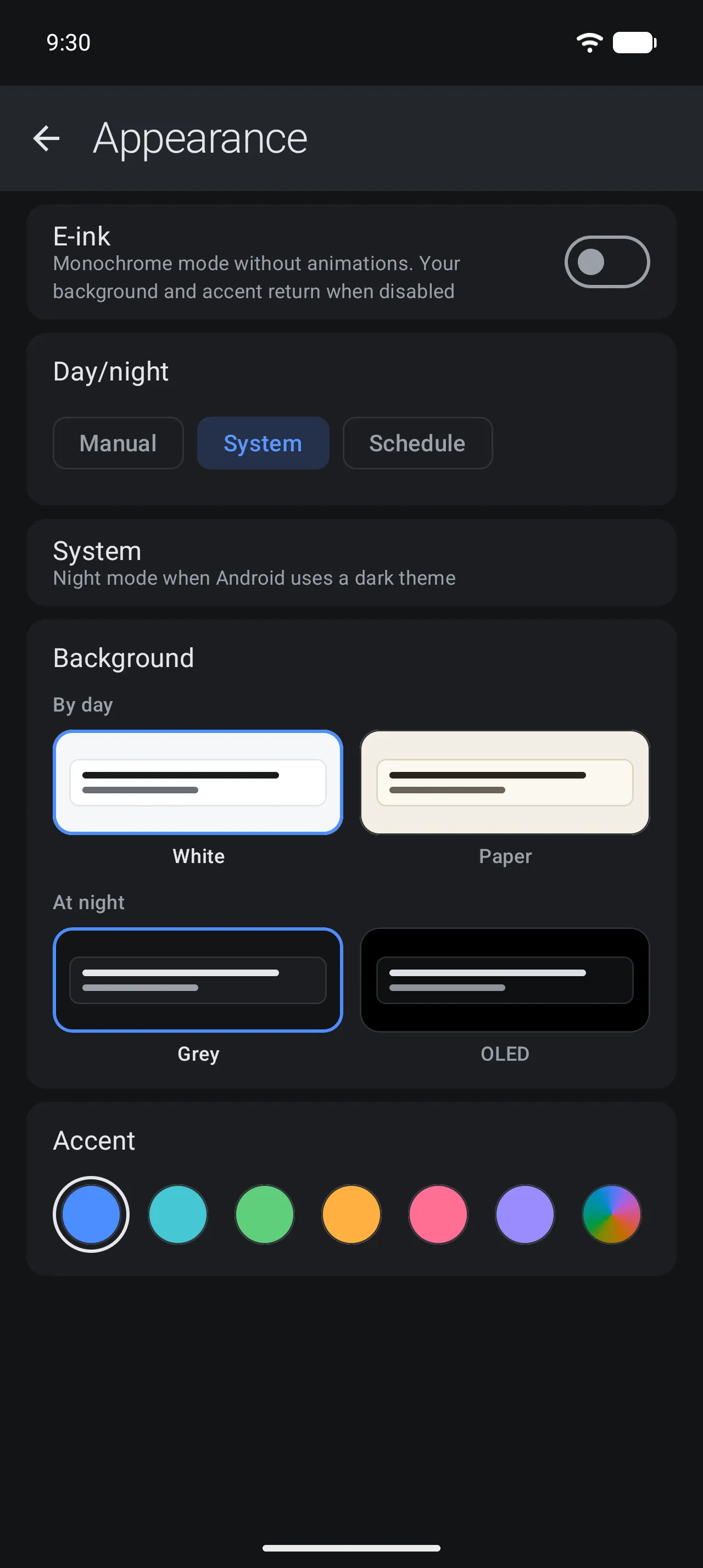
Day, night, system, schedule
The theme switches manually, with the system dark theme, or by time.
Background tone
“White” and “Paper” by day, “Grey” and “OLED” by night.
Accent color
Six colors and your own: pick a hue with a slider or enter an exact value. The previously chosen “Garnet” and “Graphite” are kept.
E-ink mode
A monochrome mode without animation: color, shadows and motion are off, and elements are separated by borders.
Quotes as patterns
On an E-ink screen, quote colors are told apart by patterns.
Devices
Phone
The app rotates; the library and the reader work in any orientation.
Tablet and foldable
Settings and sync are in two columns; the book card does not stretch.
Hinge
The two-page spread on a foldable accounts for the fold.
Laptop mode
Text above the fold, controls below it.
Readers with E-ink screens
E-ink mode removes animation and color; sync progress is shown in steps, “step N of M”.
Data and privacy
No account, analytics or ads
There is no developer server, no trackers and no advertising SDKs.
What goes over the network
The “Data and privacy” screen in the app lists what is stored on the device and what goes over the network, and when.
Backup
Export library data, progress, bookmarks, quotes, pinned items, notes and reading sessions to JSON and restore from it. Book files and covers are transferred separately.
Crash reports with consent
After a crash you can send a report by email to the developer: the email is visible before sending, and nothing goes out automatically. Turn it off with a checkbox or a switch.
Licenses
A list of libraries, fonts and dictionary texts — Settings → About → Licenses.