Booked appearance has two independent settings: background tone and accent color. The website works the same way; try the appearance switch at the top of the page.
Day and night
Settings → Appearance → Day/night:
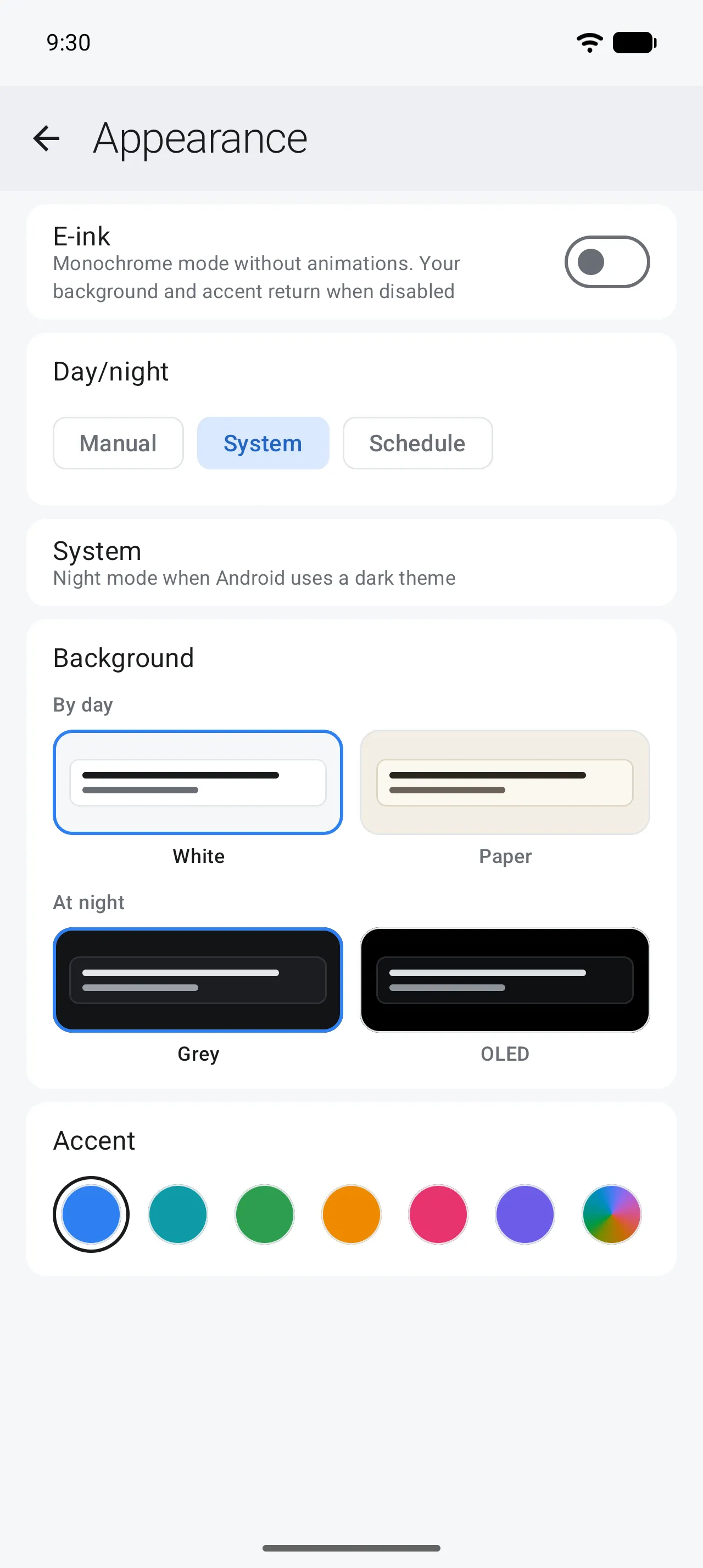
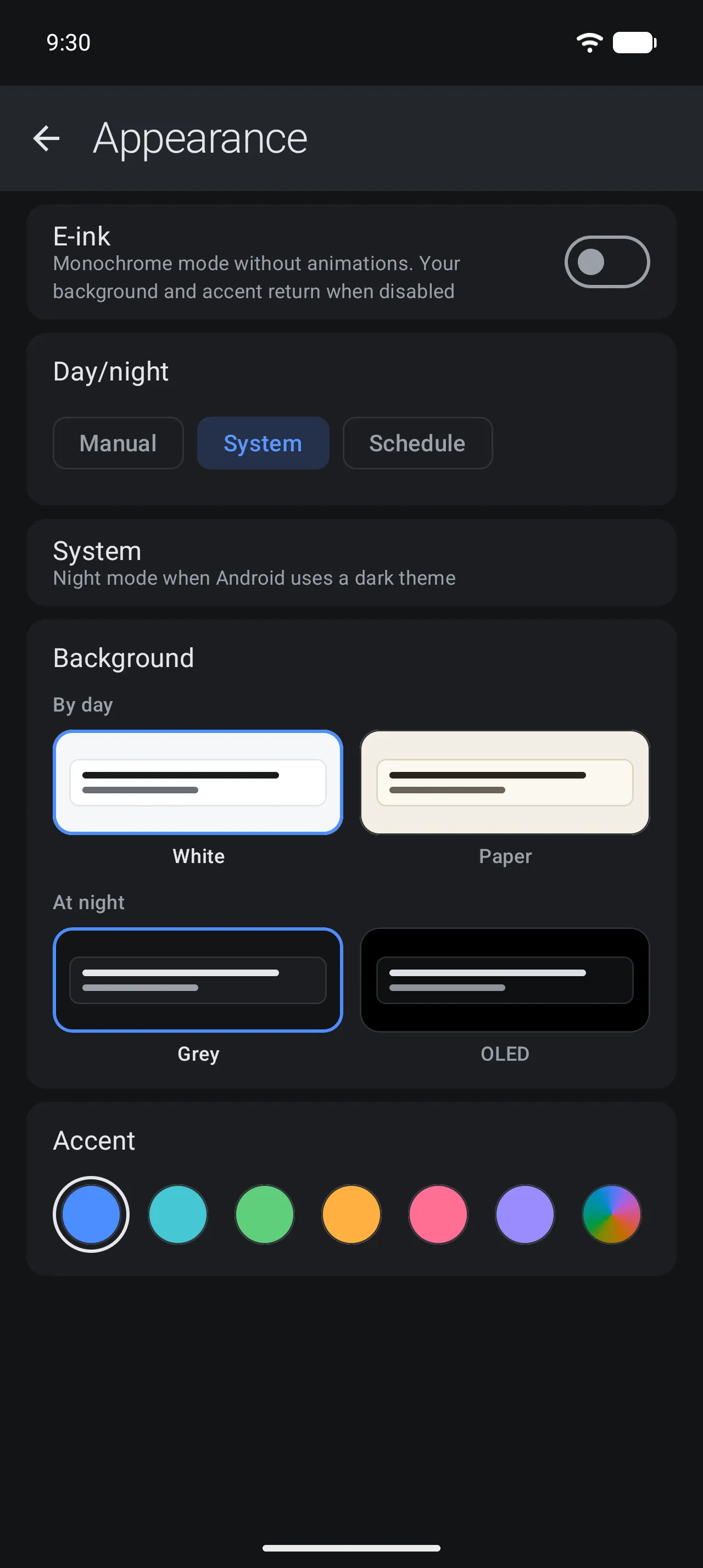
- “Manual”: choose “Day” or “Night”. The reader menu has the same “Day” or “Night” button.
- “System”: night mode follows the Android dark theme.
- “Schedule”: set times in “Night from” and “Day from”.
Background
Set a separate tone for day and night under “Background”:
- “Day” — “White” or “Paper”;
- “Night” — “Grey” or “OLED”.
Accent
“Accent” is a row of color circles: “Sea”, “Lagoon”, “Forest”, “Sunset”, “Rose”, “Iris” and “Custom”. For a custom color, use the hue slider or open “Exact color…” to enter a precise value. Previously selected “Garnet” and “Graphite” continue to work and remain in the row while selected.
E-ink mode
The E-ink switch is at the beginning of Settings → Appearance. This monochrome mode removes animations, color, shadows and movement, and separates elements with borders. Highlight colors are distinguished by patterns on an E-ink screen. Your background and accent return when you disable the mode.
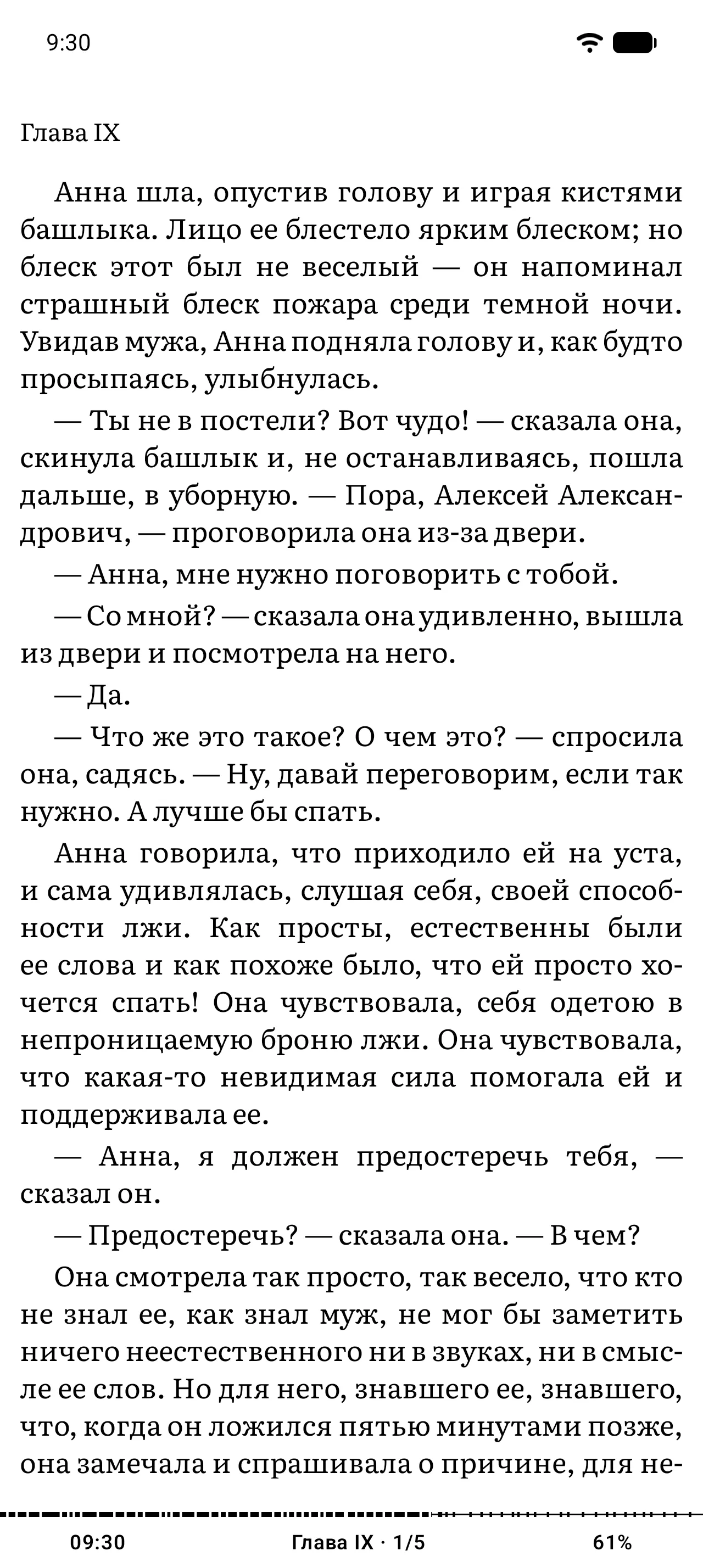
E-ink mode, brightness, tap zones and font size are stored separately on each device, so a reader and phone can look different while sharing the same sync data.
Library layout
Settings → Library → Layout: “Covers” or “List”. “Open current book” in the same section opens your current book automatically on launch.
Interface language
Language is separate from appearance: Settings → System → Interface language. Choose “System default”, “Русский” or “English”. Unsupported system languages fall back to English. Android 13 and later also offers app language selection in Android settings.
Large Android text
When Android uses a large font, interface labels wrap instead of being cut off.