Reading aloud uses the Android system text-to-speech engine. Booked does not fetch anything from the network itself: your selected Android speech engine reads the text. If that engine uses the internet, its developer’s privacy policy applies to the text.
Start reading aloud
- Open the reader menu and tap “Read aloud”. By default, this button is in “Outside menu”: swipe up on the panel to expand it, then again to open the editor. Restore “Read aloud” and tap “Done”.
- Reading aloud starts from your current position.
- Controls include “Pause”, “Resume reading aloud”, “Previous paragraph”, “Next paragraph” and “Stop reading aloud”.
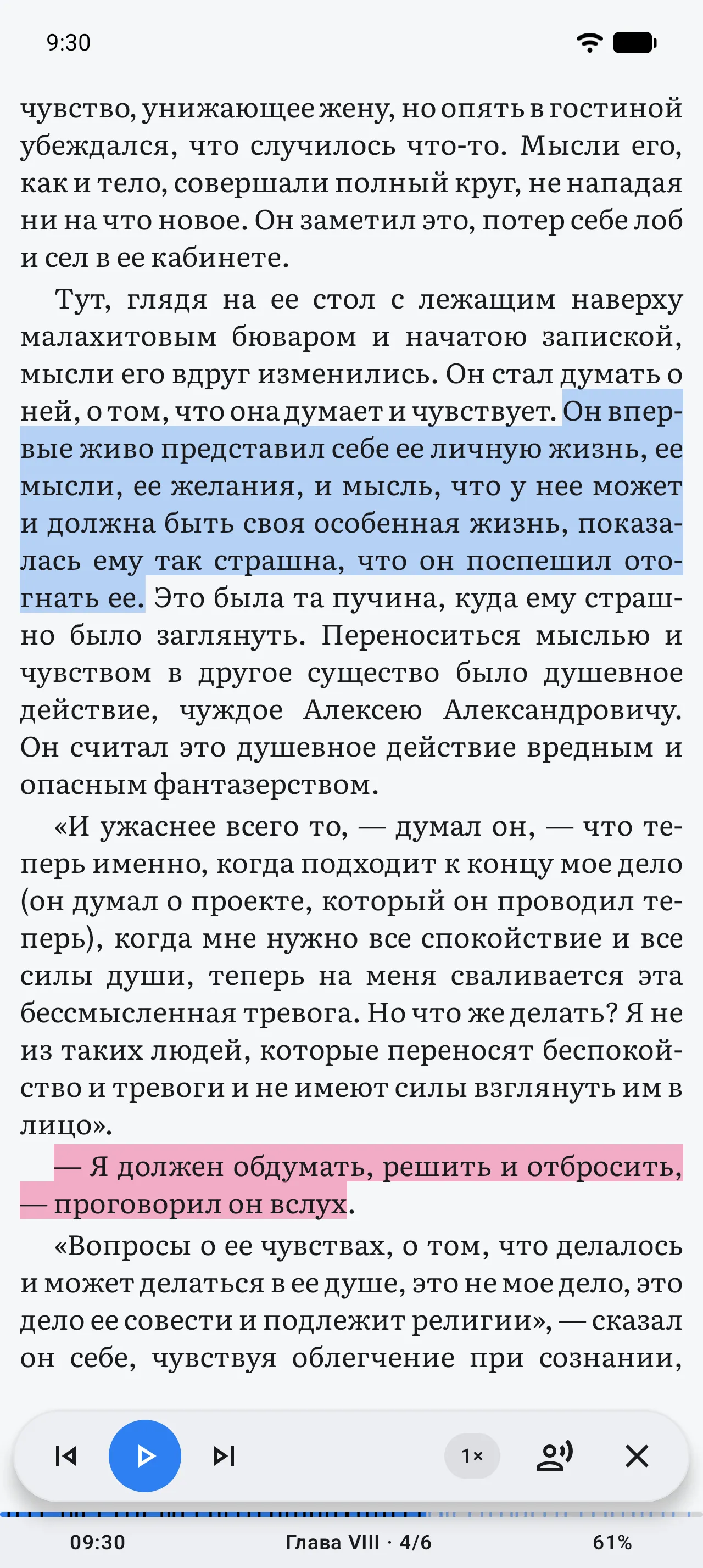
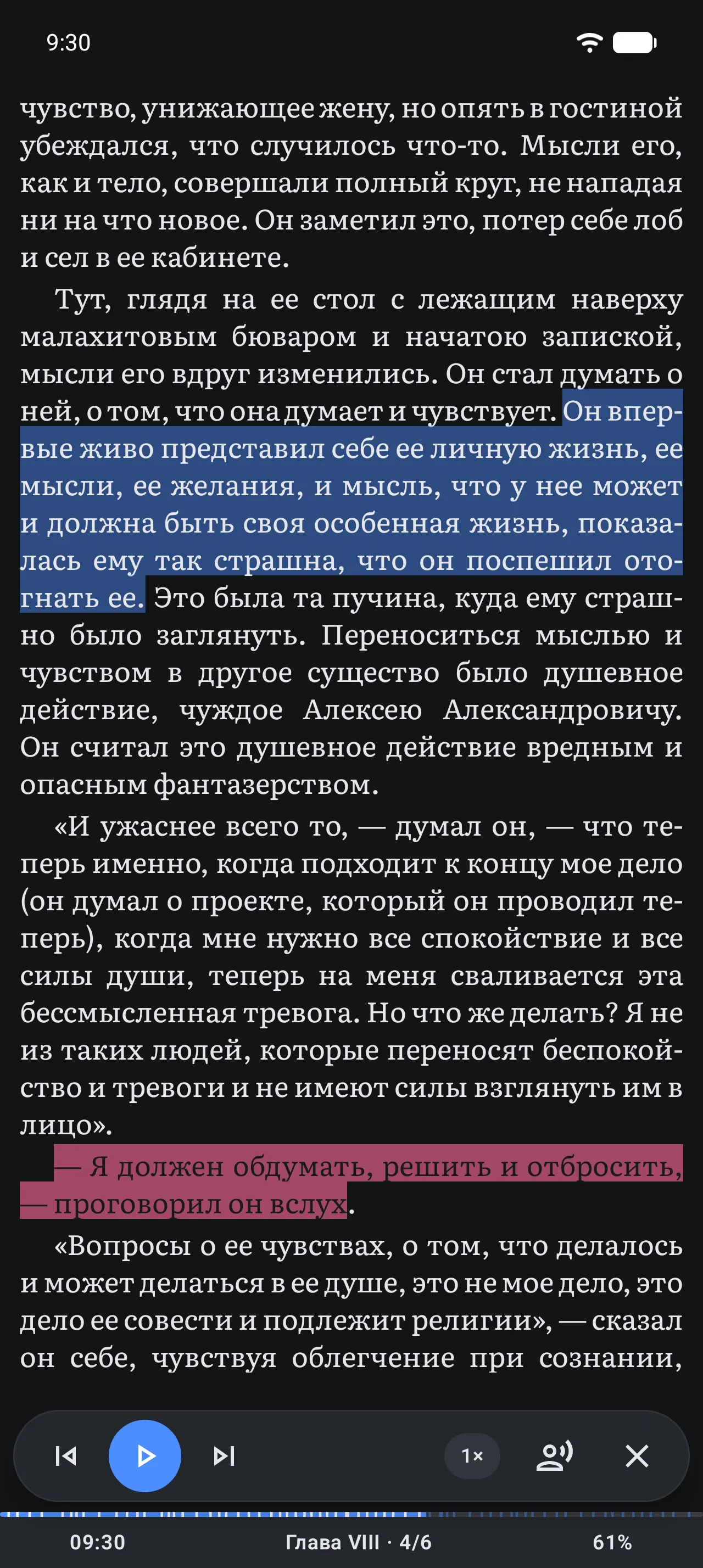
Reading aloud continues in the background. You can control it from the notification when the app is minimized or the screen is off. Notification permission is used for this. If wired or Bluetooth headphones disconnect, reading aloud pauses instead of switching to the speaker; resume from the same place.
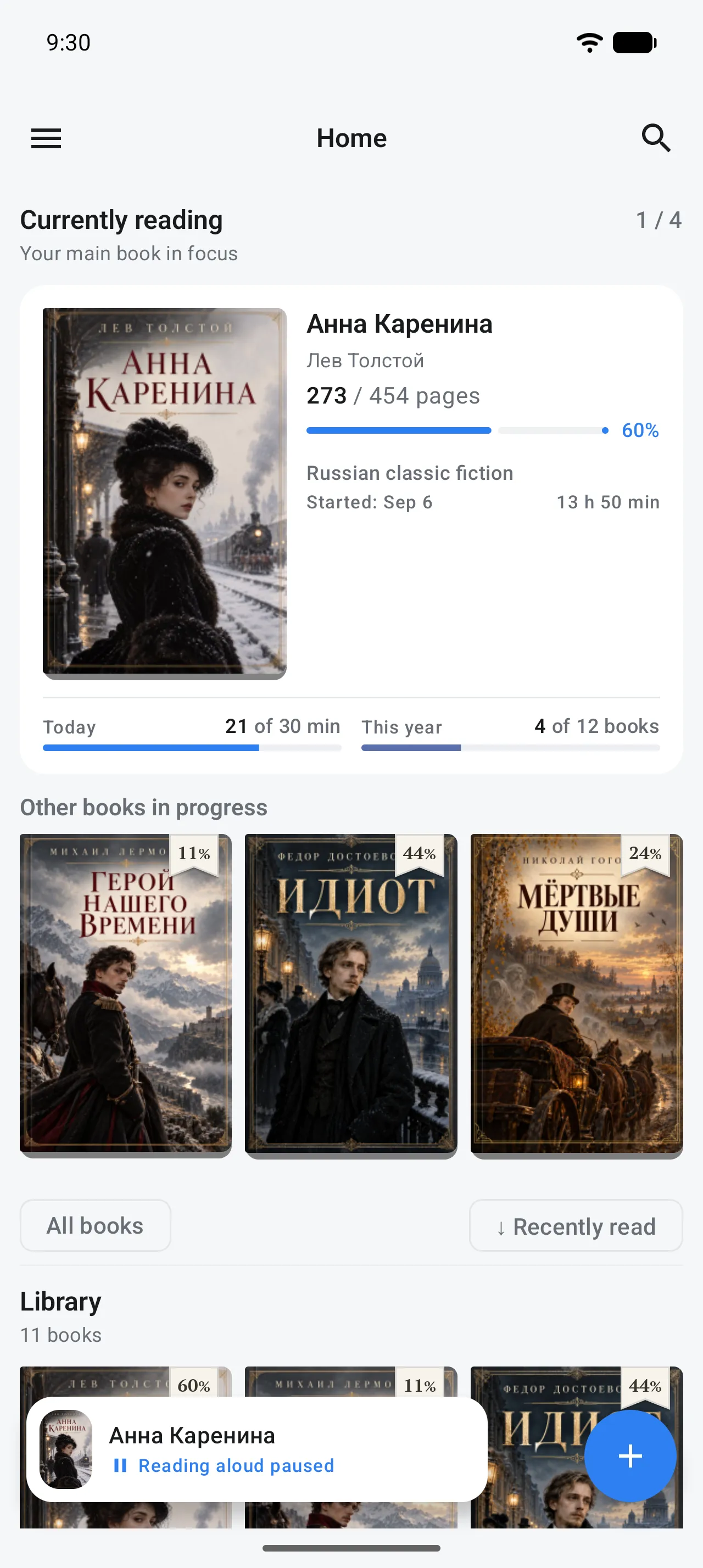
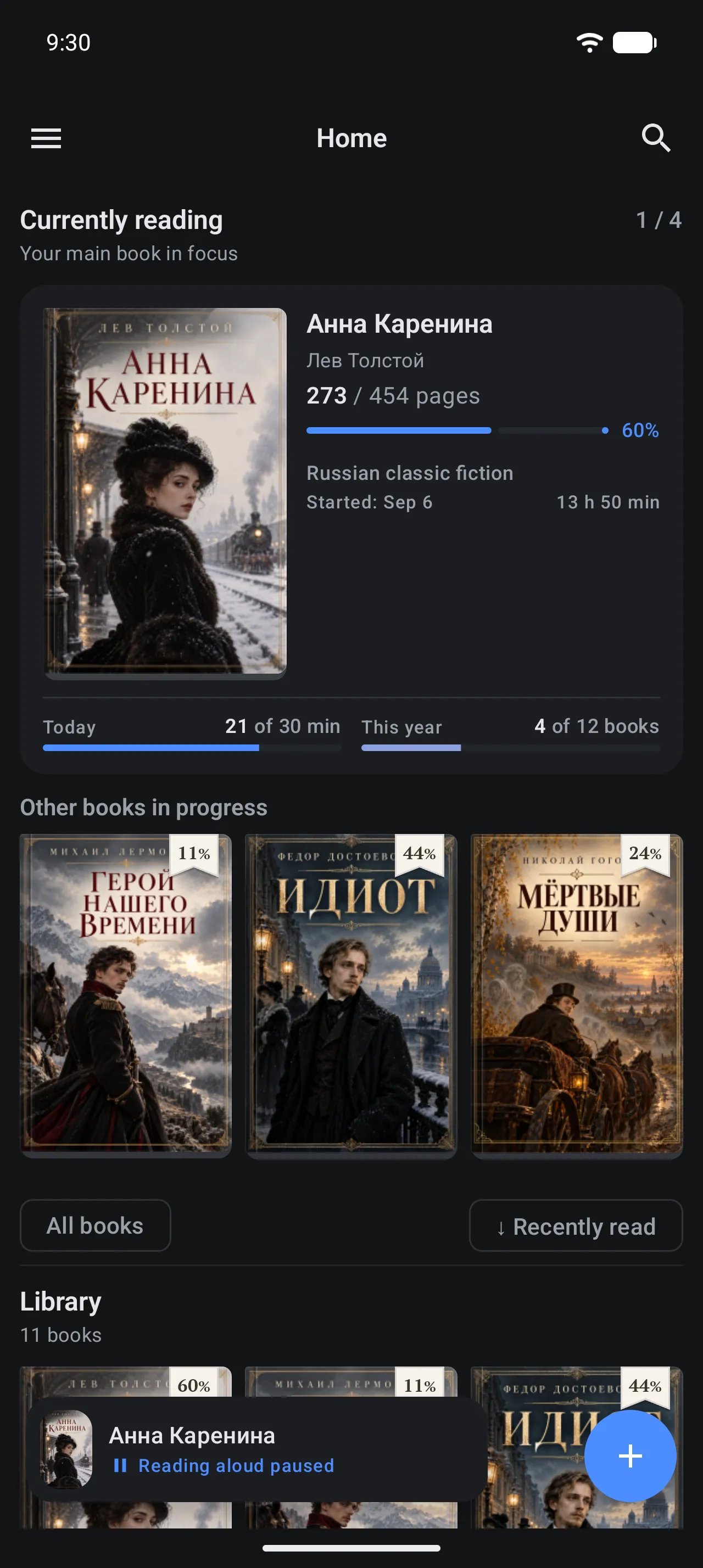
Home shows an indicator with the book cover, title and pause state. Tap it to return to the book being read aloud. Returning from the notification preserves the pause state, speed and selected voice.
Following the text
The spoken passage is highlighted and kept visible. In paged mode, Booked turns pages with the speech; in scroll mode, the screen stays still until the text reaches the bottom, then follows it. A phrase crossing a page or spread boundary continues without a break. MultiTTS is also supported.
Choose a voice
Tap “Choose voice” to open “Reading voice”. Voices show their quality, from “Minimal quality” to “Very high quality”, and gender. If the list is empty, install a voice in Android text-to-speech settings; Booked shows “No voices installed” to explain this.
Notes
- Reading aloud and auto scroll do not distort your reading-speed statistics.
- Time and position are preserved even if you close the book during reading aloud.