Bookmarks
“Bookmark” in the reader menu bookmarks your current page. Delete a bookmark from the “Bookmarks” tab in the “Chapters” panel.
Quotes
- Hold your finger on the text and extend the selection.
- Tap “Quote” and choose a highlight color: “Yellow”, “Green”, “Blue”, “Pink” or “Purple”.
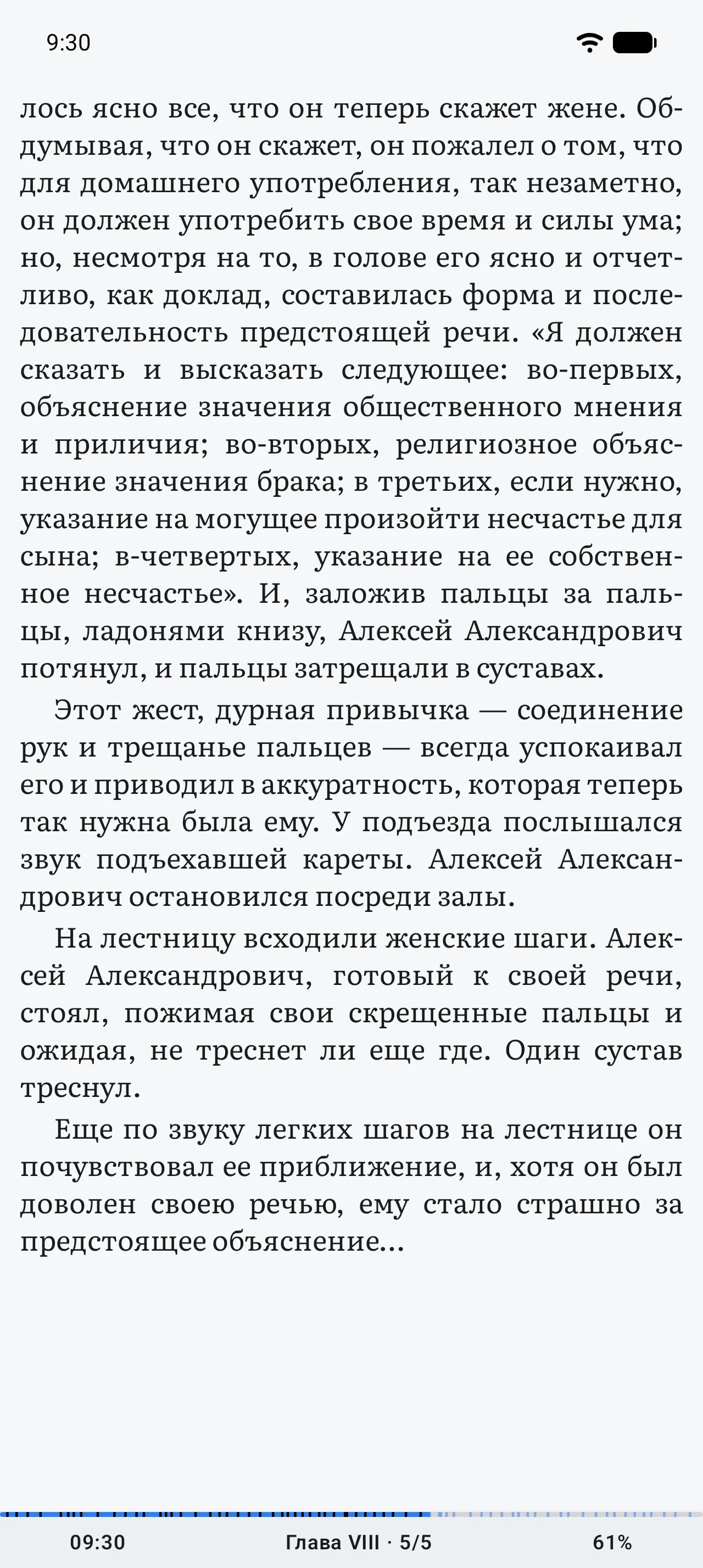
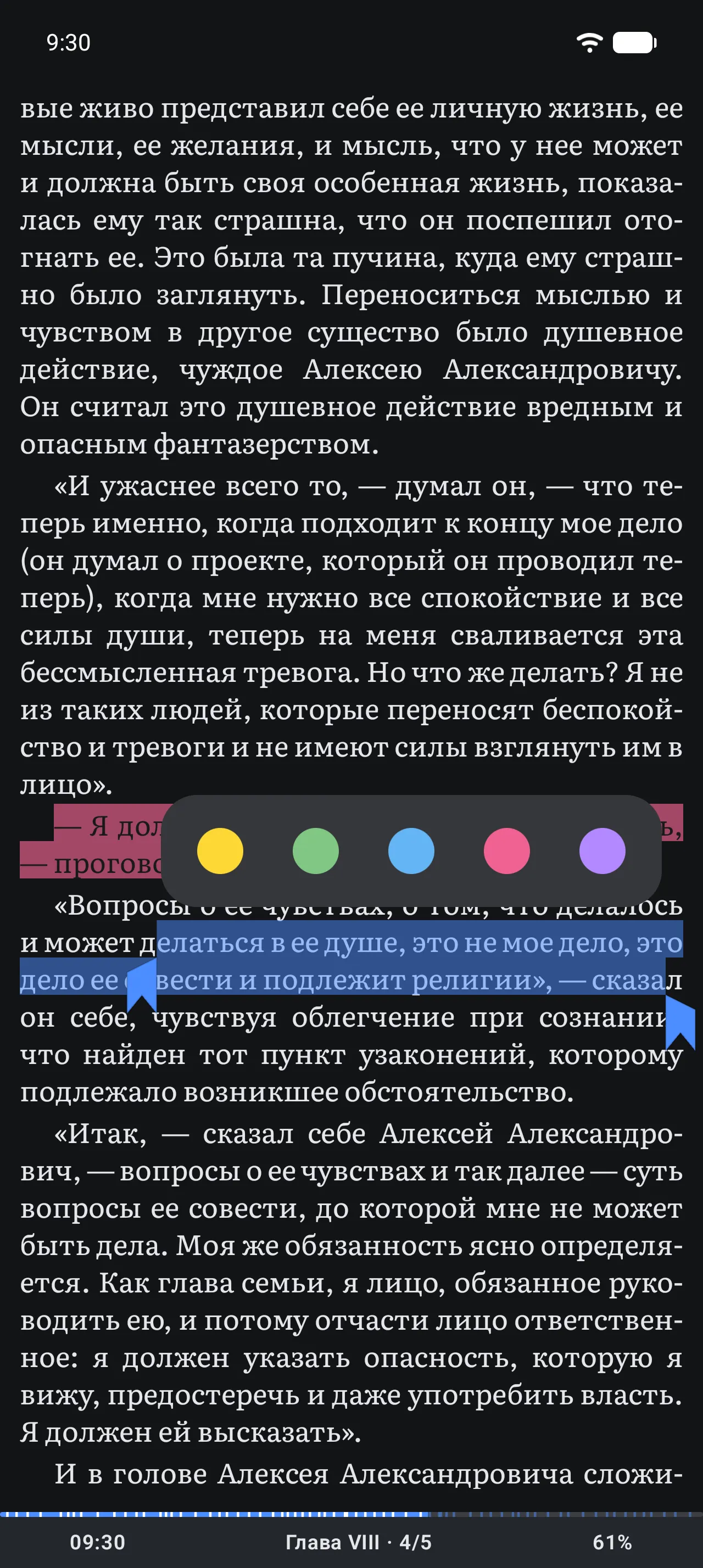
Quotes are highlighted in the text. On E-ink screens, colors are distinguished by patterns. All quotes in a book appear in the “Quotes” tab in “Chapters”.
Quote cards
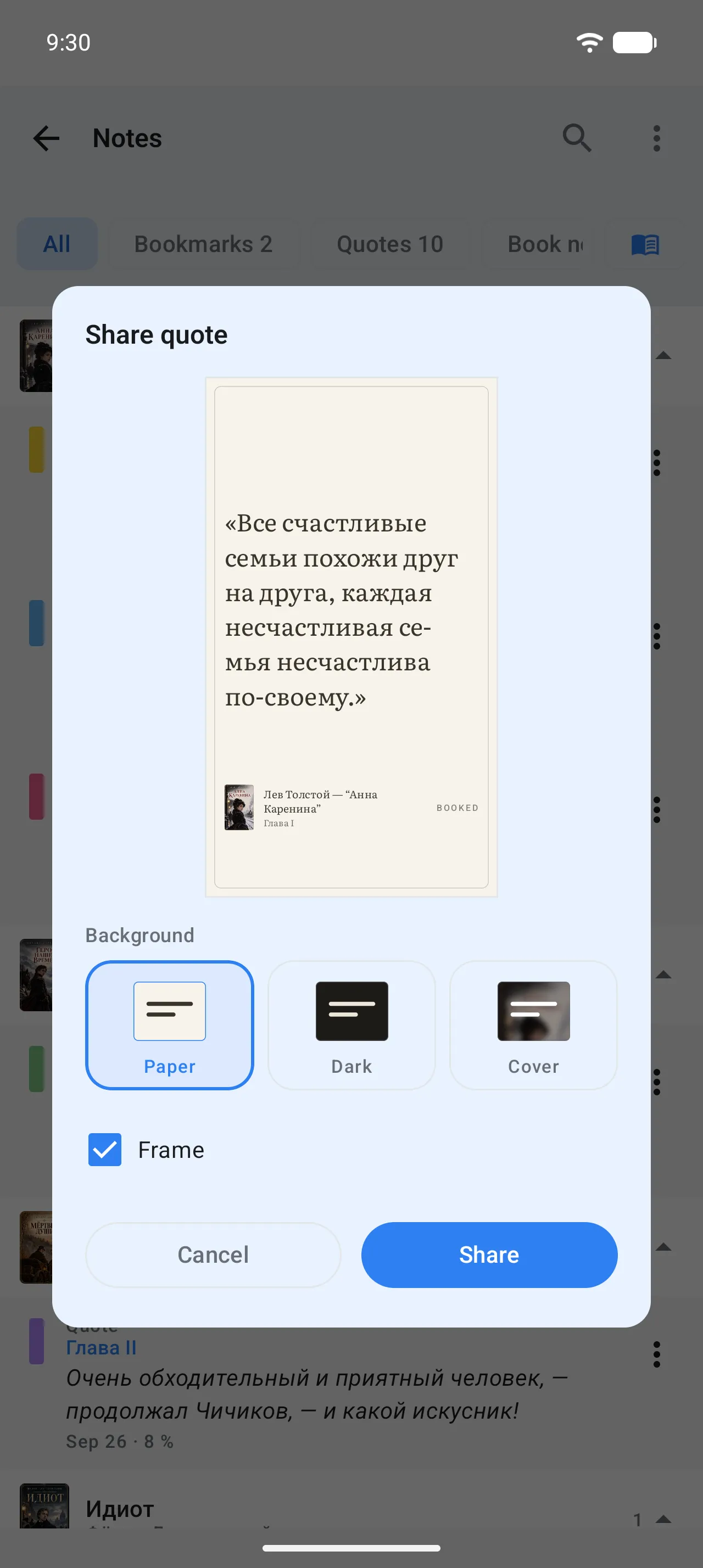
You can share a quote as an image. Open Menu → Notes, tap “⋮” beside a quote and choose “Share card” (next to “Share text”). In the reader, open “Chapters” → “Quotes” → the quote share icon → “Share card”.
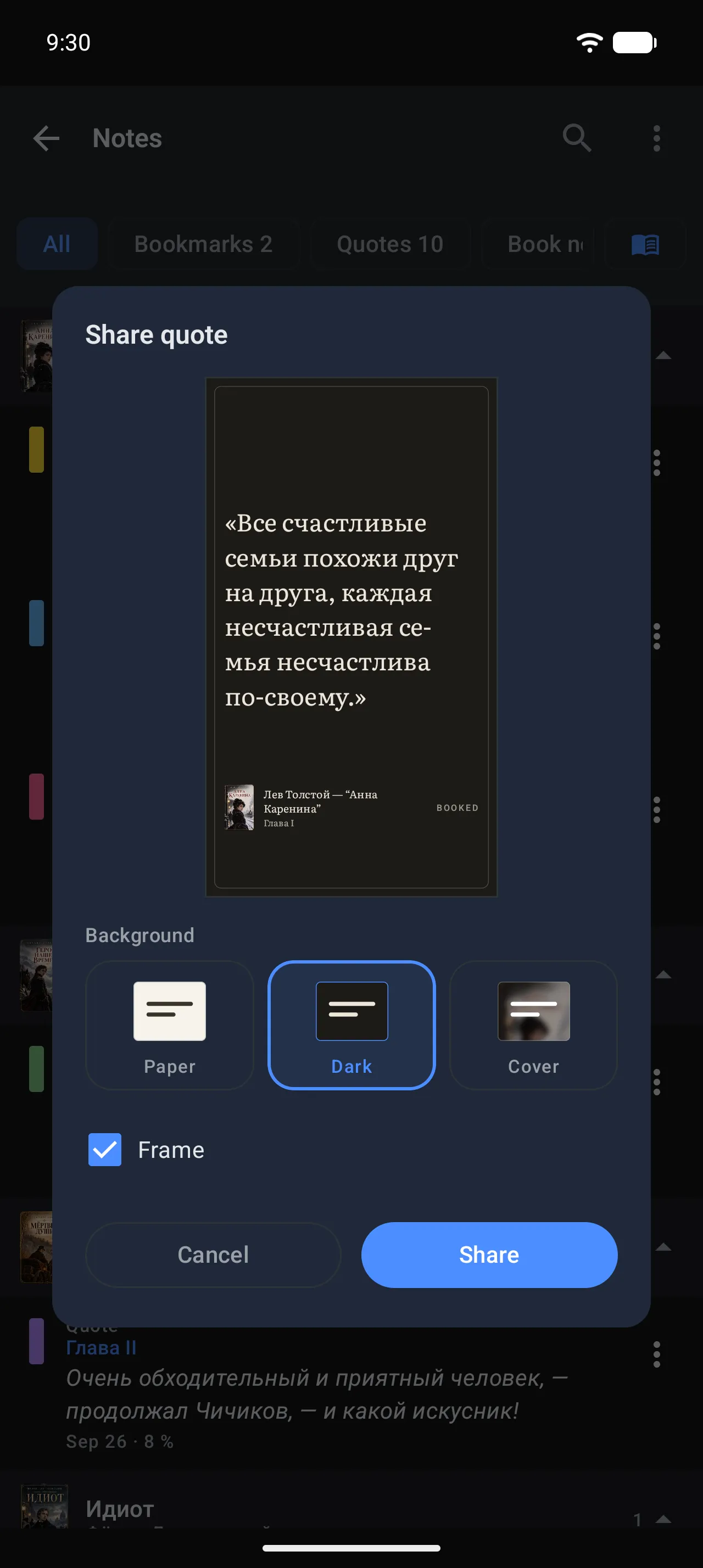
The card is always vertical, in Story format (9:16). In “Share quote”, choose “Background” (“Paper”, “Dark” or “Cover”), then tap “Share”. The card uses your reader font with wrapping, and shows the author, book title and chapter below. Long quotes use a smaller font; if they still do not fit, they are shortened with an ellipsis and “Quote shortened” appears below the preview.
“Cover” uses colors from the book cover to coordinate the background, text and attribution. “Frame” adds a thin inner border. The frame choice is saved and transferred with synced settings.
Book cards
You can share a book as an image too. Long-press its cover in the library, open “Book menu” in the book details and choose “Share card”.
The card is vertical, in Story format. It shows the cover, title and author, plus fields you can turn on and off one by one: “Genre”, “Series”, “Length” (print pages), “About the book” (the description) and “Wordmark”. Reading data — rating, dates, time — is not included. The cover and font adapt to the description length: a short one is shown large, a long one switches the card to a compact header with the cover on the left. If the description still does not fit, it is shortened and a hint appears below the preview.
“Edit description” opens the description text for this card only: shorten it, delete it or write your own. “Reset” restores the original. The book and sync are not changed.
Book notes
A personal note belongs to the whole book: thoughts before, during and after reading.
- Open it using the note button in book details or “Notes” in the reader. If that button is hidden, swipe up twice on the button panel, restore “Notes” from “Outside menu” and tap “Done”.
- Text saves automatically, showing “Saving…” and “Saved”. If saving fails, the text stays in the editor.
- Notes sync between devices.
- Time in the editor does not count as reading; auto scroll pauses while editing.
- “Note actions” offers “Copy text”, “Share text” and “Delete note”. Deleting a note preserves quotes and bookmarks.
Conflicting versions
When a note was edited on two devices, Booked does not choose for you. “Another version of this note exists” appears. Tap “Compare” to open “Note versions”, then choose “Keep this version” or “Merge in editor”.
Pinned items
Pinning keeps an image or text passage close at hand while reading, such as a diagram, map or list of characters.
- Text: select a passage and tap the pin icon beside “Copy”, “Quote” and “Dictionary”.
- Image: tap an illustration (“View image”) to open it full-screen with zoom controls. “Pin” in the viewer header pins it.
A pinned item stays available in a banner above the status bar. You can collapse the banner to an icon in the status bar and tap the icon to expand it again. Tap “Open” to view it; the viewer offers “Unpin” and “Go to location”. Find all pinned items in the “Pinned items” tab of “Chapters”, or through “Pinned items” in the reader menu.
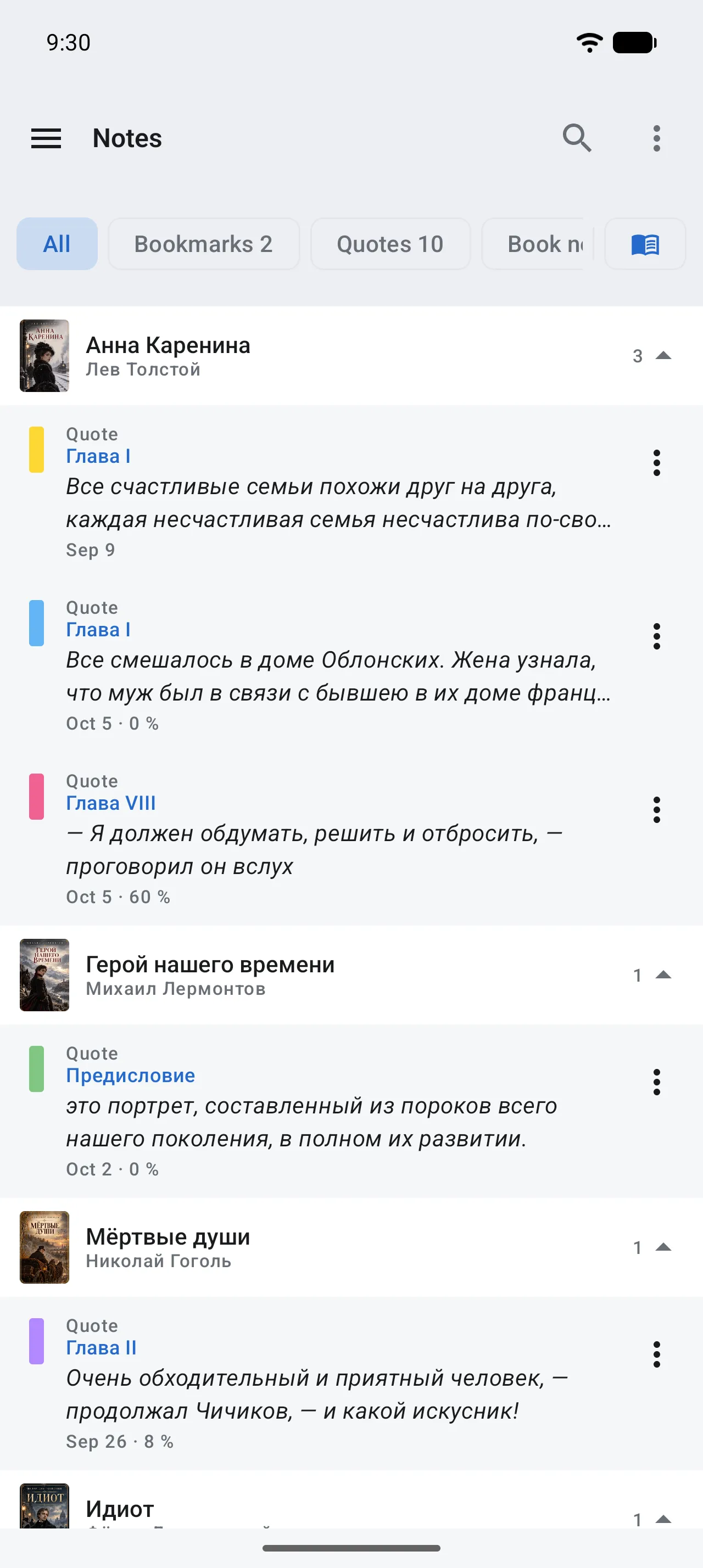
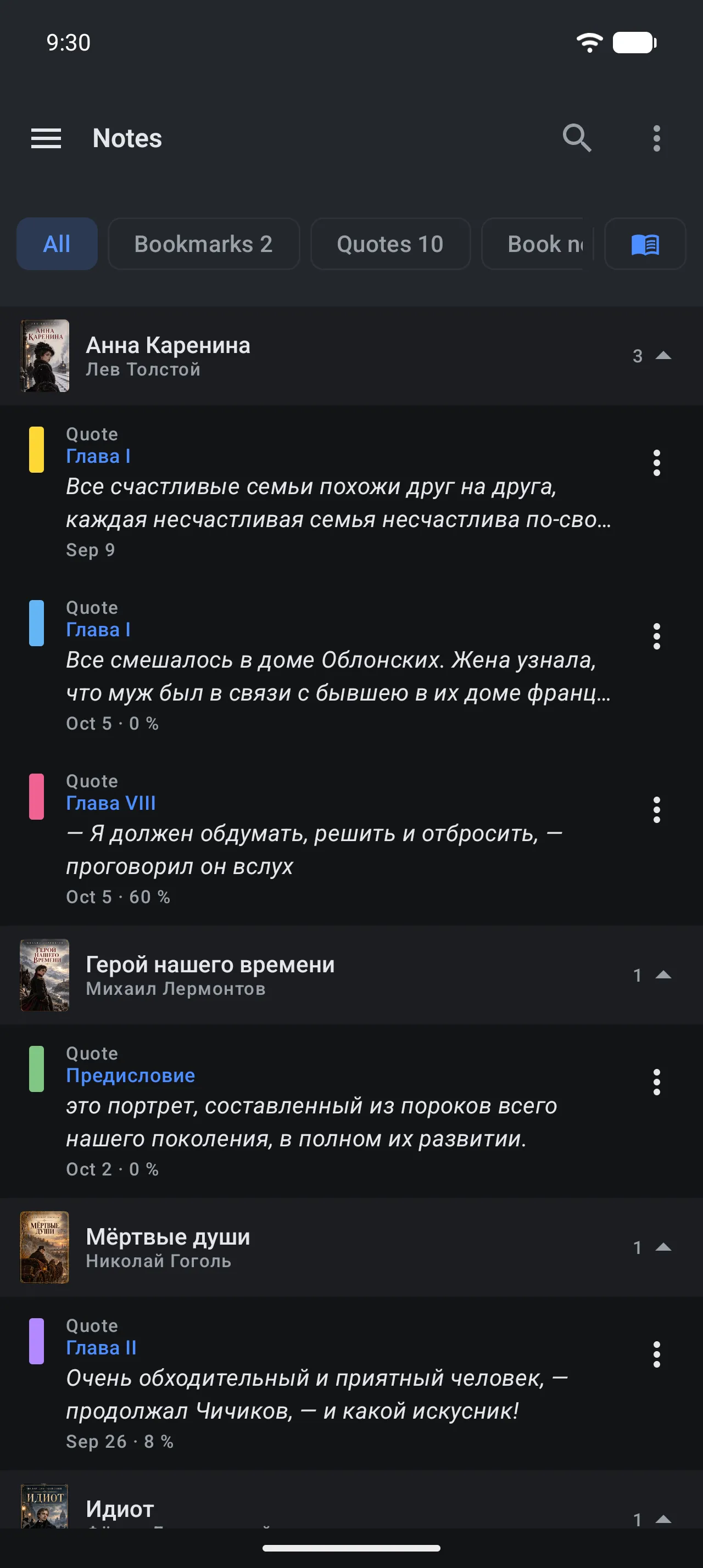
All notes
Menu → Notes gathers entries from every book:
- “All”, “Bookmarks”, “Quotes” and “Book notes” tabs;
- search across entry text, chapter titles and book titles;
- “By book” and “Feed” grouping, by book or modification date;
- entry actions: “Open in book”, “Copy text”, “Share” and “Delete entry”.
Export
- All entries or a selection: in Notes, choose “Export” → “Export all notes…” or “Export current selection…”. The result is a Markdown file.
- One book: in the reader bookmarks and quotes panel, choose “Export notes”, then “Share…” or “Save to file…”.
The file is named “Book title — notes.md” and works in any note editor. Entries are grouped under “Quotes” and “Bookmarks”.