Booked tracks reading time in sessions: time when the book is open and you are reading. Editing a note, reading aloud and auto scroll do not distort your pace.
History
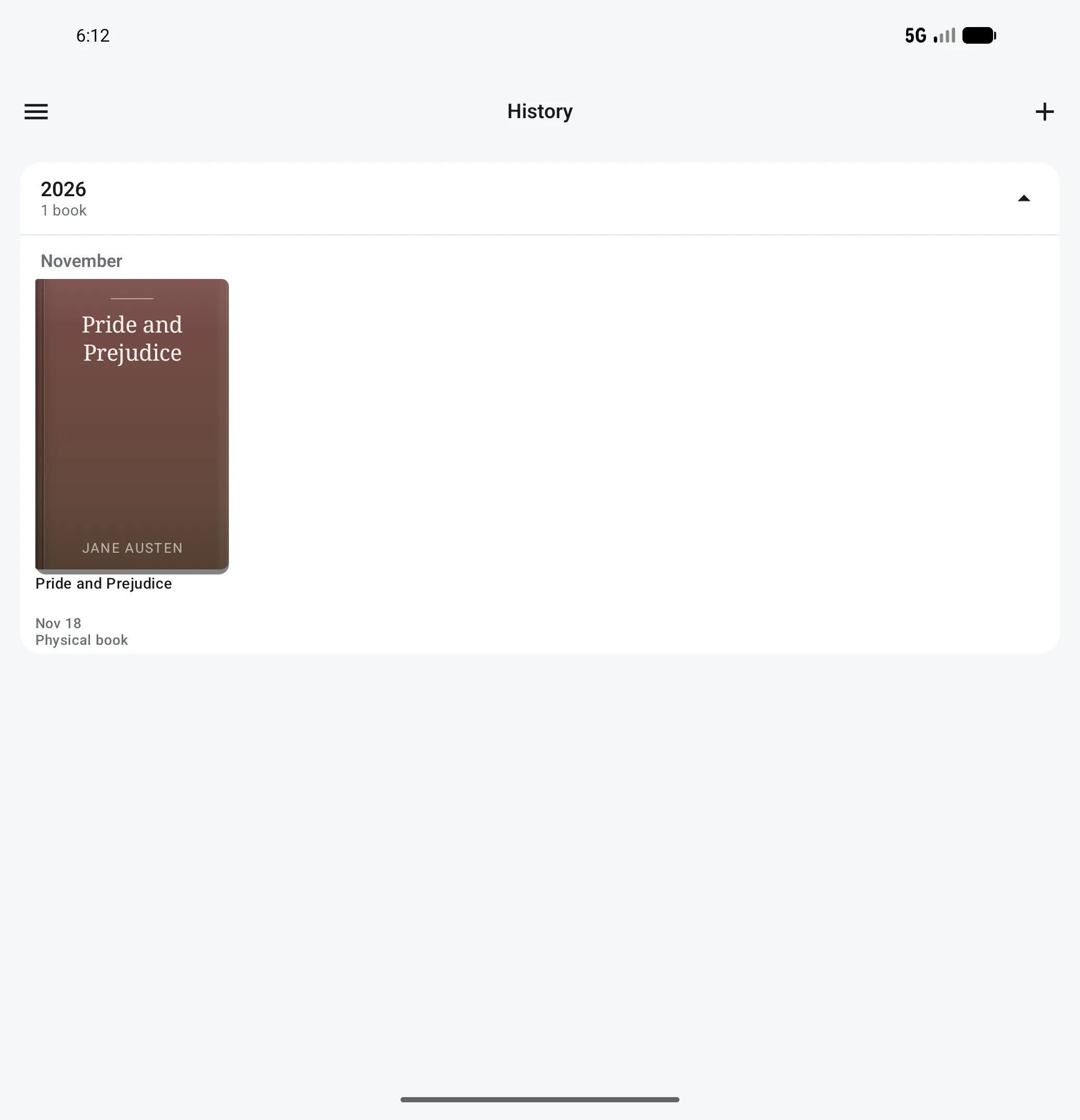
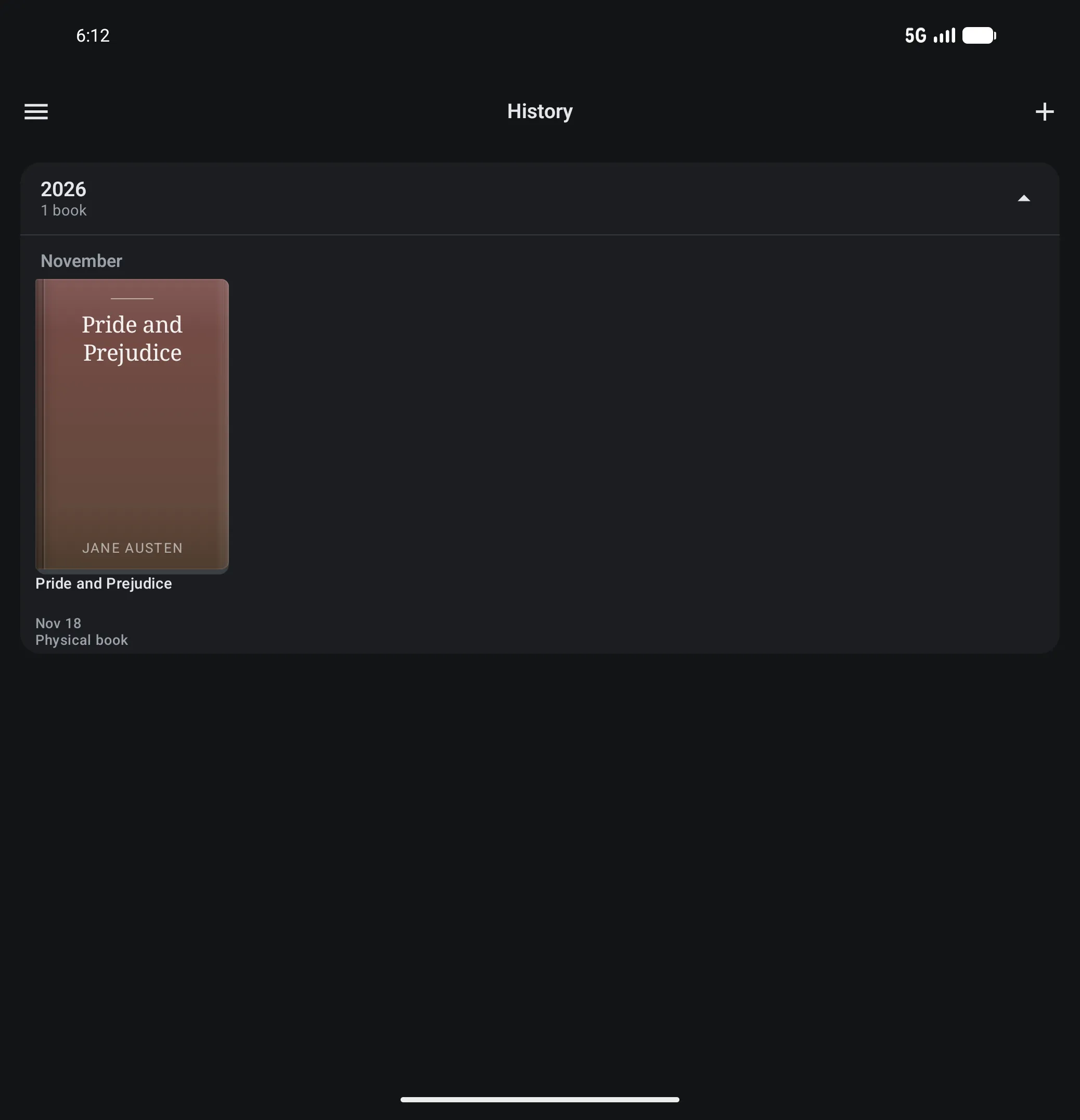
“History” shows finished books with covers, grouped by year and month. Years can be collapsed or expanded. Books without a finish date appear under “No date”. Change the date in the book details using “Change finish date”.
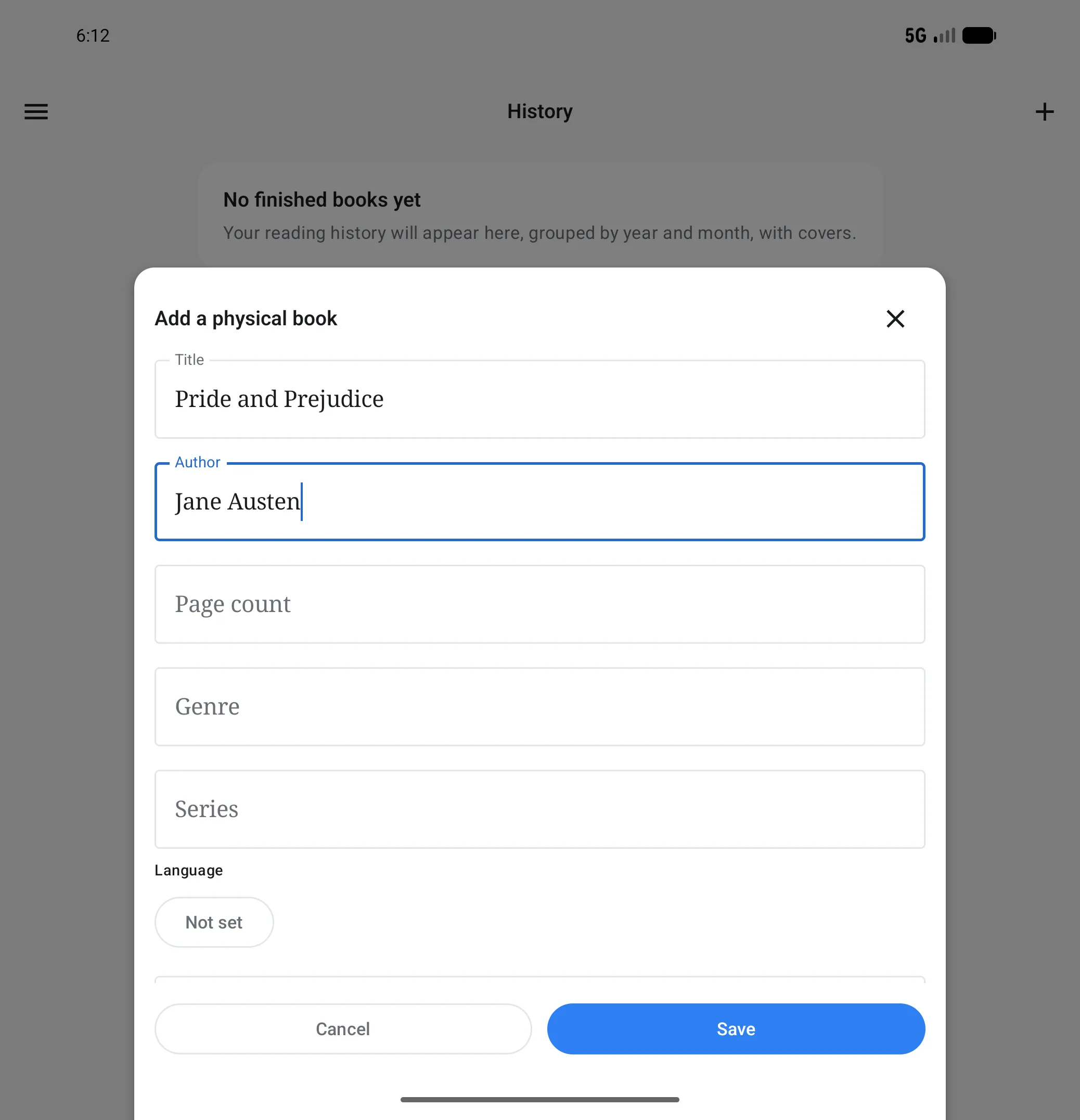
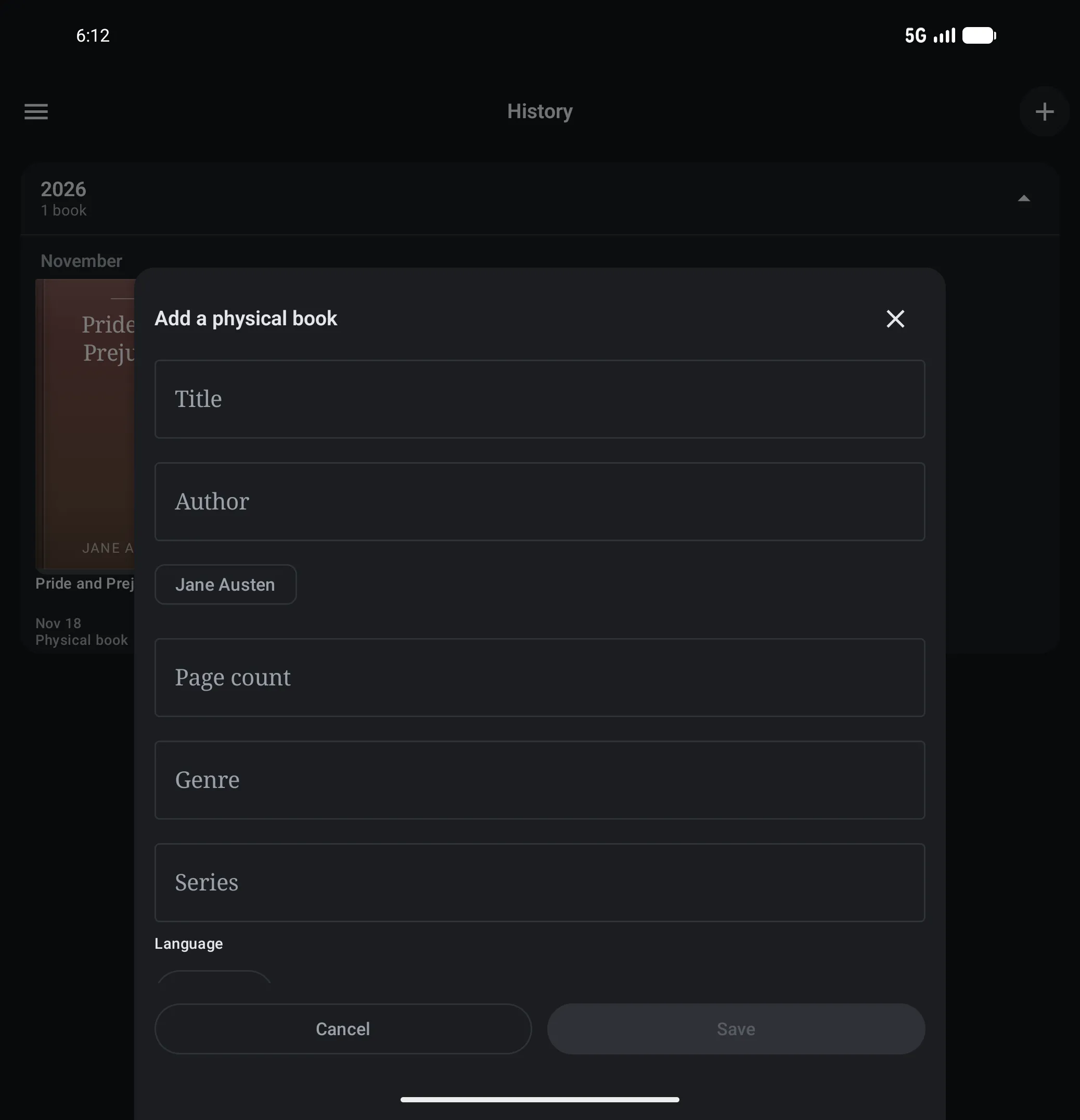
Add a physical book
Under Menu → History, tap “+” beside the heading; it is available even when History is empty. Enter a title. Author, rating, cover, page count, genre, series, language and a personal note are optional. The finish date defaults to today; you can change it before saving. The start date is optional and must not be later than the finish date. Use “Clear start date” to remove it. Enter a positive whole page count or leave it blank if unknown. Genre suggestions appear as you type: select several separated by commas, or enter your own. Tap “Save”.
The book appears in History with a physical-book label and counts towards statistics and the yearly book goal. Its personal note is available in Notes. It does not appear on the library shelf or in library search. No electronic file is needed: you cannot open this record in the reader or send it as a book file.
Tap the book in History to open its book details: edit metadata, replace or remove its cover, rate it, write a personal note, open the reading journal, share a public image card or delete the book. Your personal note is not included in the public card.
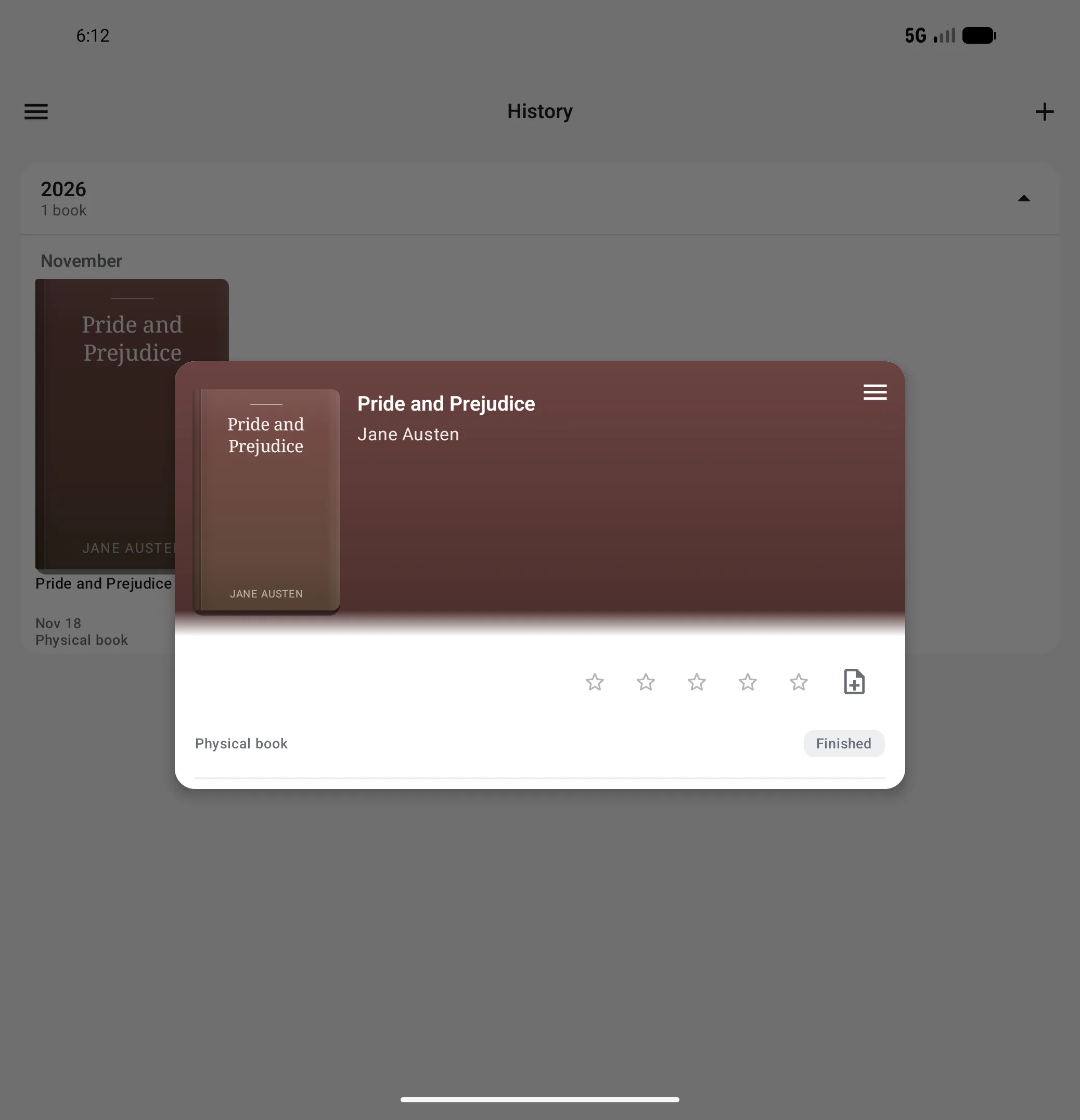
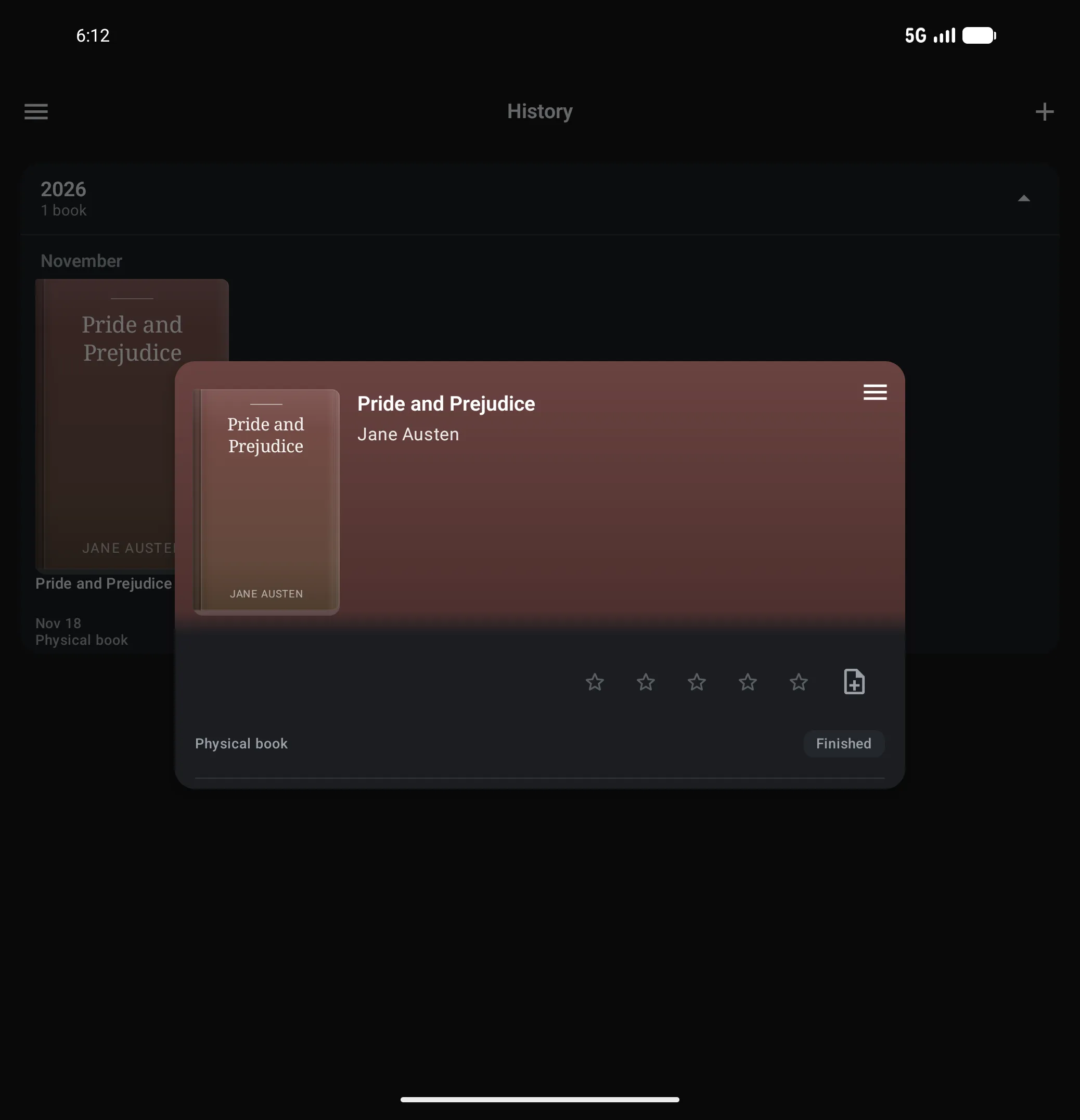
Changing the finish date updates the latest read without adding another one. In the journal, you can separately add a past read, including one with “No date”; this does not change the book’s finish date. You cannot delete the only finished read of a book marked “Finished”.
Physical books count towards finished books, pages and period recaps. Adding a record does not create reading time, sessions or speed, or contribute to the daily minutes goal.
In the monthly and yearly “Calendar” recap layouts, all days from a physical book’s start through its finish are marked, including both dates. Without a start date, only the finish day is marked. These marks do not add reading minutes or extend your consecutive-day streak.
Statistics
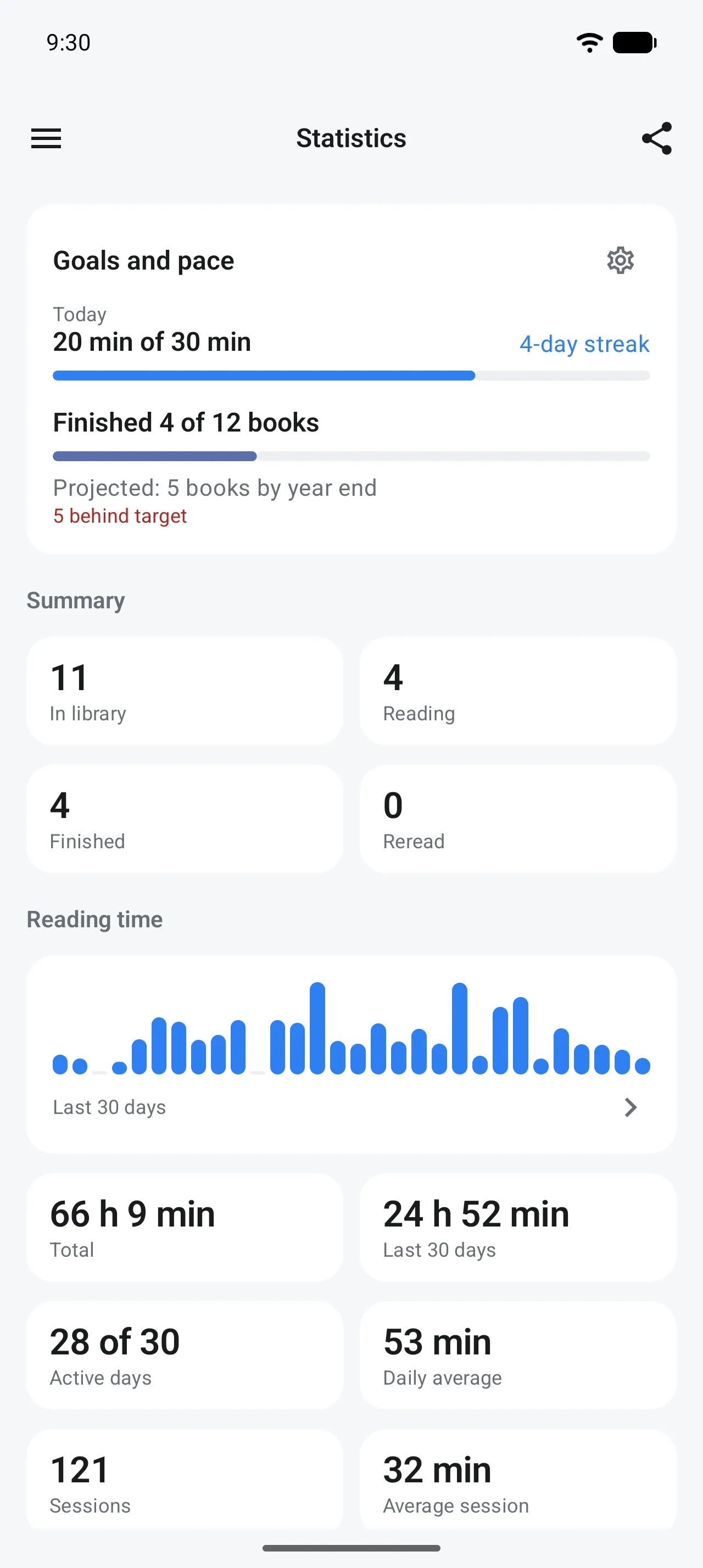
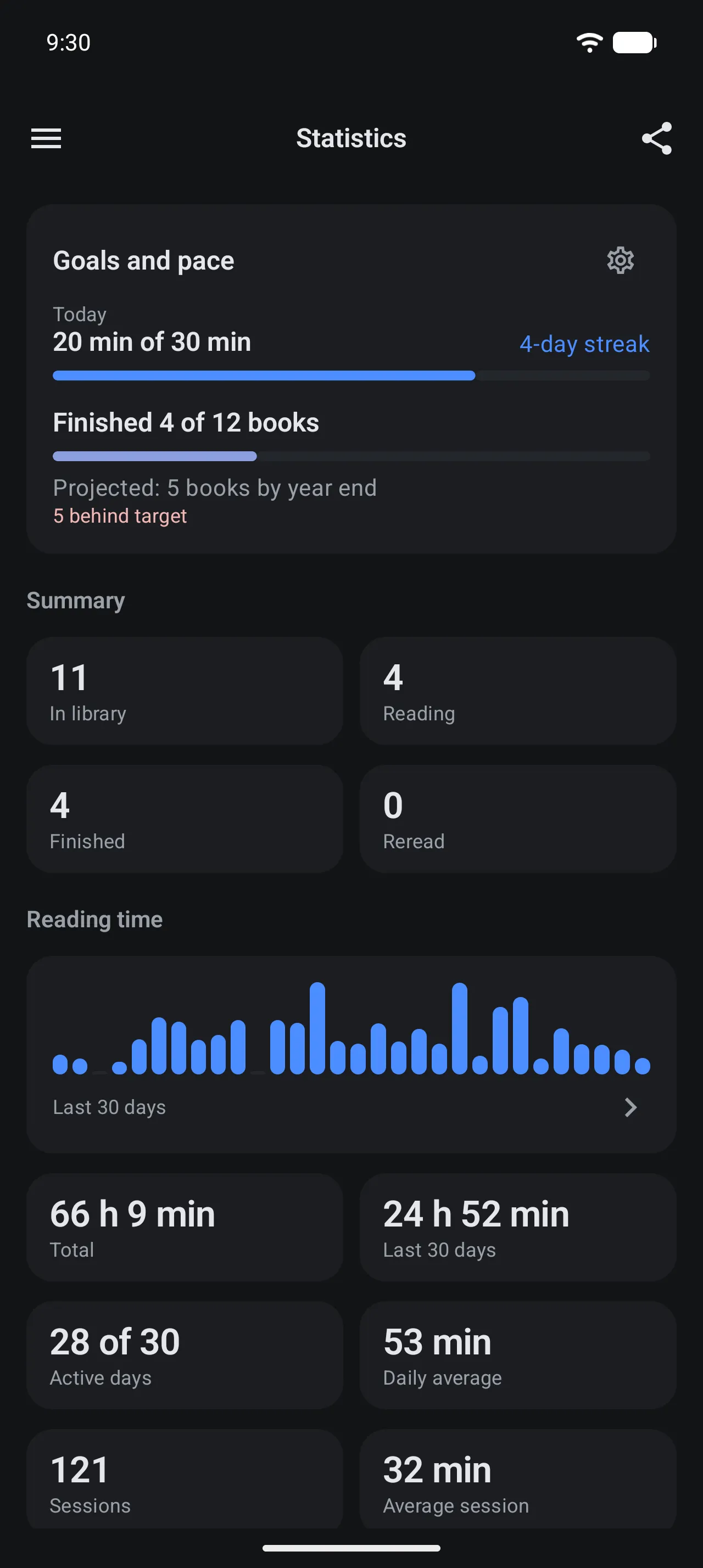
“Statistics” contains these sections:
- “Summary”: books in your library, reading, finished and reread;
- “Reading time”: total, last 30 days, active days, daily average, session count, average and longest sessions; “Top books by reading time” with speed in pages per hour;
- “Activity over 30 days”: daily bars labeled in h:min, with total, daily average and maximum;
- “Year in review”: books finished this year and a month-by-month view;
- “Ratings”: average rating, rated books and “Top-rated books”. Rate books in their details;
- “Genres”: “Top genres”, taken from book metadata;
- “Favorites”: “Favorite author” (based on finished books and average rating) and “Rereads”, books you return to;
- “Quotes and bookmarks”: their counts and how many books contain them.
Before you have read anything, Statistics explains that there is no data yet.
Reading goals
Set goals under Settings → Reading → Reading goals, or use “Set goals” in Statistics:
- “Minutes per day”;
- “Books per year”.
You can disable a goal. Daily and yearly progress appears on Home next to the focused book, or at the bottom of its card on a narrow screen. Enable “Show goals on home screen”. Until you start another book, goals appear beside your finished-book recap, with “+1” marking that book on the yearly goal. “Goal card layout”: “Auto” (the default) shows rings next to the book on a wide screen and rows on a narrow one; or choose “Rows” or “Rings” to always use that layout.
“Goals and pace” in Statistics shows whether you are ahead of or behind your target, your consecutive-day streak and the projected number of books finished by year end at your current pace. You can also show a daily goal in the reader status bar using the “Daily goal” element.
Reading recap
Create a vertical, Story-format monthly or yearly image card to share:
- Tap “Share reading recap” in Statistics.
- Under “Period”, choose “Month” or “Year”. Browse with “Previous period” and “Next period”.
- Under “Layout”, choose “Shelf” (finished-book covers) or “Calendar” (days spent reading).
- Under “Background”, choose “Light” or “Dark”, regardless of the app theme. On “Shelf”, tap a cover in the preview to use it as the card background.
- Under “Fields”, choose “Finished”, “Pages”, “Time”, “Active days” and “Booked wordmark”.
- Tap “Share” and choose an app.
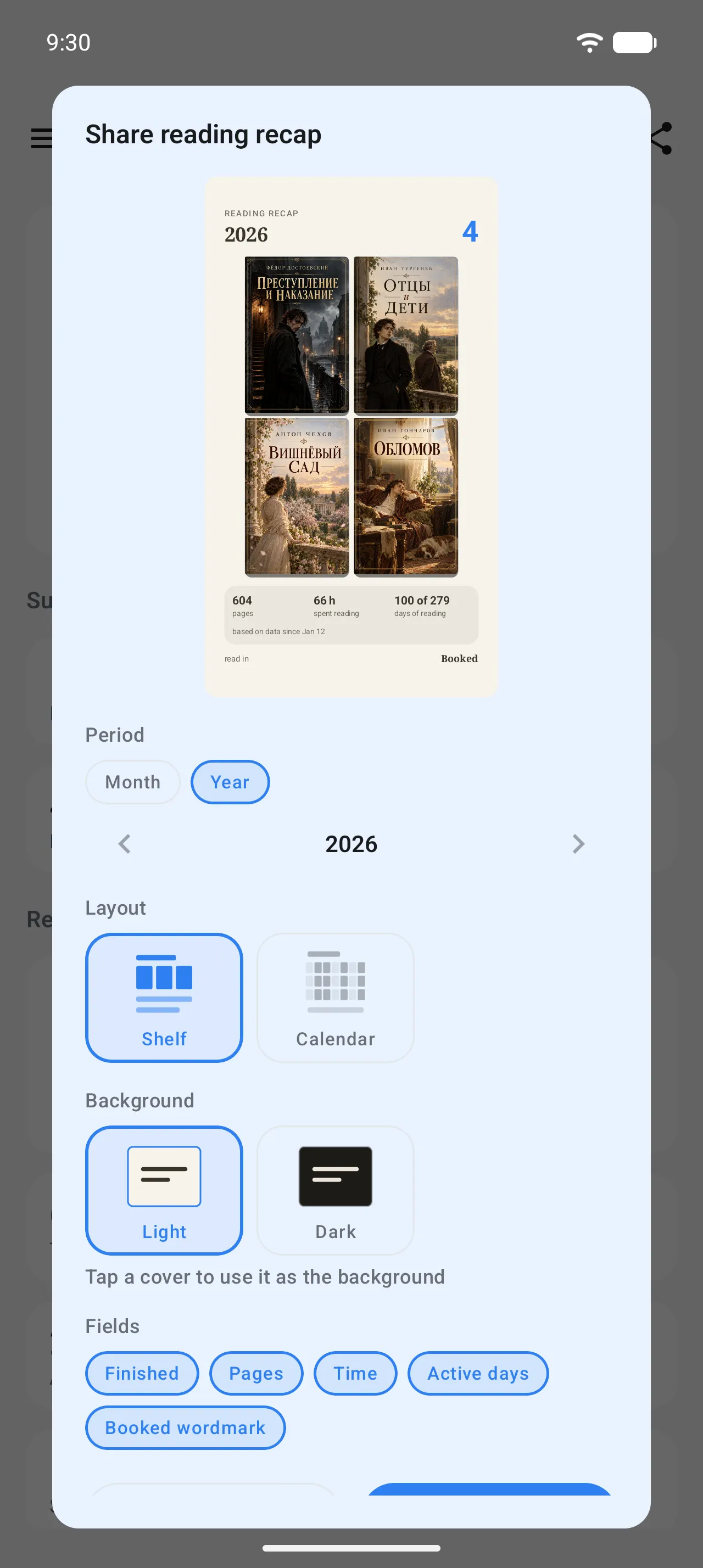
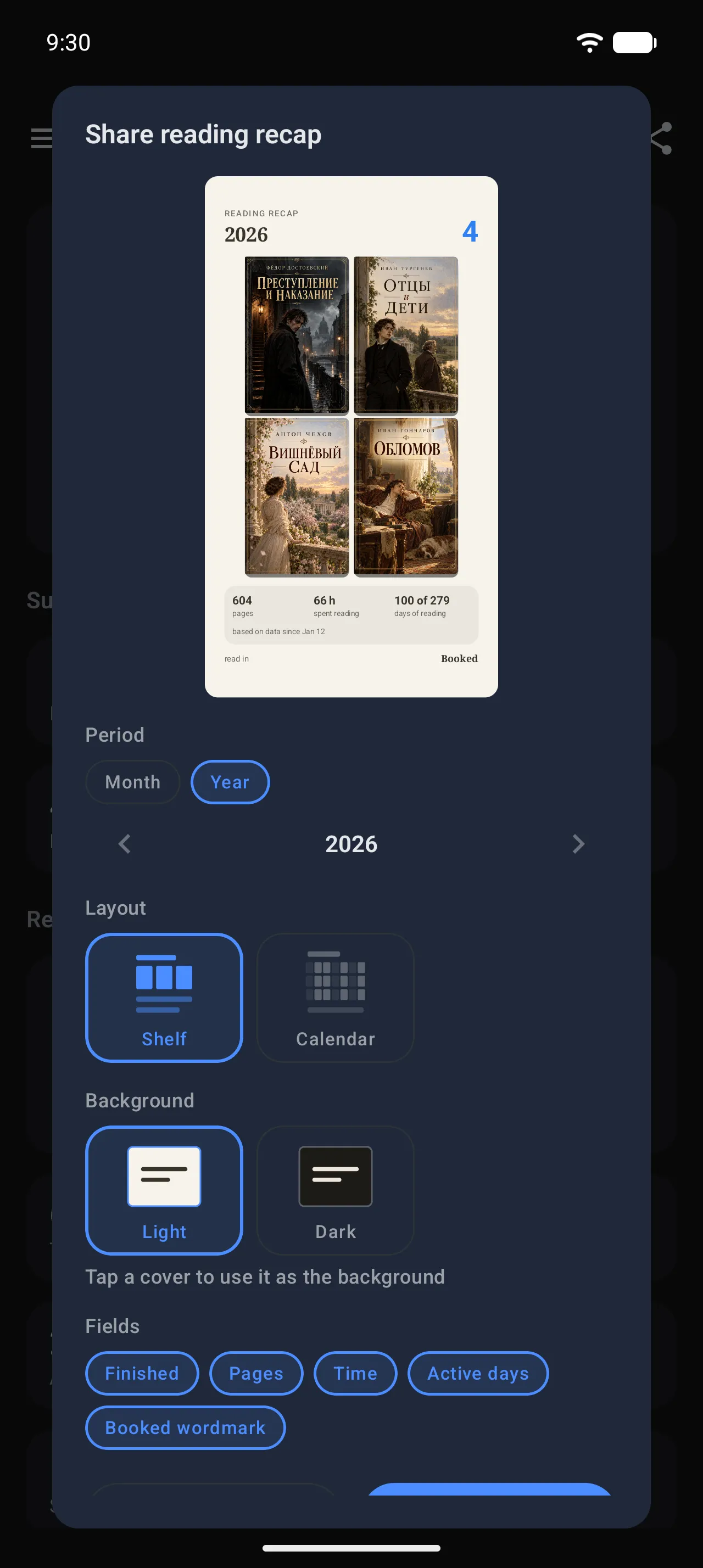
You can remove the Booked wordmark from the card.
What is synced
Reading sessions from the last 90 days, statuses, ratings and finish dates move between devices with the other data; see Sync. Reading goals are transferred with settings.