Booked does not sell books: you bring your own. Add FB2 (including ZIP archives) and EPUB. Adding the same file again does not create a duplicate: books are identified by content, not file name or path.
If author and title are similar but content differs, the app offers to open the existing book or add a new one. Another edition is kept separately, with its own progress and notes. EPUB, FB2 and FB2.zip files can also be opened through Android “Open with” or “Share”: the book is added to your library and opened immediately.
Files from your device
- On Home, tap “Add book” (the “+” button), then “File from device”.
- Select one or more files in the system picker.
- After a batch import, the app shows how many books were added, skipped for unsupported formats, or failed. “Details” opens the full report.
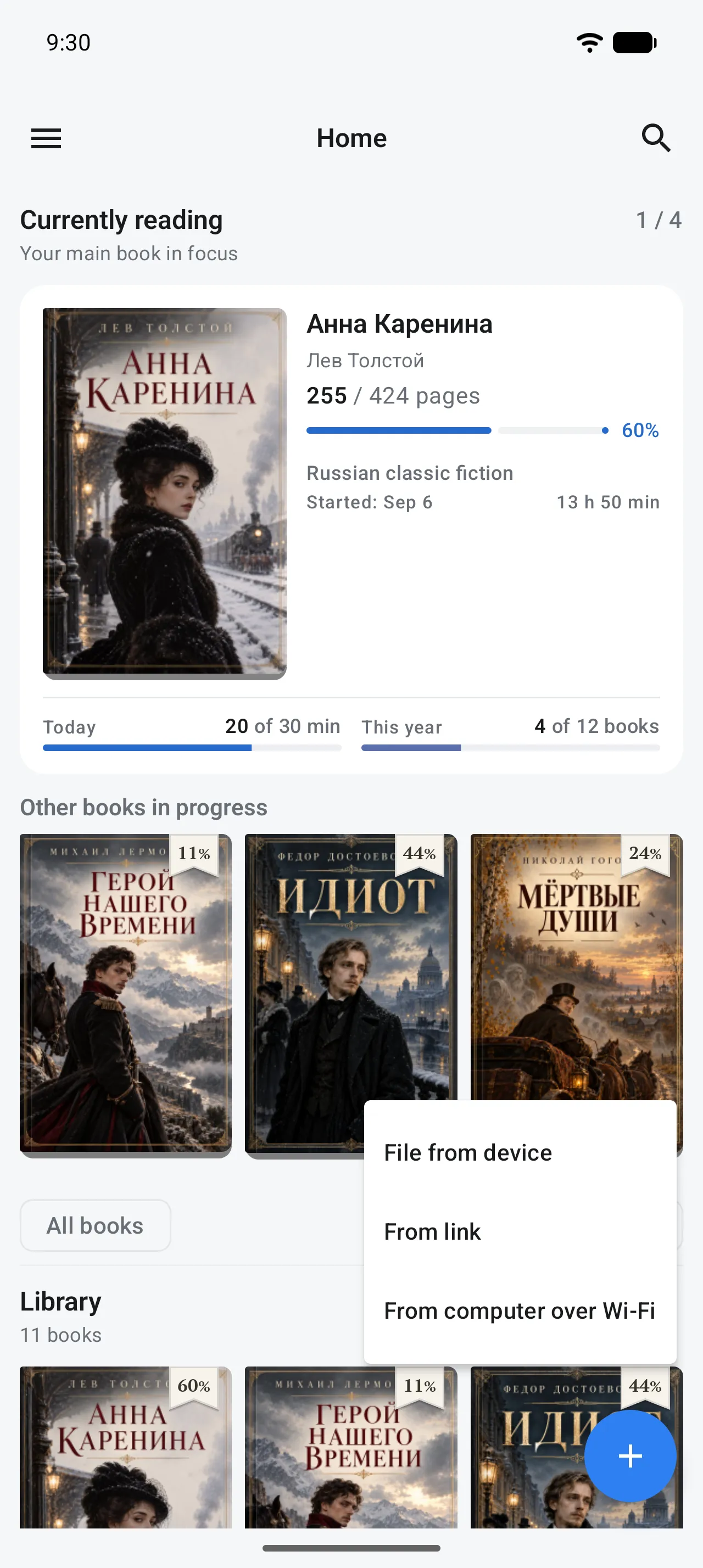
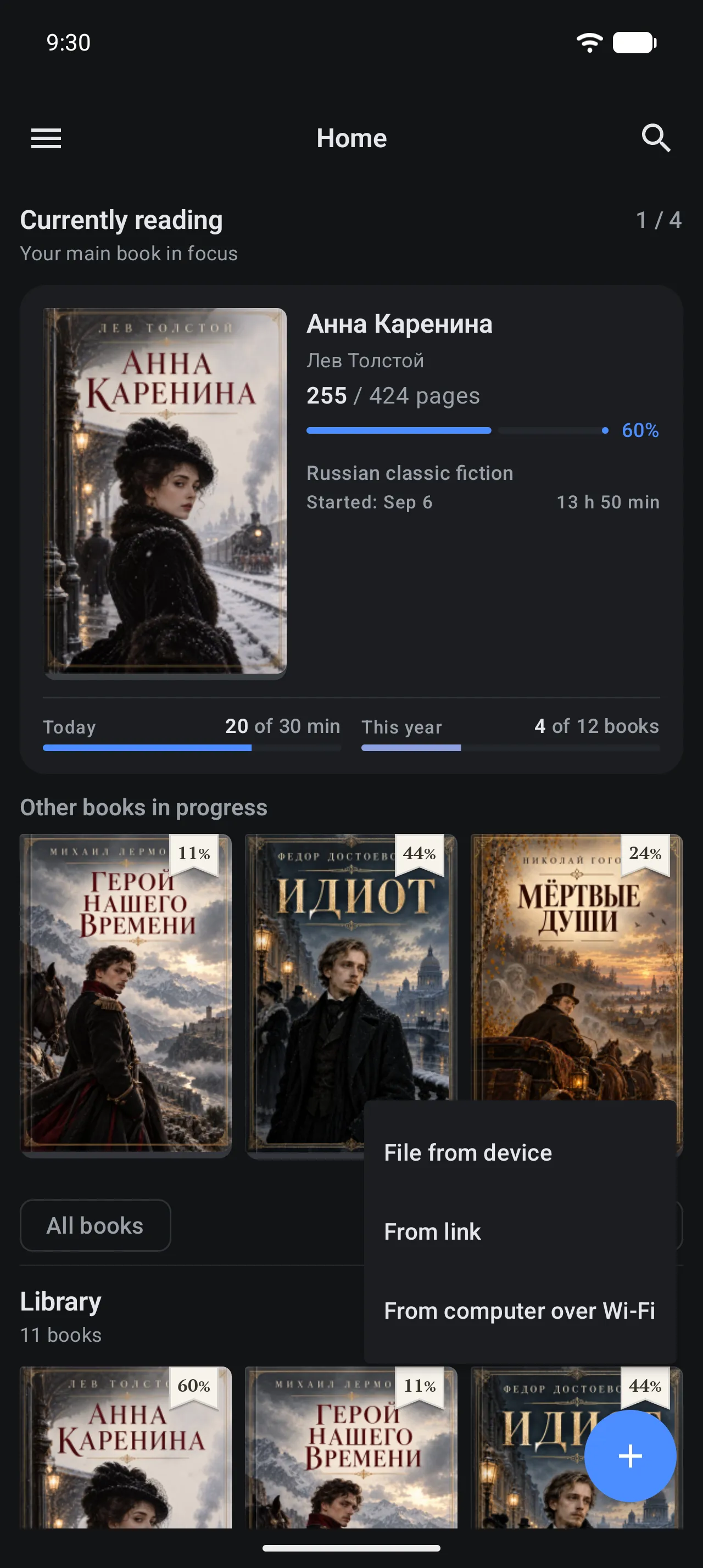
From computer over Wi-Fi
A one-off upload: nothing to install on the computer, just a browser. The phone runs a small server on your network.
- Connect the phone and the computer to the same Wi-Fi network. The phone’s own hotspot works too: connect the computer to it.
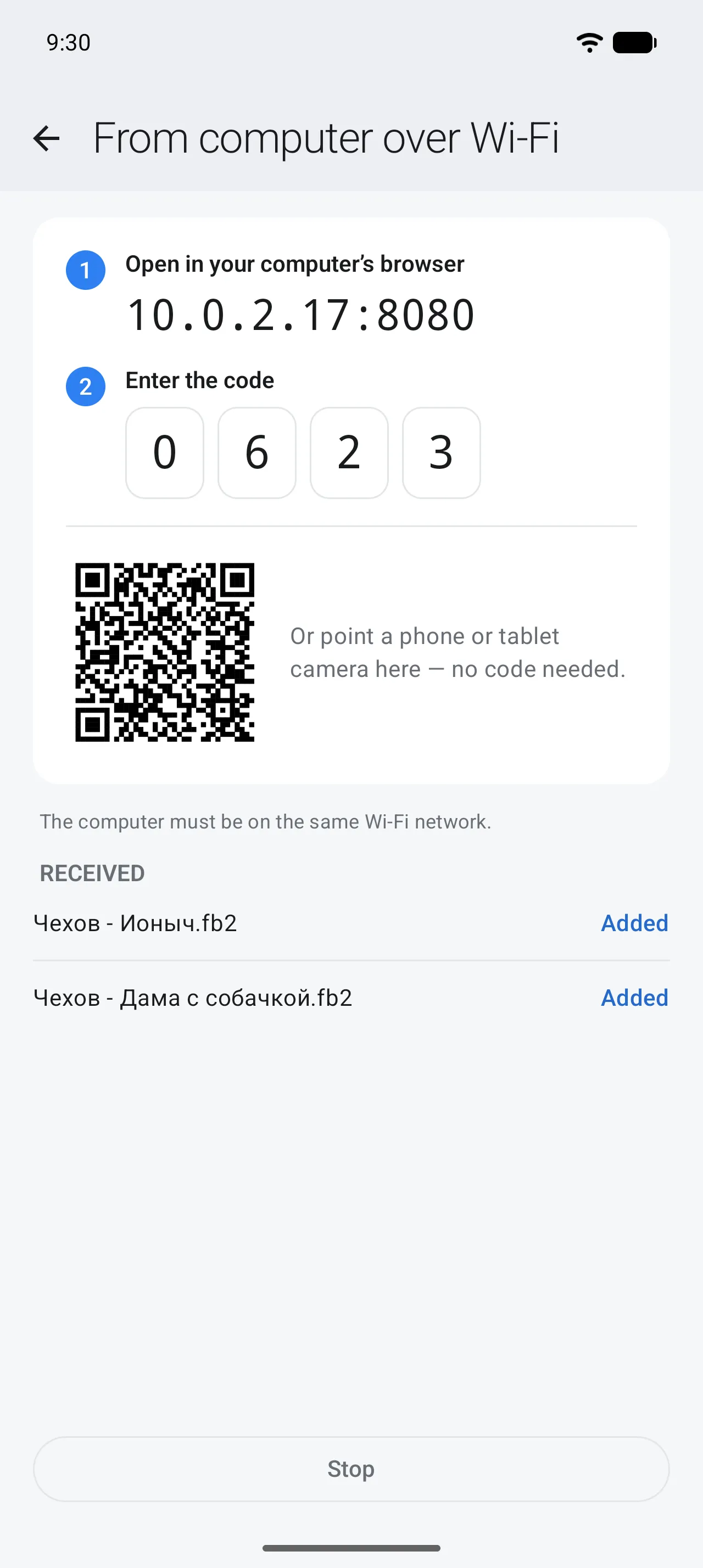
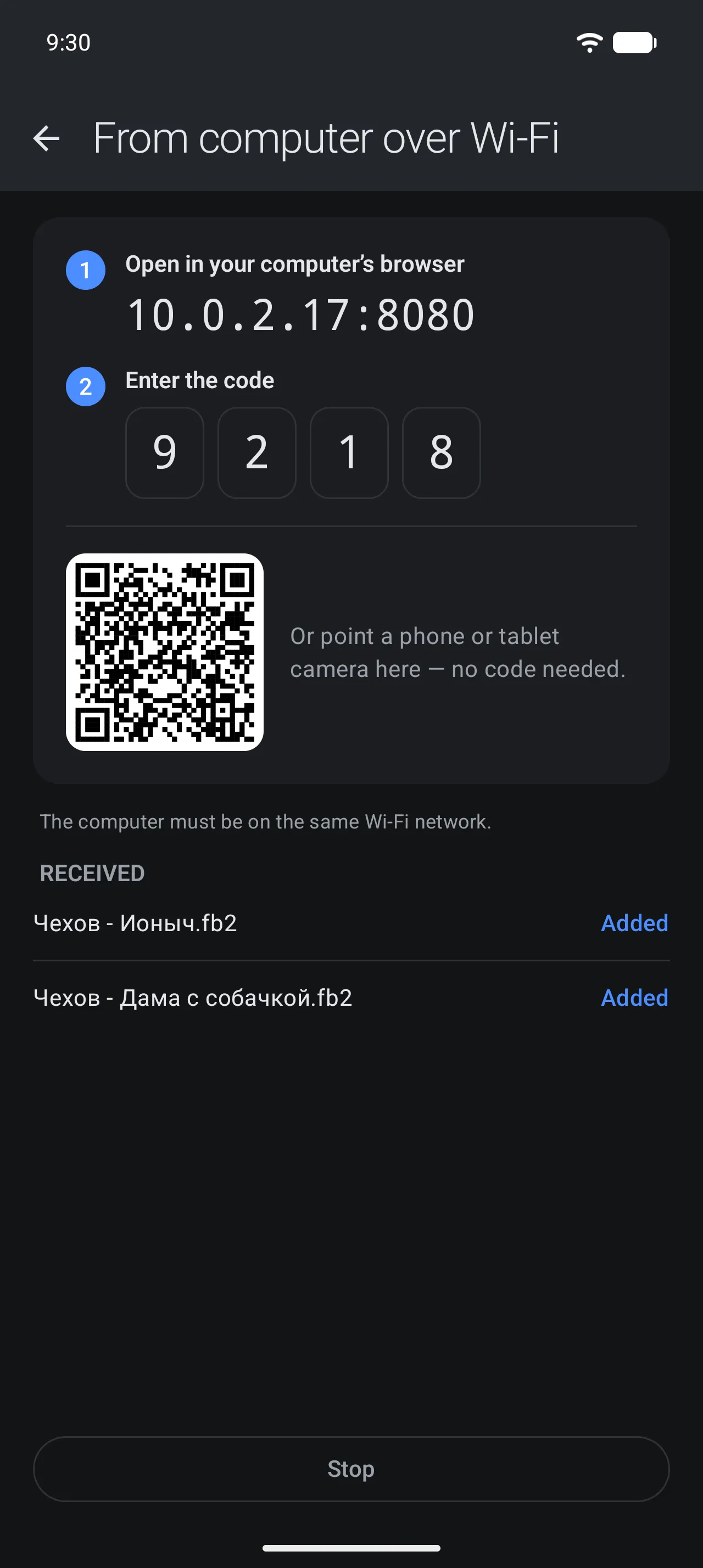
- On the phone, tap “Add book” → “From computer over Wi-Fi”. If the app asks for notification permission, allow it: while the upload is on, a notification with a “Stop” button stays in the shade. The screen shows an address, a four-digit code and a QR code.
- In the computer’s browser, open the address and enter the code. Or scan the QR code with a phone or tablet camera: then there is no code to type.
- Drop EPUB, FB2 or FB2.zip files into the browser window, or click “Choose files”. You can add several files, each up to 200 MB. Books land in the normal library; each file shows a status on the page and on the phone: “Added”, “Already there”, “Not supported”, “Over 200 MB” or “Error”.
Below, the page shows the phone’s shelf read-only: covers, titles, authors, progress and status, search, the filters “All”, “Reading”, “Finished” and “To read”, and sorting. You cannot download, delete or edit a book from the browser; quotes and notes never reach the page. The page follows the app’s appearance and the browser’s language (Russian or English).
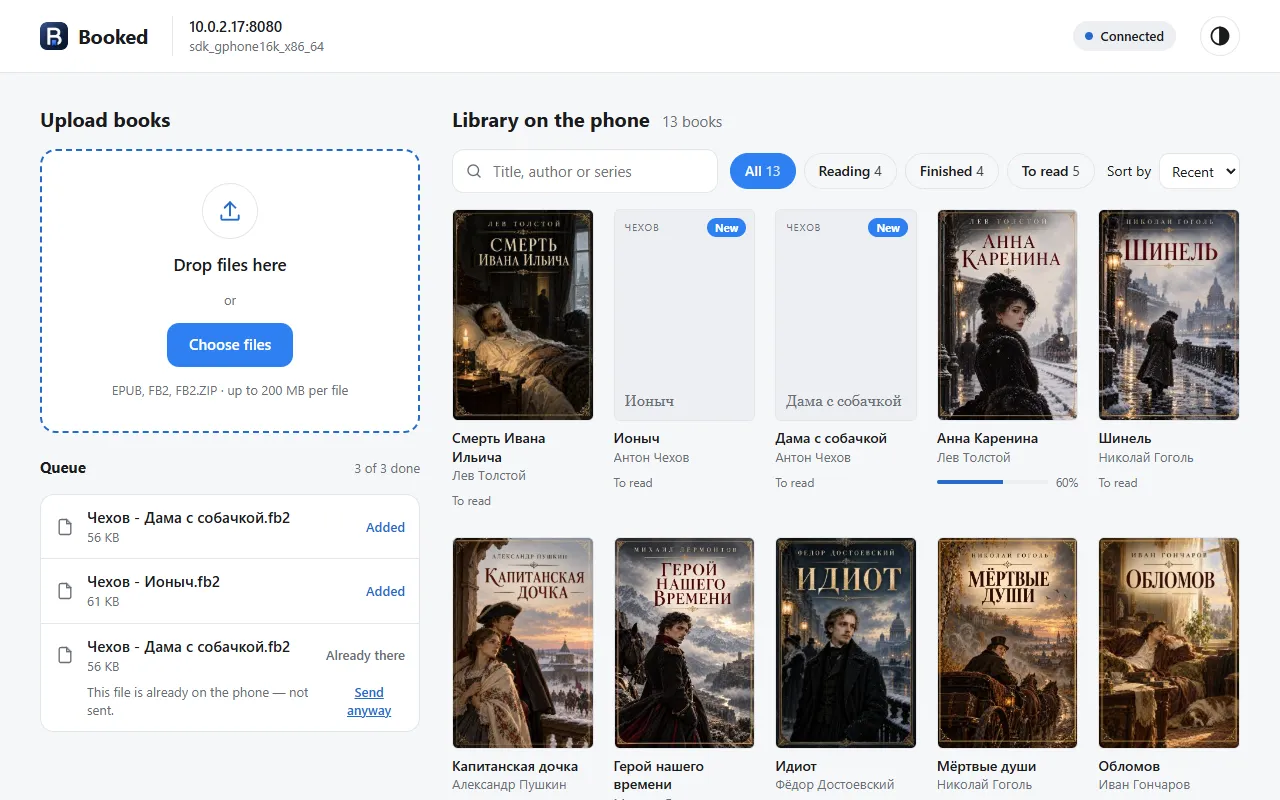
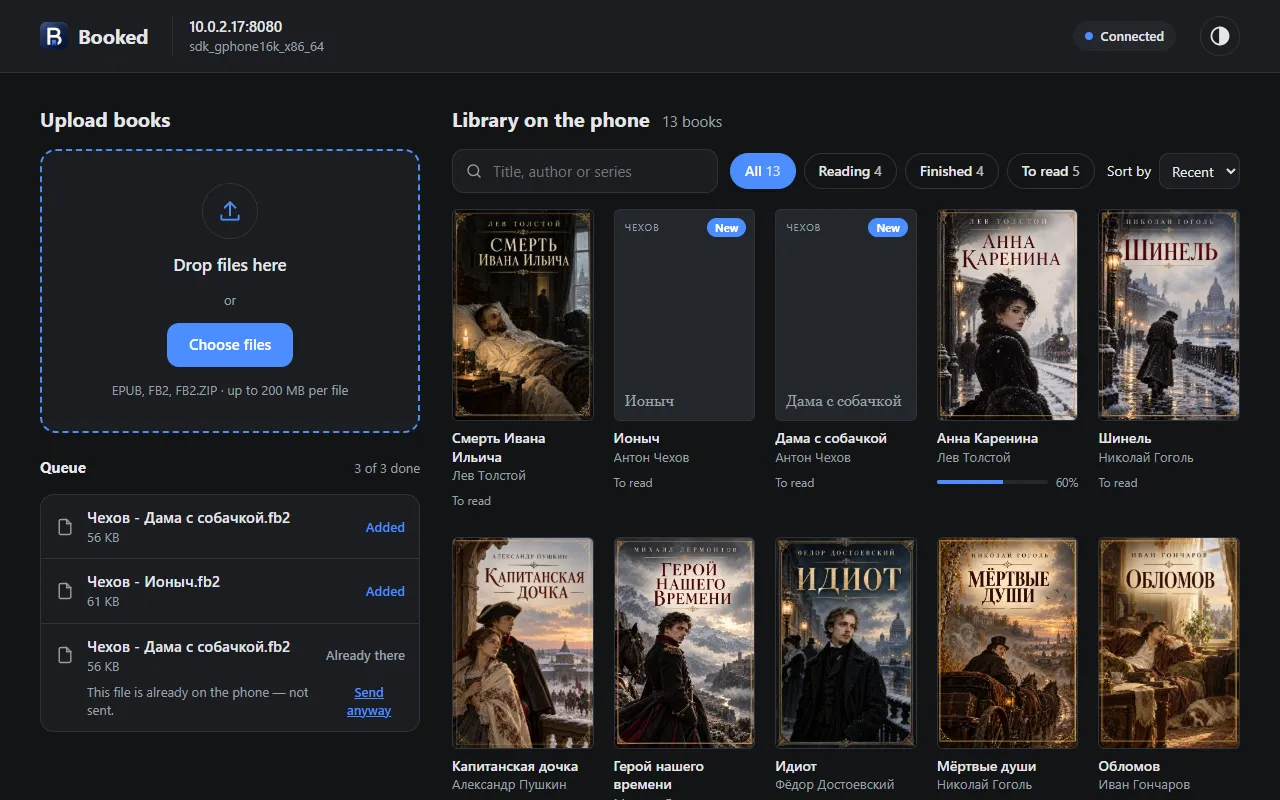
Before sending, the page checks each file itself and marks it “Already there” if the phone has that book: the file is not sent again, though “Send anyway” overrides this. The phone makes the final duplicate check on import.
Good to know:
- The upload runs until you stop it with “Stop” on the screen or in the notification. If the Wi-Fi network is lost, it stops by itself. Tapping the notification opens this screen. Use “Turn on” to start it again. You can leave the screen: the upload keeps running until stopped.
- The connection uses plain HTTP, without encryption, so the browser shows the address as not secure. This is expected. Use it on a network you trust: at home or on the phone’s own hotspot. The code protects access, and the link in the QR code also grants it while the upload is on.
- After several wrong codes the code on the phone changes, and after 15 wrong attempts code sign-in is locked. Tap “New code” on the phone; QR sign-in still works.
- If the page does not open, make sure both devices are on the same network. Guest and public Wi-Fi networks often isolate devices from each other, and such a network will not work. The phone’s own hotspot does.
OPDS catalogs
OPDS is a standard for online libraries: browse a catalog and search for books without leaving the app.
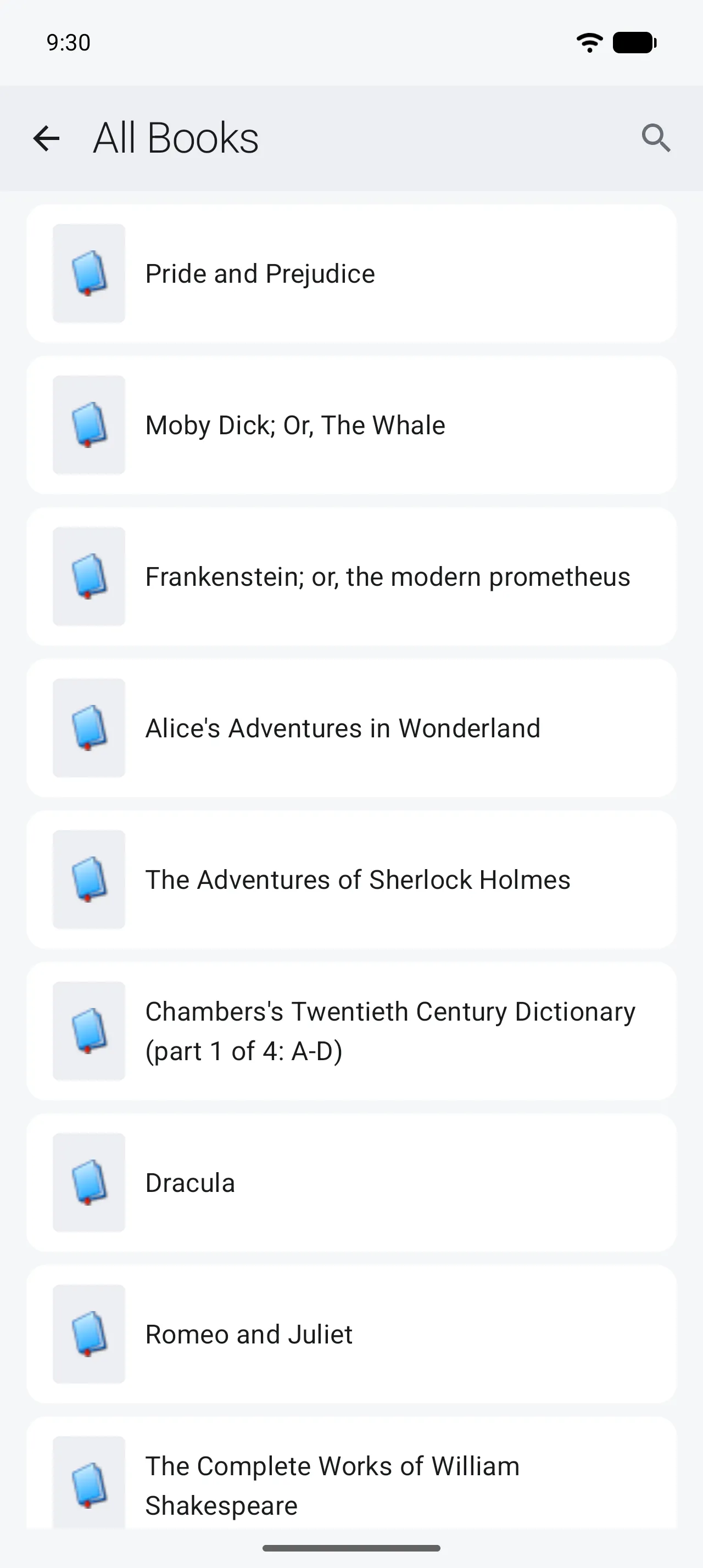
- Open Menu → Catalogs.
- Tap “Add catalog” and enter its name and URL.
- If sign-in is required, enter “Username” and “Password” under “Catalog sign-in”. For addresses starting with
http://, the app warns that passwords may be sent without encryption. - Open the catalog, use “Search catalog” and tap “Download book”. If several formats are available, you can choose one.
Use “Edit catalog” or “Delete catalog” to change it later. The app contacts only catalogs you add.
Books over Wi-Fi
Send books directly between two devices with Booked, for example a phone and a tablet. No internet, account or server is needed: both devices only have to be on the same Wi-Fi network.
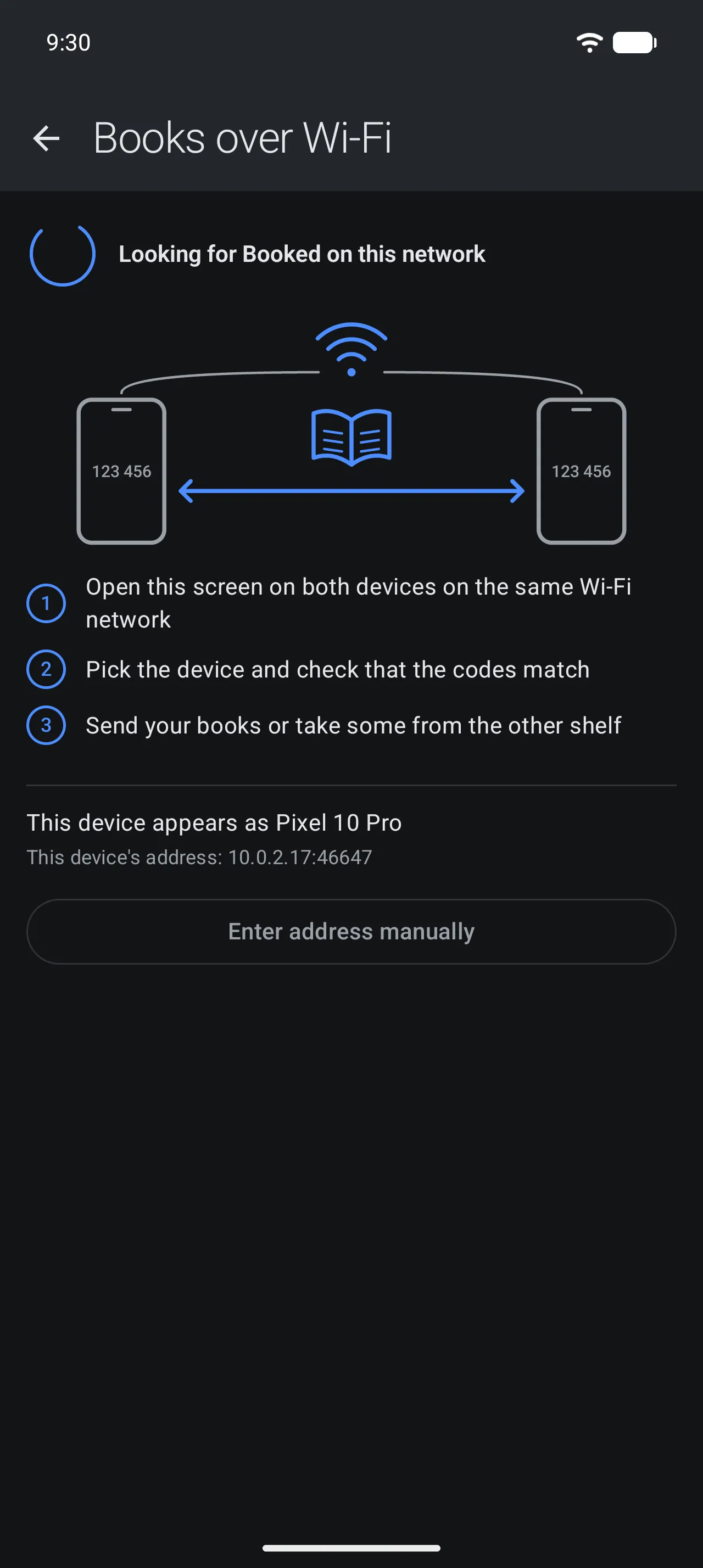
- On both devices, open Menu → Network → Books over Wi-Fi. The devices see each other while this screen is open on both. The search stops after five minutes without a connection; “Search again” restarts it.
- Pick the other device under “On this network”. If it is not found, tap “Enter address manually” and type the address and port shown on its screen, for example
192.168.1.23:41237. - Compare the code. Both screens must show the same six digits: tap “Digits match”. If the digits differ, tap “Don’t match” and the connection closes.
- On the “Send” tab, select books and tap “Send”. The other device receives an offer it can accept or decline. The “Shelf” tab lists the other device’s books: select the ones you want and tap “Receive”. The shelf is visible only if “My shelf is open” is on at the other end; it lists books whose files are on that device.
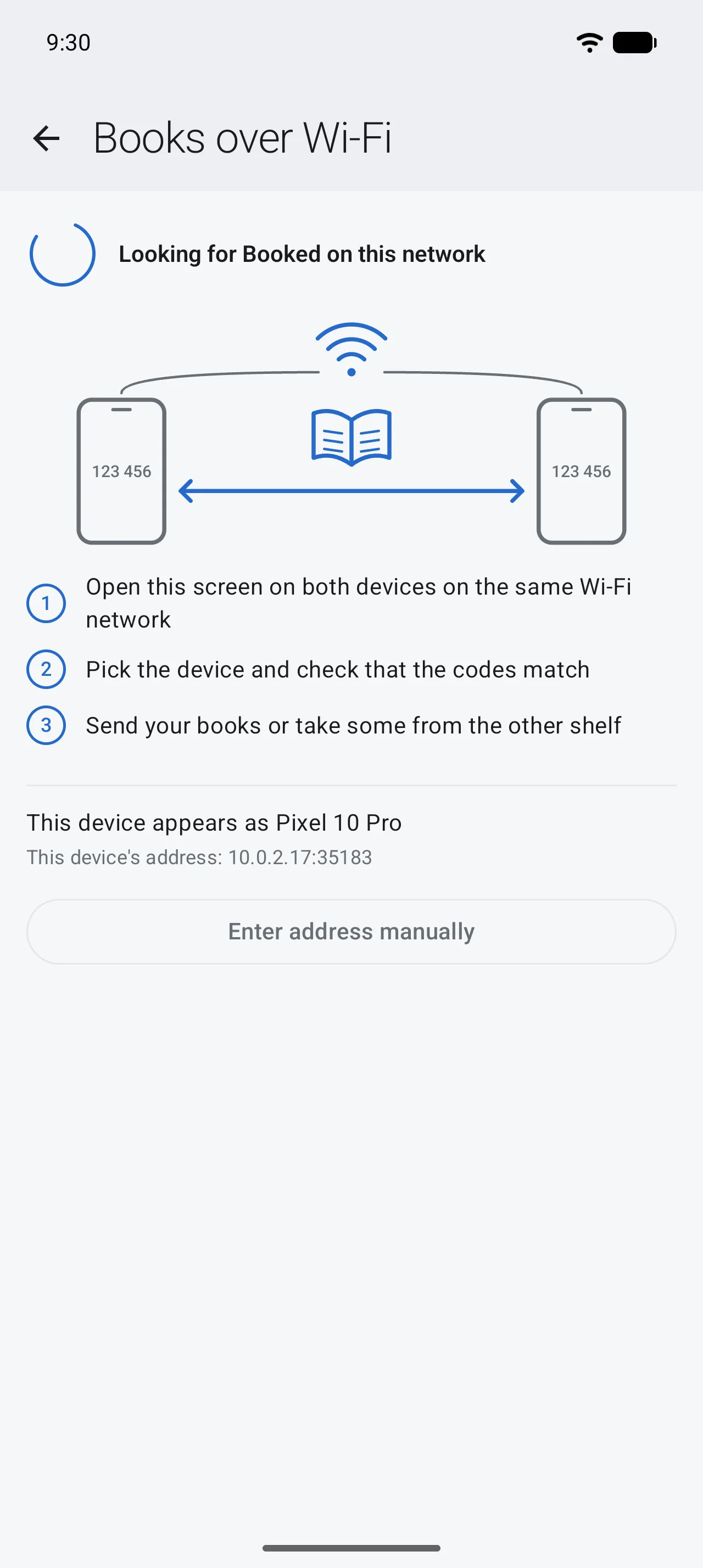
You can also send a single book from the library: choose “Send over Wi-Fi” in the card menu (available when the book file is on the device). Books the receiver already has are marked “Already have” and are not sent again. You can leave the screen: the transfer continues while the notification is up, and “Disconnect” ends it.
The link is encrypted (TLS), and the six-digit code confirms that the other end is your device and not someone else’s on the same network. The book file goes along with the edits to title, author, series and language made in “About the book” (the receiver applies them only if the book is new). Progress, quotes, notes and file paths are not sent. Received books land in the normal library and, with sync on, reach your other devices. If the devices do not find each other, check that the network is not a guest network, or enter the address manually.
Calibre over Wi-Fi
- Connect your computer and device to the same local network. In Calibre, choose Connect/share → Start wireless device connection.
- In Booked, open Settings → Network → Calibre. Tap “Find on network” and choose your computer. If it is not found, enter the address and port shown in Calibre; the usual port is
9090. - If Calibre has a wireless connection password, enter it and tap “Connect”.
- On your computer, select books and choose “Send to device”. Booked accepts EPUB, FB2 and FB2.zip up to 100 MB. You can return to the library, read or minimize the app while the connection remains active.
Calibre is not in the main menu by default (it stays for those who already set it up): to show it under Network, turn on Settings → Network → Calibre → In main menu; without that it opens from Settings. The address, port and password are saved on your device. Once configured, a Calibre icon appears in the library header: tap it to connect or disconnect; hold it to open settings. Transfer status and progress are shown during an exchange, and you can reconnect after an error. The app does not connect automatically.
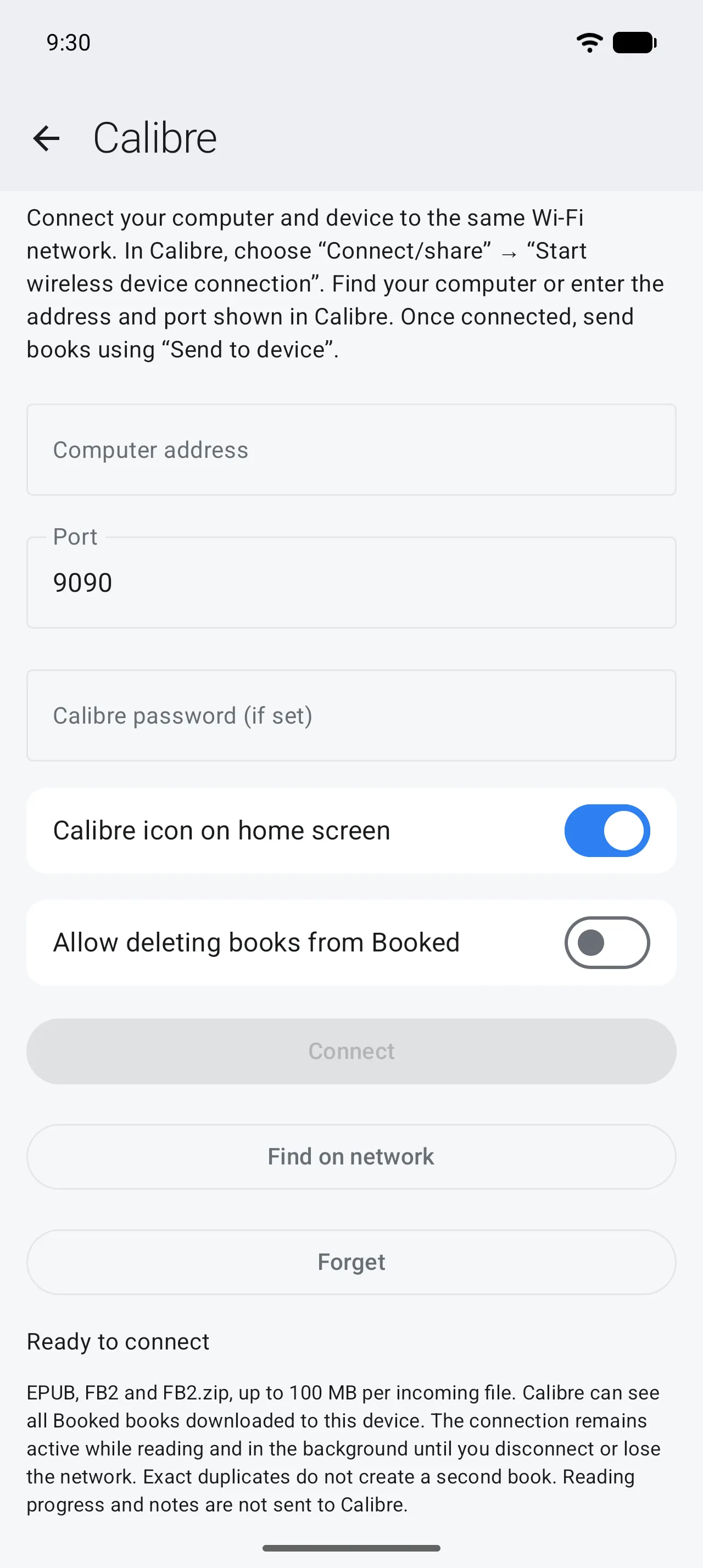
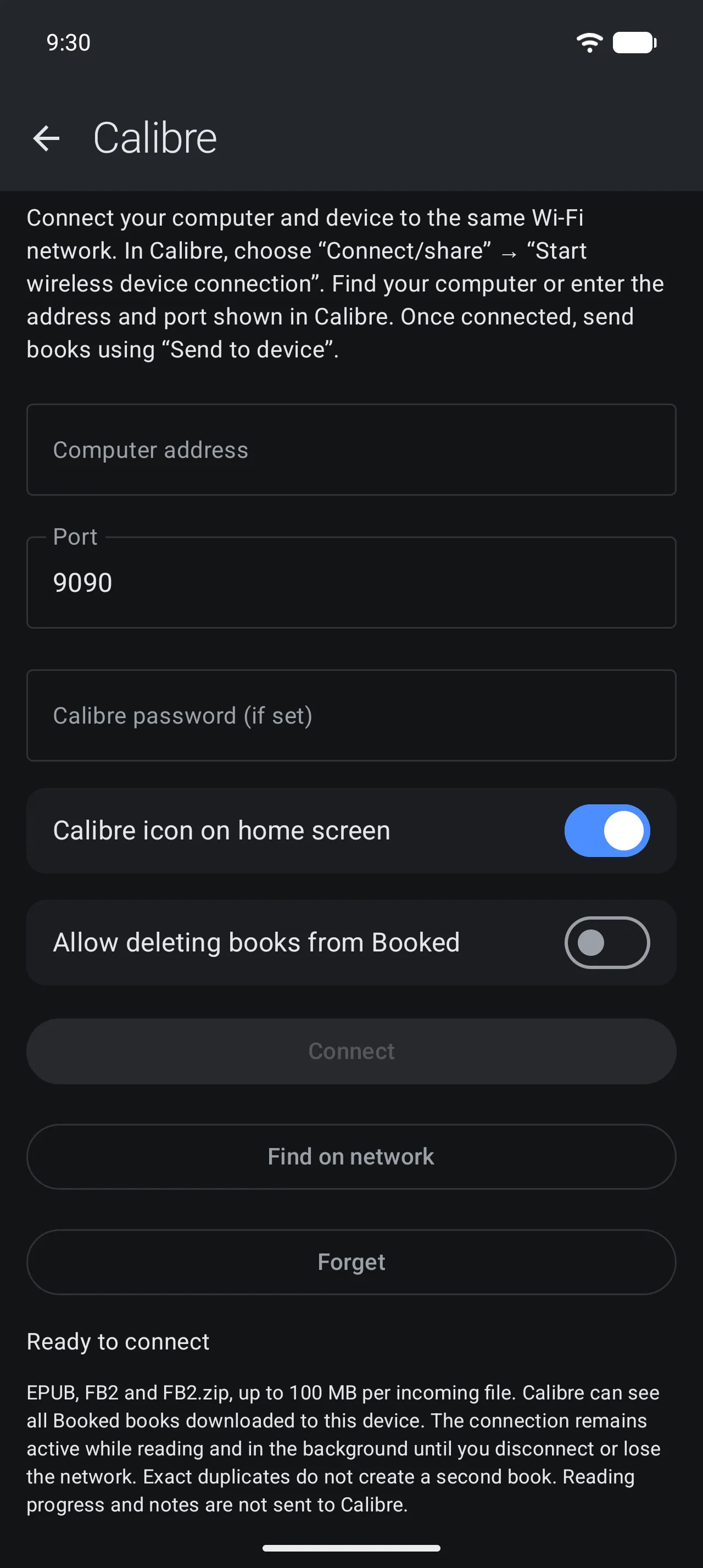
“Calibre icon on home screen” hides the button while preserving the connection and settings. “Forget” disconnects and clears the address, port, password and deletion permission. The icon disappears until you configure a connection again.
Received books appear in the normal library. An exact duplicate does not create a second copy; similar books with different content trigger a choice. Another edition does not replace the existing book, progress or notes. With sync enabled, the book then reaches your other devices.
Calibre can see every Booked book downloaded to the device, regardless of how it was added. You can save their files from the device into your Calibre library. After deleting a book or removing its local file, the “on device” status updates at the next connection. Metadata-editing commands do not change the Booked library; progress, quotes and notes are not sent to Calibre.
Deletion from Calibre is disabled by default. If you enable “Allow deleting books from Booked” on the connection screen, a delete command removes the book together with its progress, quotes and notes. With sync enabled, deletion is passed to other devices.
To finish, tap the library Calibre icon or “Disconnect” on the Calibre screen or notification. The connection also closes if Calibre disconnects or the network drops. If discovery finds nothing, check Calibre wireless connection, your computer firewall and Wi-Fi device isolation. In an Android emulator, use 10.0.2.2 for its host computer.
Project Gutenberg
“More catalogs” under Catalogs includes Project Gutenberg: public-domain classics in various languages. Use “Add catalog Project Gutenberg” to add it.
From a link
- Tap “Add book” → “From link”.
- Paste a book-file URL into “Book file link”. FB2 (including ZIP archives) and EPUB are supported.
- Tap “Import”. The book appears in your library when ready.
Cloud inbox folder
With sync connected, storage contains an inbox folder. Place a book there from your computer: the next sync adds it to your library and removes it from the folder. See Sync.
Import from the cloud
WebDAV has a storage browser: “Add book” → “From WebDAV”. The app shows folders and supported files; tap “Download book” for the file you want. This lets you add books stored outside the sync folder.
Books on several devices
Book files move between devices when “Sync books” is enabled under Menu → Sync → General. To free local space, choose “Remove from device (keep in cloud)” in the book menu. The book remains in your library; use “Download” to retrieve its file.