Reader menu
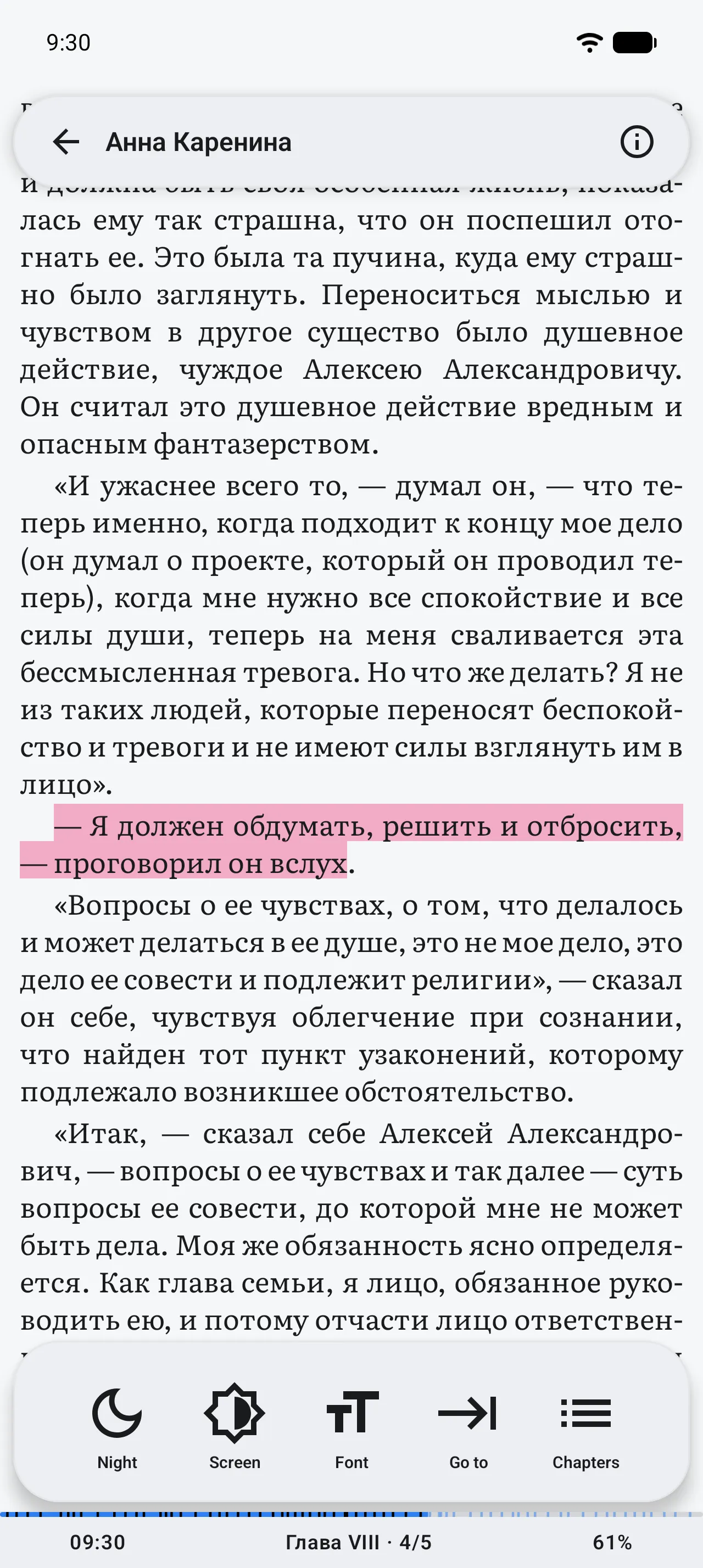
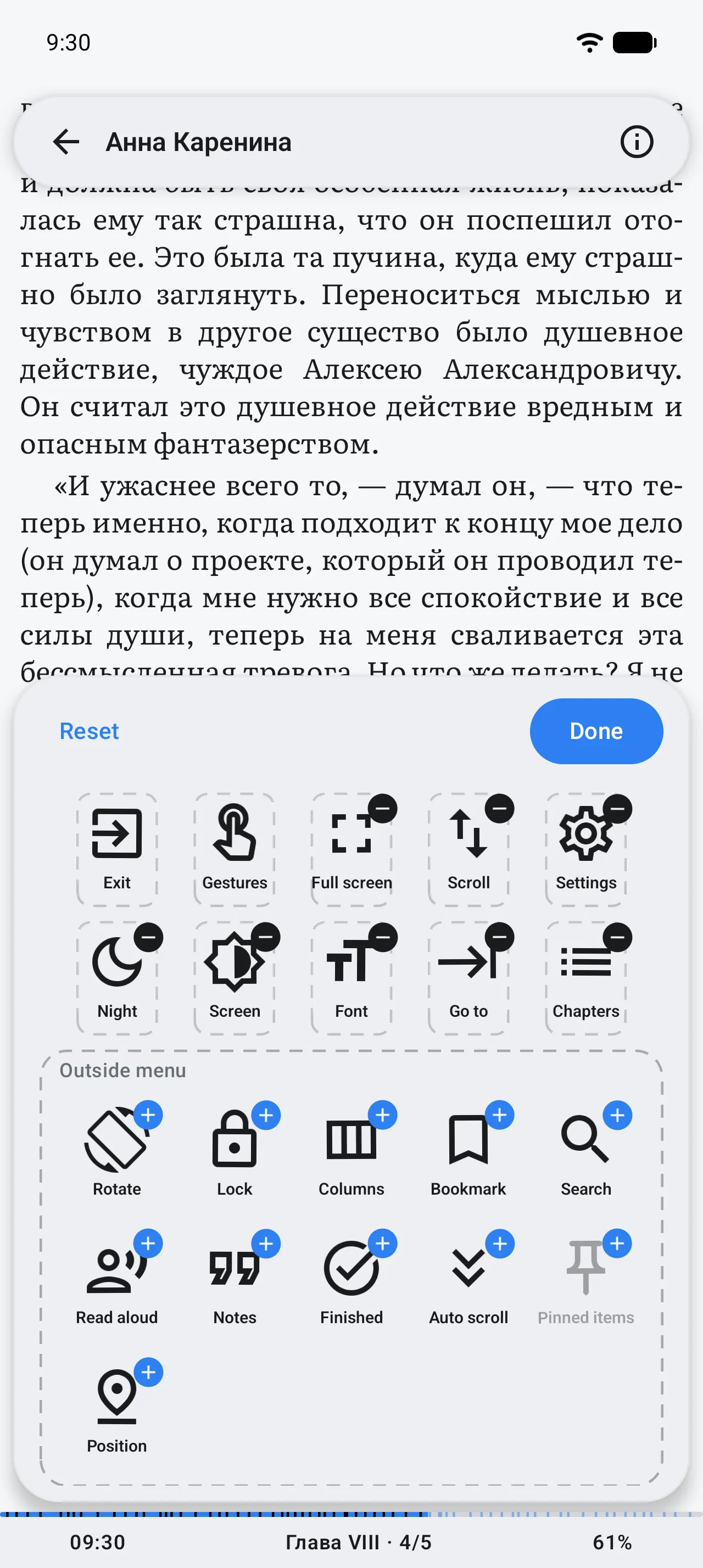
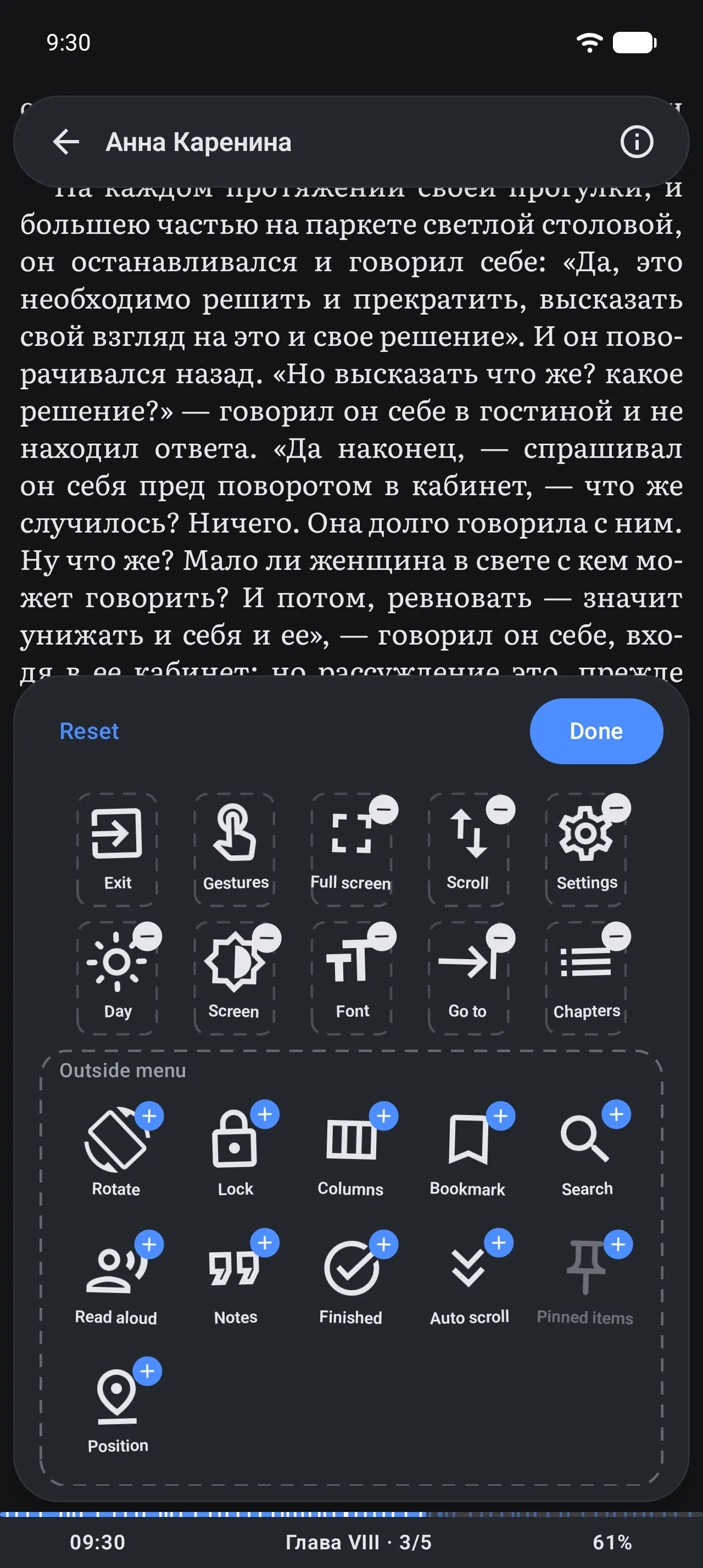
Tap the Menu zone to open the button panel. Swipe up to reveal more rows; swipe up again to open “Edit menu”. Remove unwanted buttons with “−” to move them to “Outside menu”, restore buttons from there and drag them into your preferred order. “Reset” restores the initial layout. TalkBack offers “Show all buttons” and “Edit menu” actions.
Button selection and order are saved separately for narrow and wide screens. Unfolded devices, tablets and E-ink mode use the wide profile. Editing or resetting one profile leaves the other unchanged, including when syncing settings.
Pages or scrolling
“Pages” or “Scroll” switches reading modes without losing your position. On a wide screen, scrolling text has the same width as paged text.
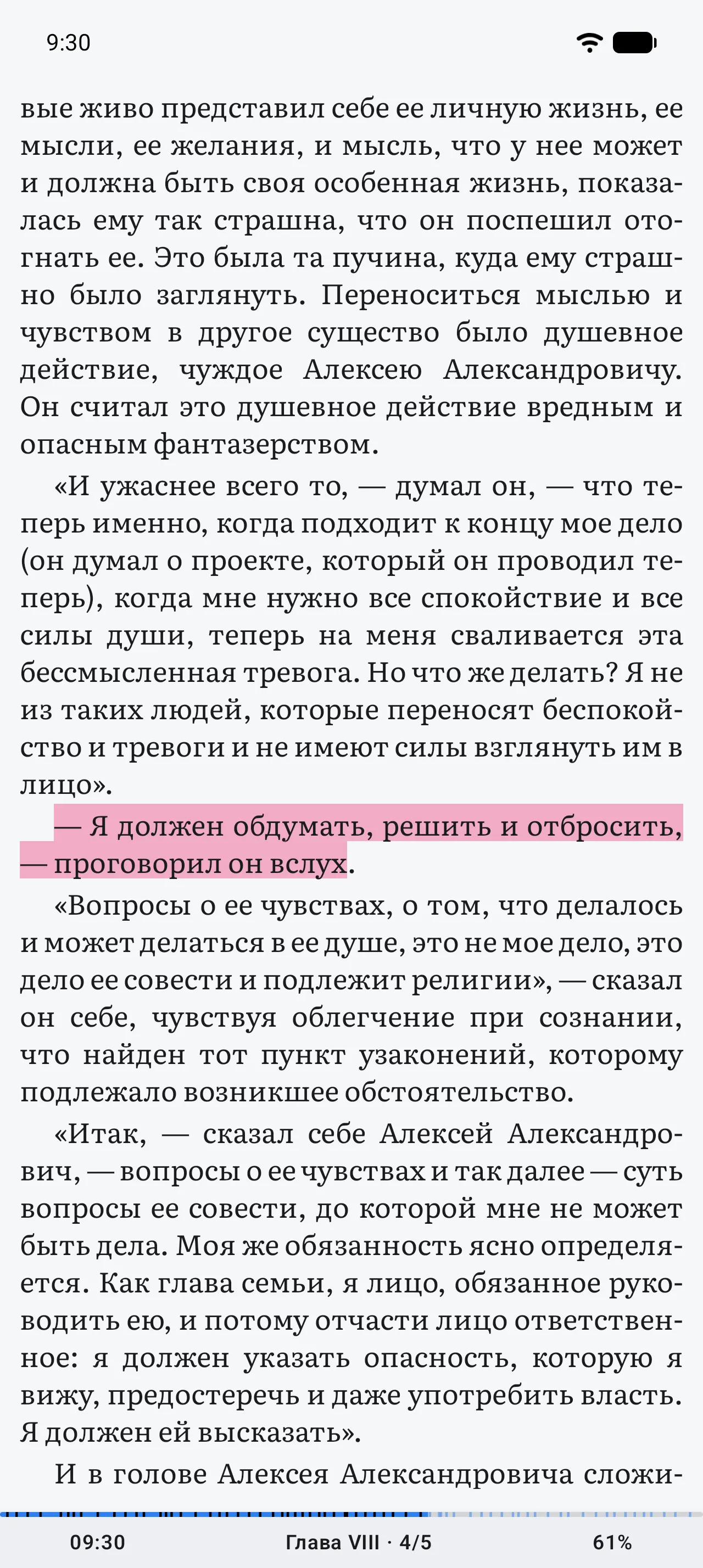
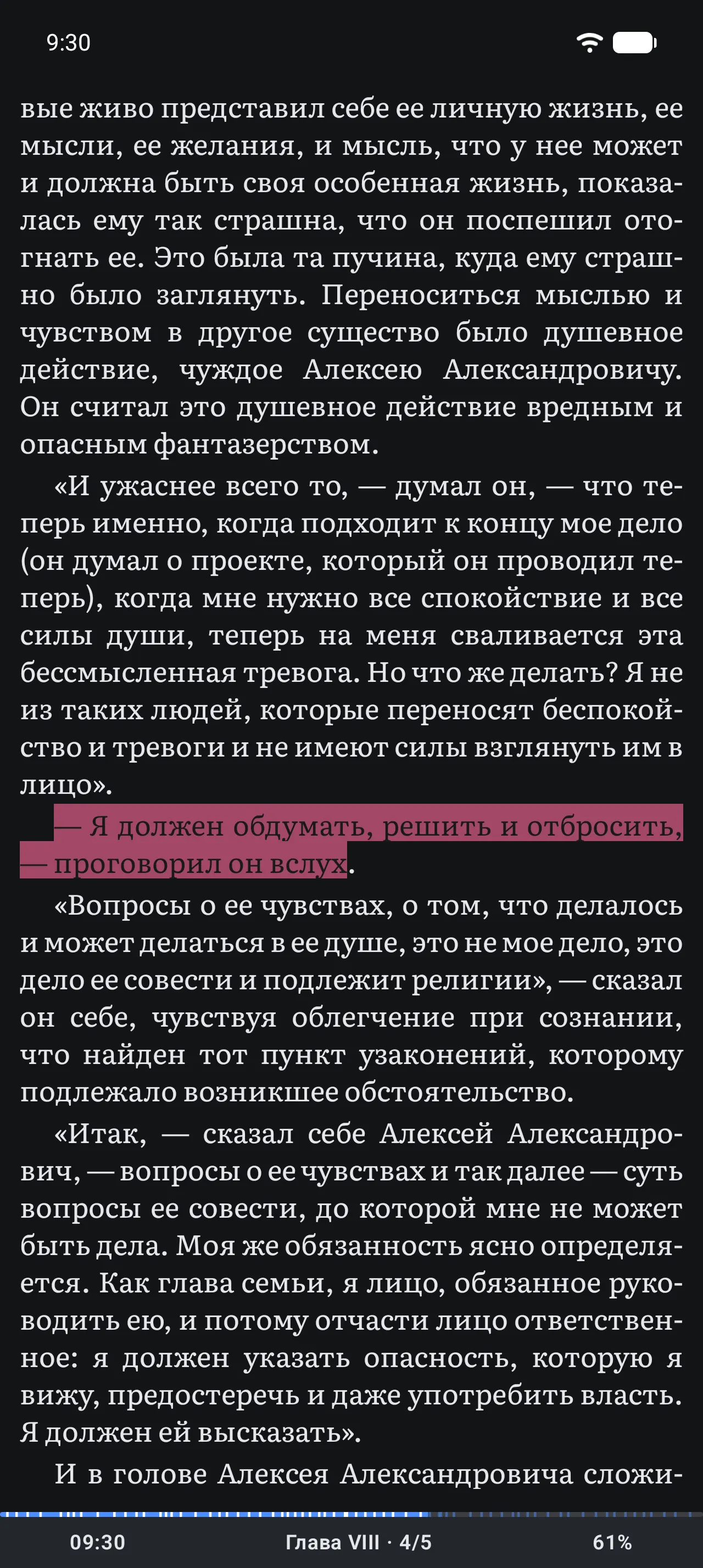
“Columns” enables a two-page spread. On foldables, the spread respects the hinge; see Foldables and tablets.
Tap to turn pages
Open “Gestures” → “Tap to turn pages” → “Configure”. Available layouts:
- “Left/Right”;
- “Four zones”;
- “Left/Right (reversed)” and “Four zones (reversed)”;
- “Off”.
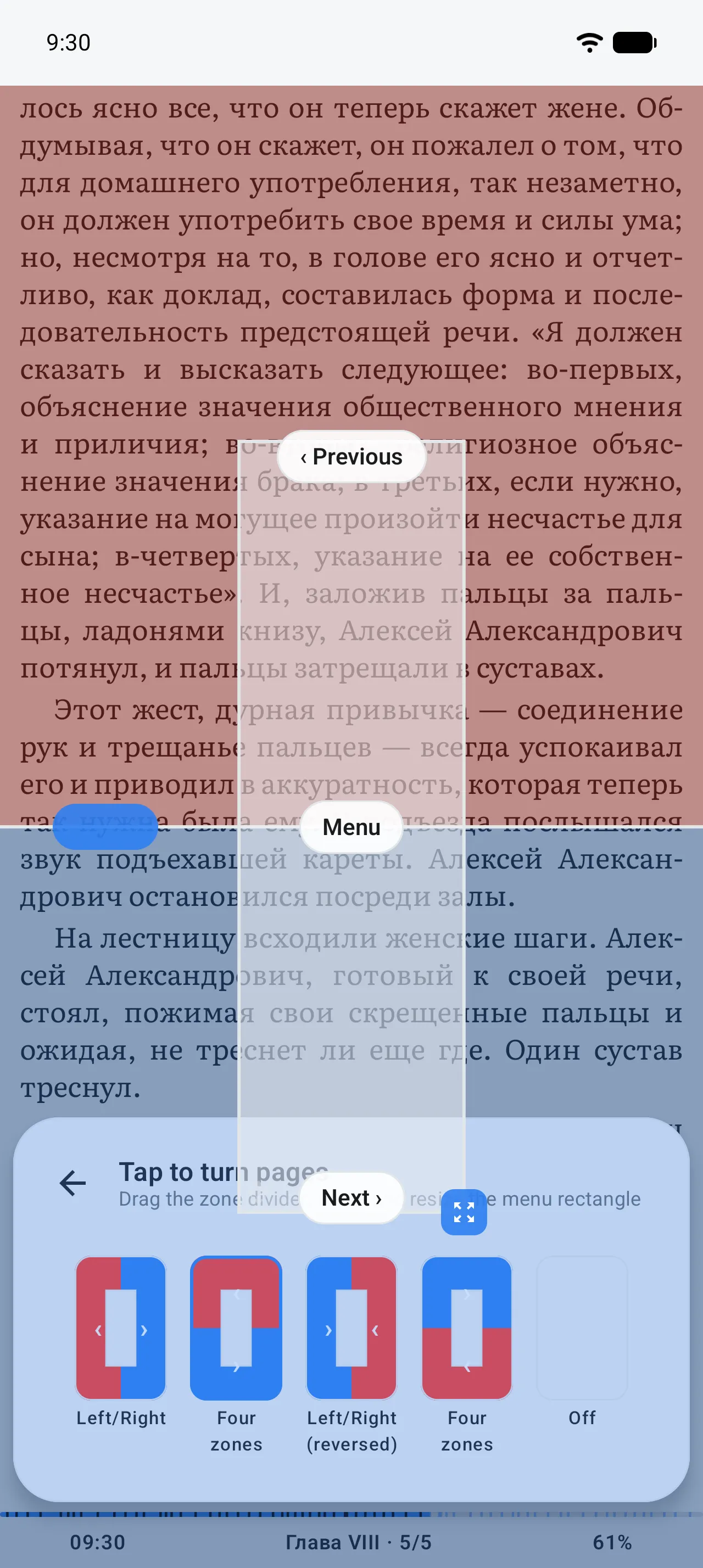
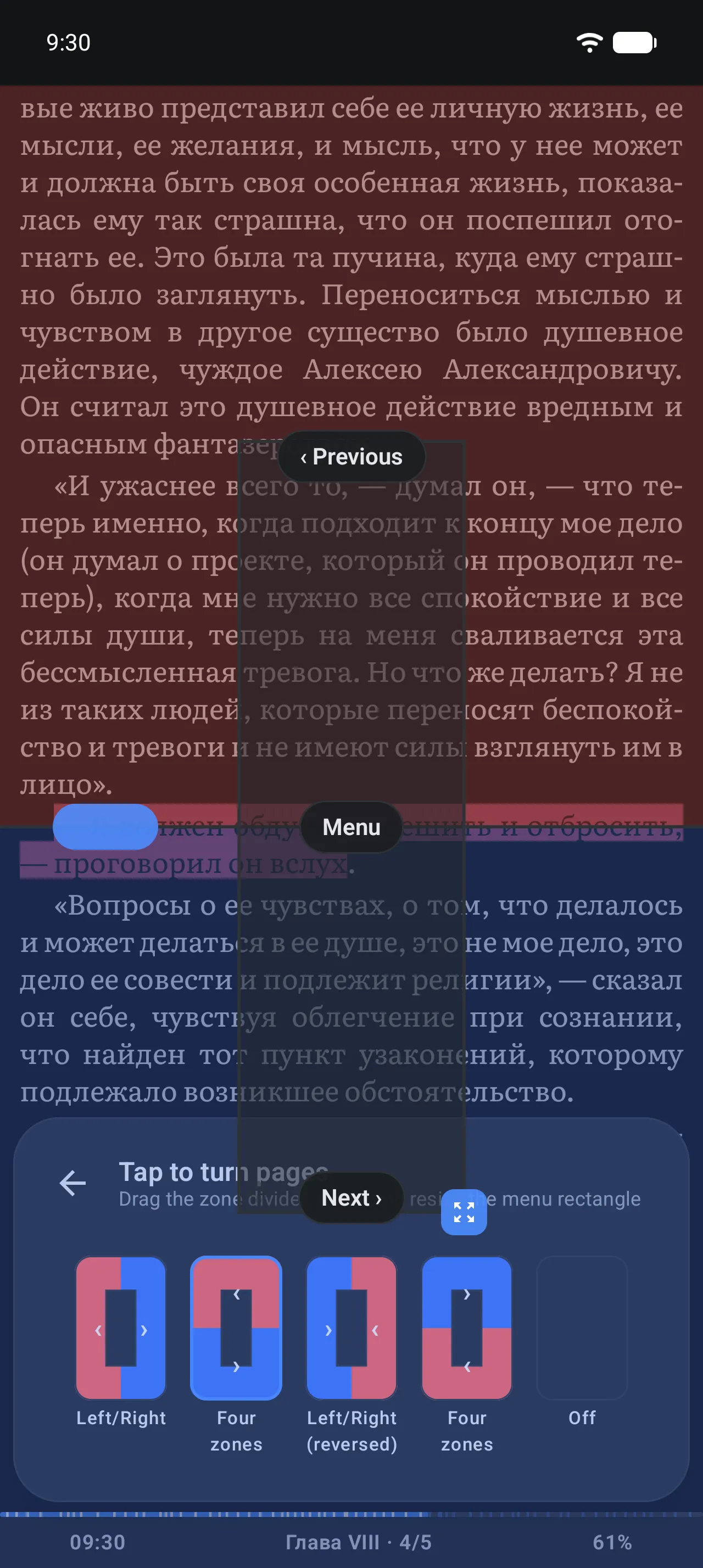
Drag a zone divider to resize zones. You can move and resize the Menu rectangle.
Volume buttons
Enable “Volume buttons turn pages” in Gestures, or Settings → Reading → Volume buttons. Volume buttons do not turn pages while any panel or dialog is open.
Swipe for brightness, warmth and font size
In Gestures, choose an edge for “Swipe for brightness”: “left”, “right” or “off”. Font size can also be adjusted by swiping, with a point-size indicator on screen.
Brightness swipes require manual brightness. If “Auto brightness” is enabled, Booked offers to disable it. “Warmth” and “Keep screen on” are in the Screen panel.
Contents
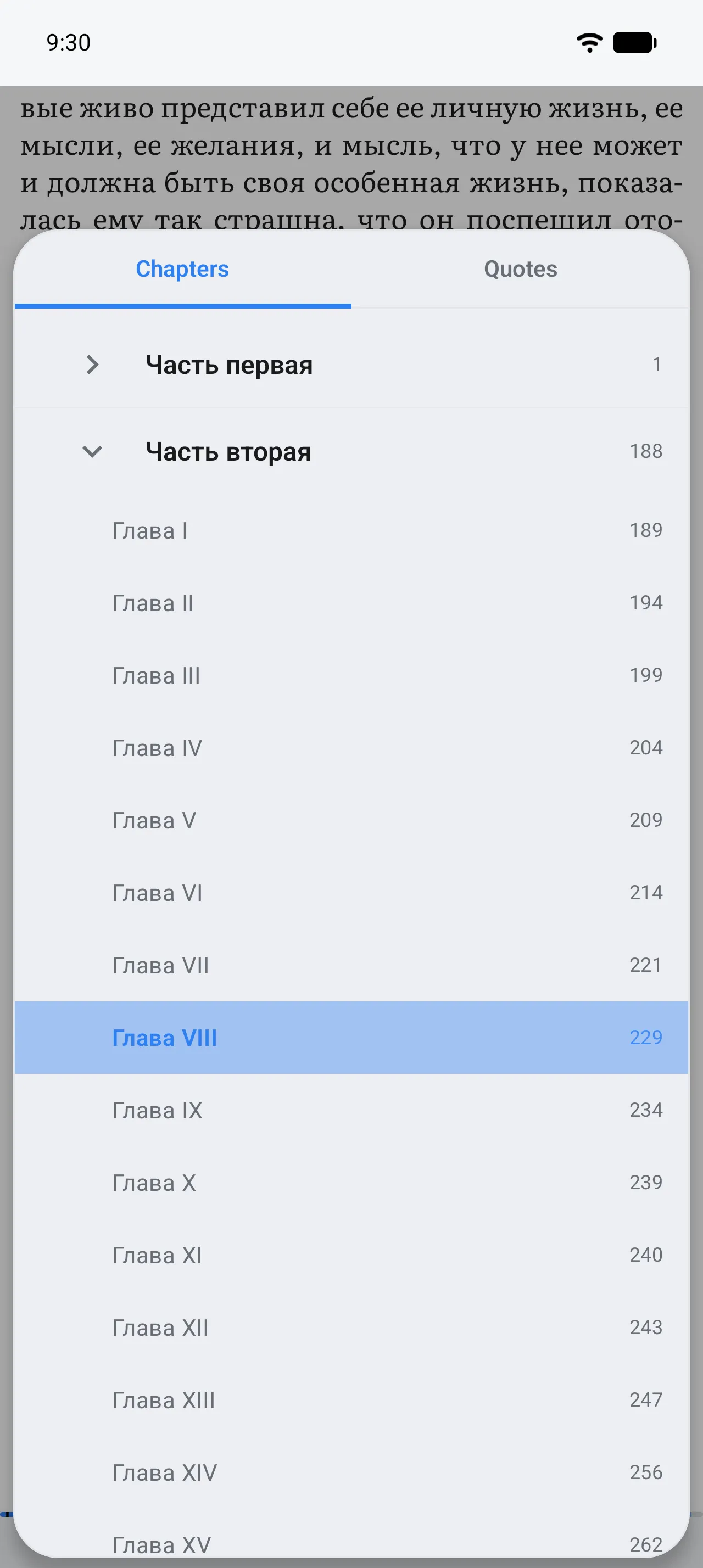
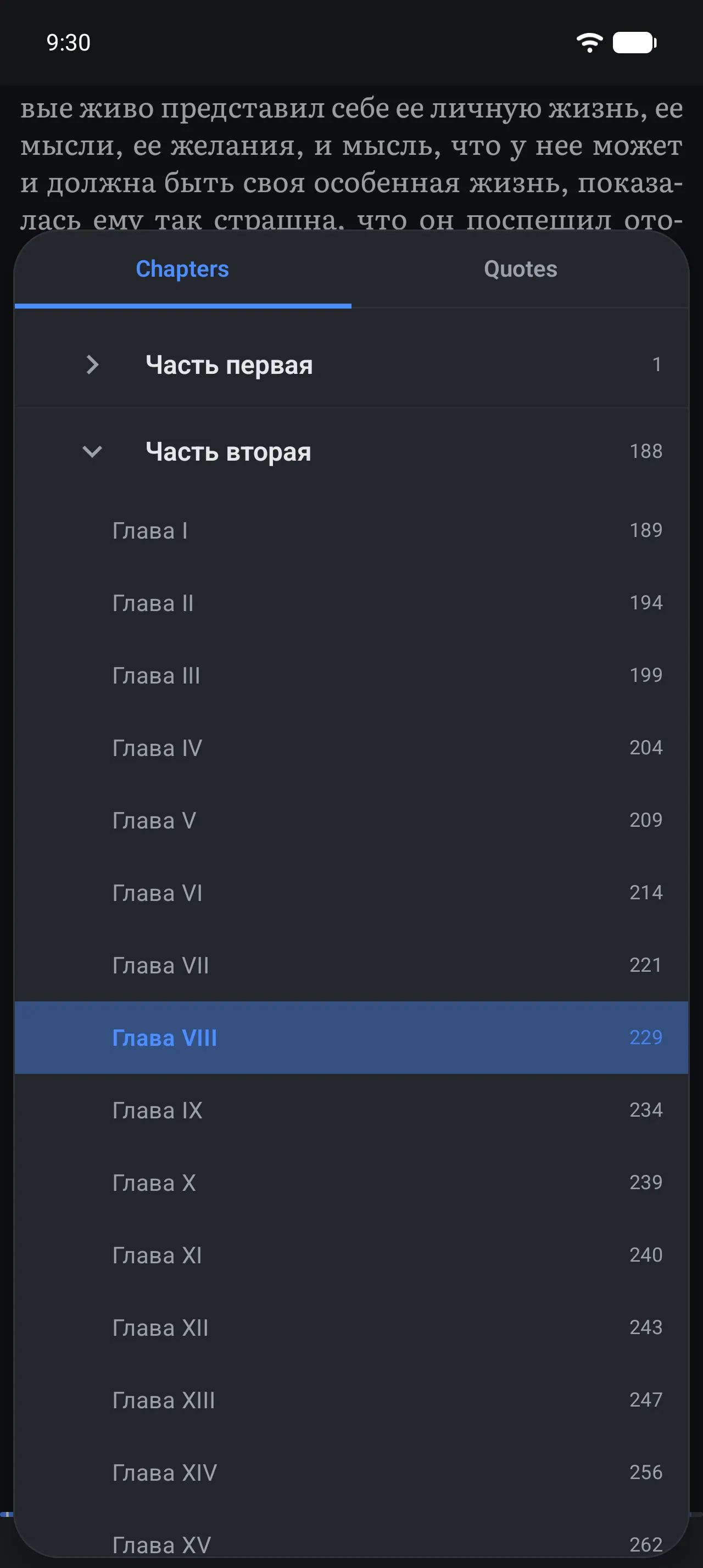
“Chapters” opens the contents panel. The Chapters tab is always present; Bookmarks, Quotes and Pinned items appear only when the book has those entries. Tap a chapter or entry to go there. Open your personal note through “Notes” in the reader menu or book details; it does not have a separate contents tab.
Search a book
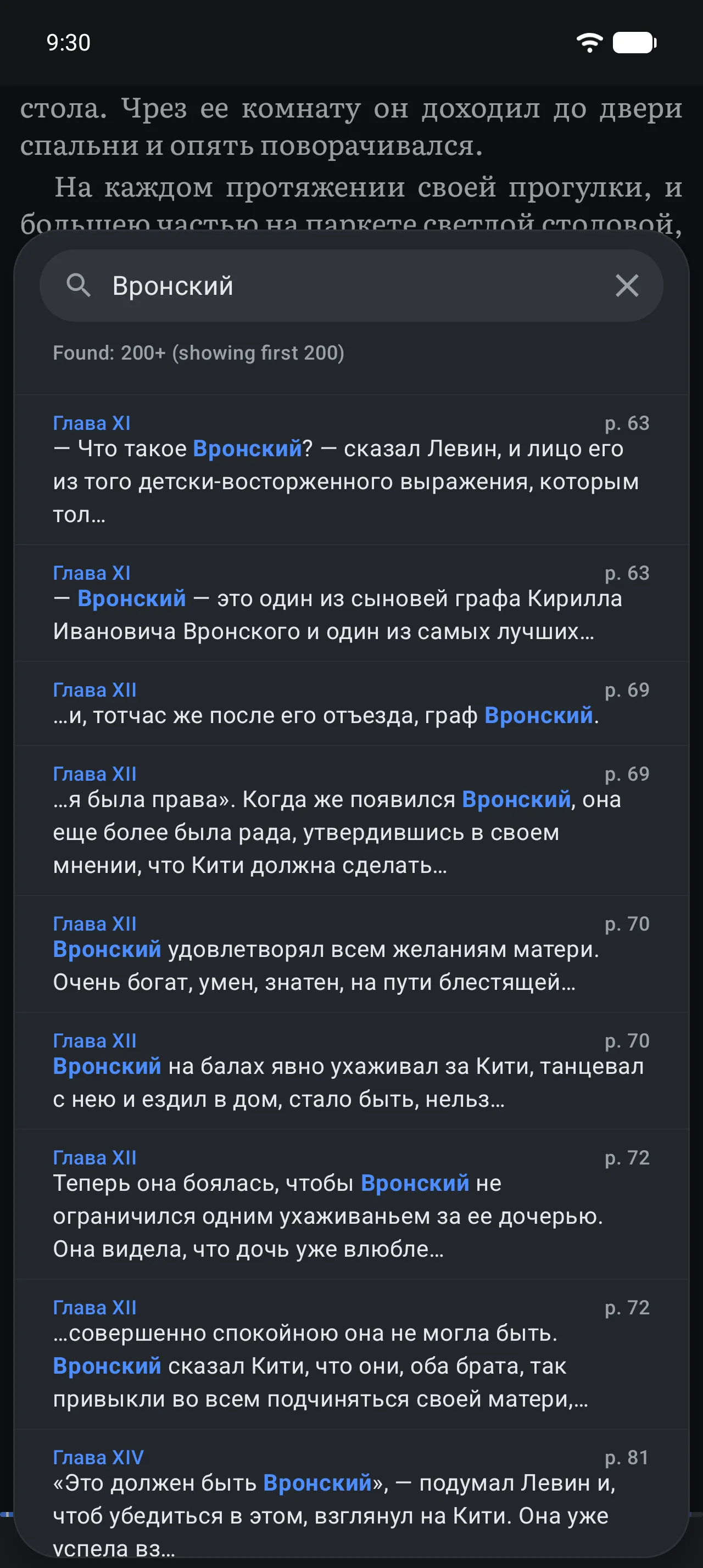
“Search” opens “Search book”. Results include page numbers; tap one to go there. If there are many matches, only the first results are shown.
Go to a page
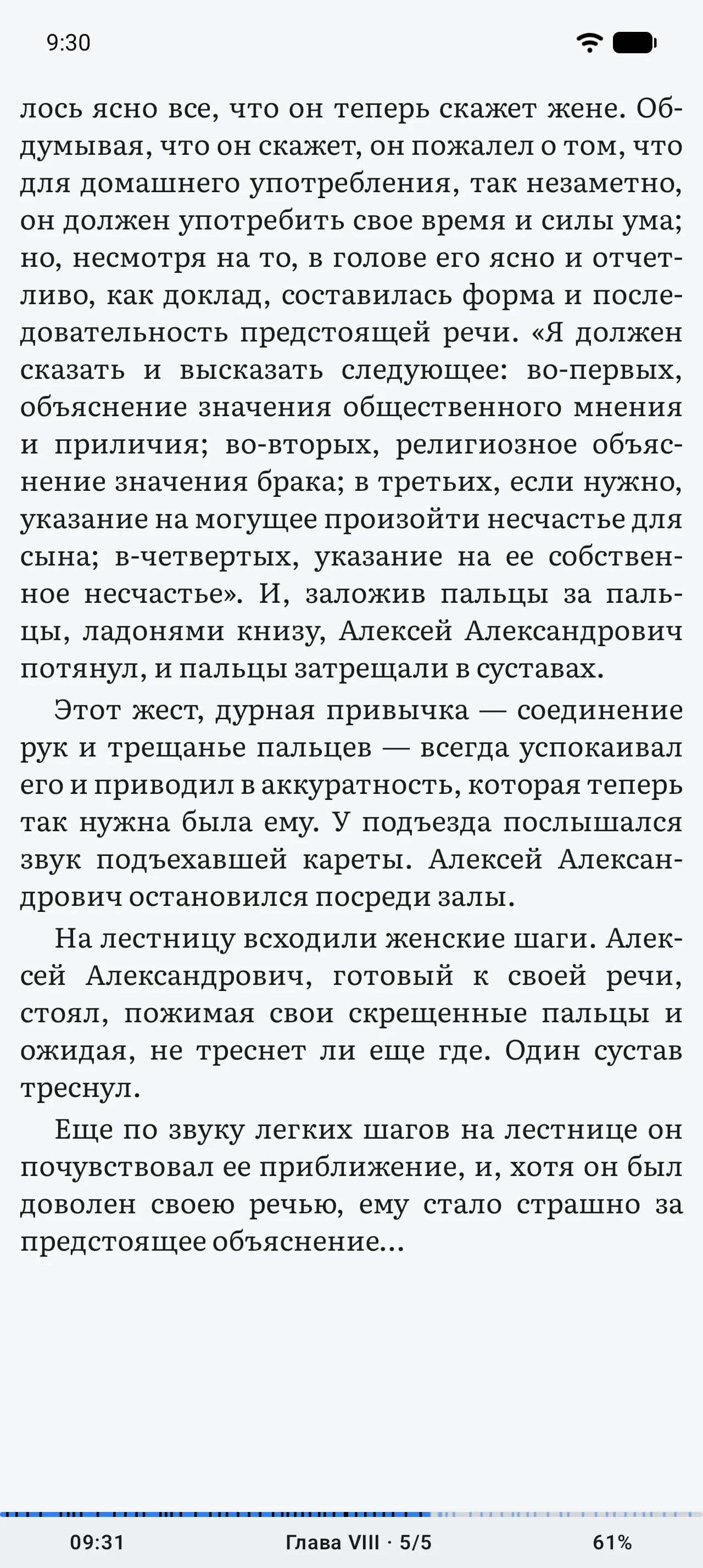
Tap “Go to”, enter a number under “Pages” and tap “Go”. Percentage jumps also use pages, as do the “Return” and “Newer on…” banners.
Browsing mode
Jumping through search, contents or a saved entry leaves your reading position unchanged and shows a “Browsing” banner. “Return” takes you back; “Read from here” makes the current location your reading position. Finished books show “Finished” instead and do not save position changes.
Lock your reading position
Restore “Position” from “Outside menu” in the menu editor and tap it. Your saved location is locked and marked on the progress bar. Page turns, searches and chapter jumps do not move it, so you can look ahead and return.
“Return” opens the locked position; “Read from here” selects a new one. Tap “Position” again to unlock it. Starting reading aloud in this mode begins at the locked position.
Auto scroll
“Auto scroll” starts smooth scrolling. Speed is measured in lines per minute and adjusted using “Slower”, “Faster” or a swipe. “Resume scrolling” restarts a paused scroll; “Stop auto scroll” turns it off. Auto-scroll time does not distort your reading pace.
Other buttons
- “Rotate” and “Portrait” change screen orientation.
- “Lock” blocks touch input; hold a volume button to unlock.
- “Full screen” hides system bars.
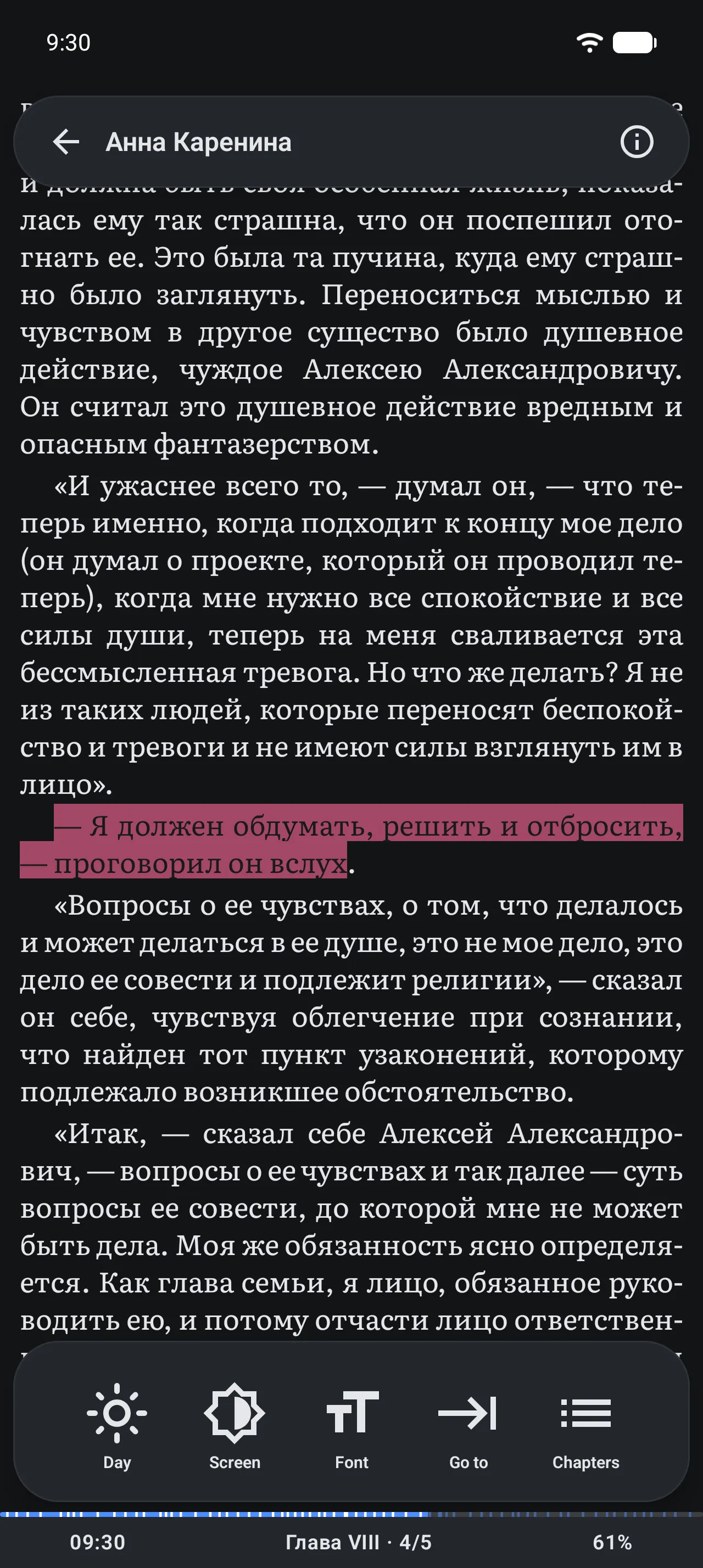
- “Day”/“Night” changes appearance without opening Settings.
- “Sync” sends your reading position to the cloud immediately.
- Tap a footnote to open it; use Android Back to close it.
Open a book on another device
Books open immediately at the local position. If another device has a more recent cloud position, a “Newer on…” banner appears. “Go” opens that position; “Stay” keeps the current one.