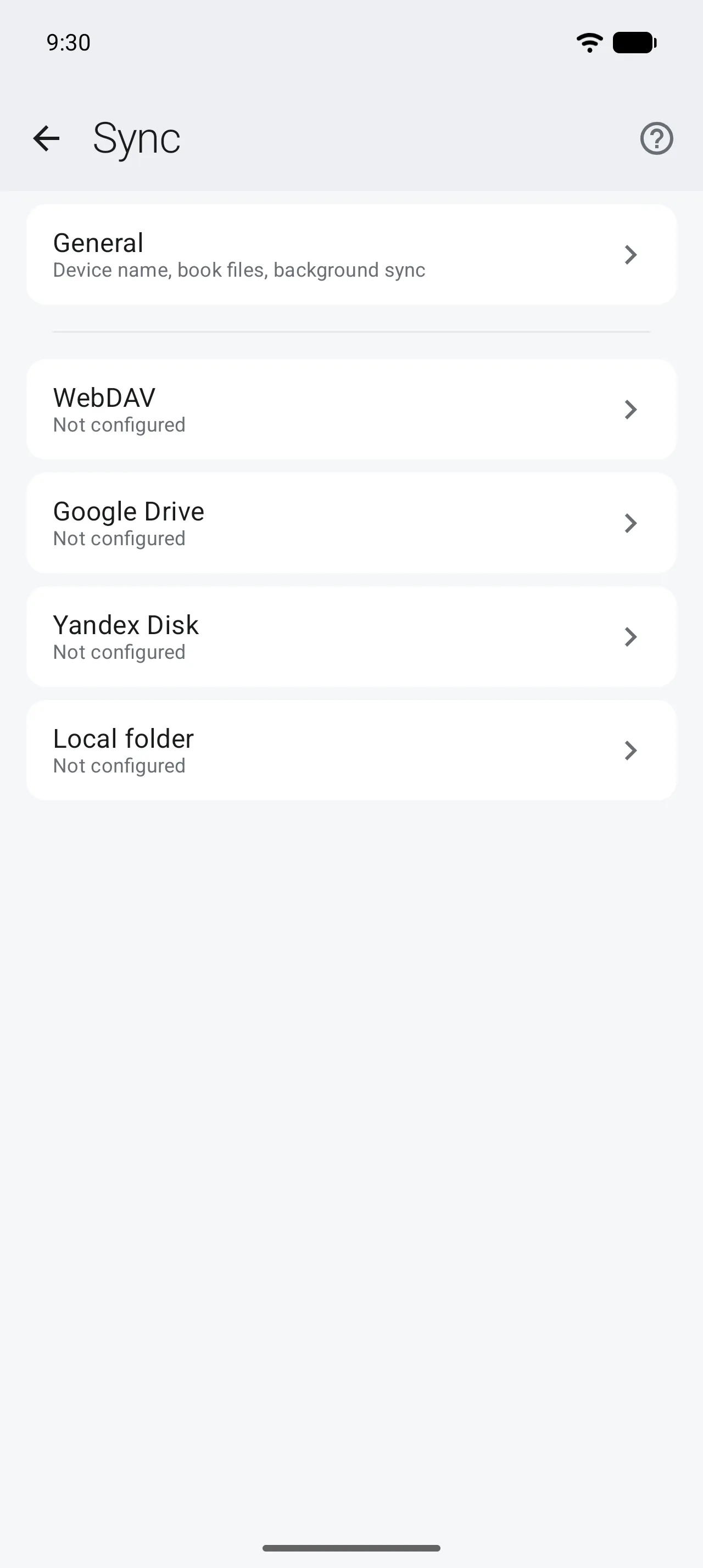
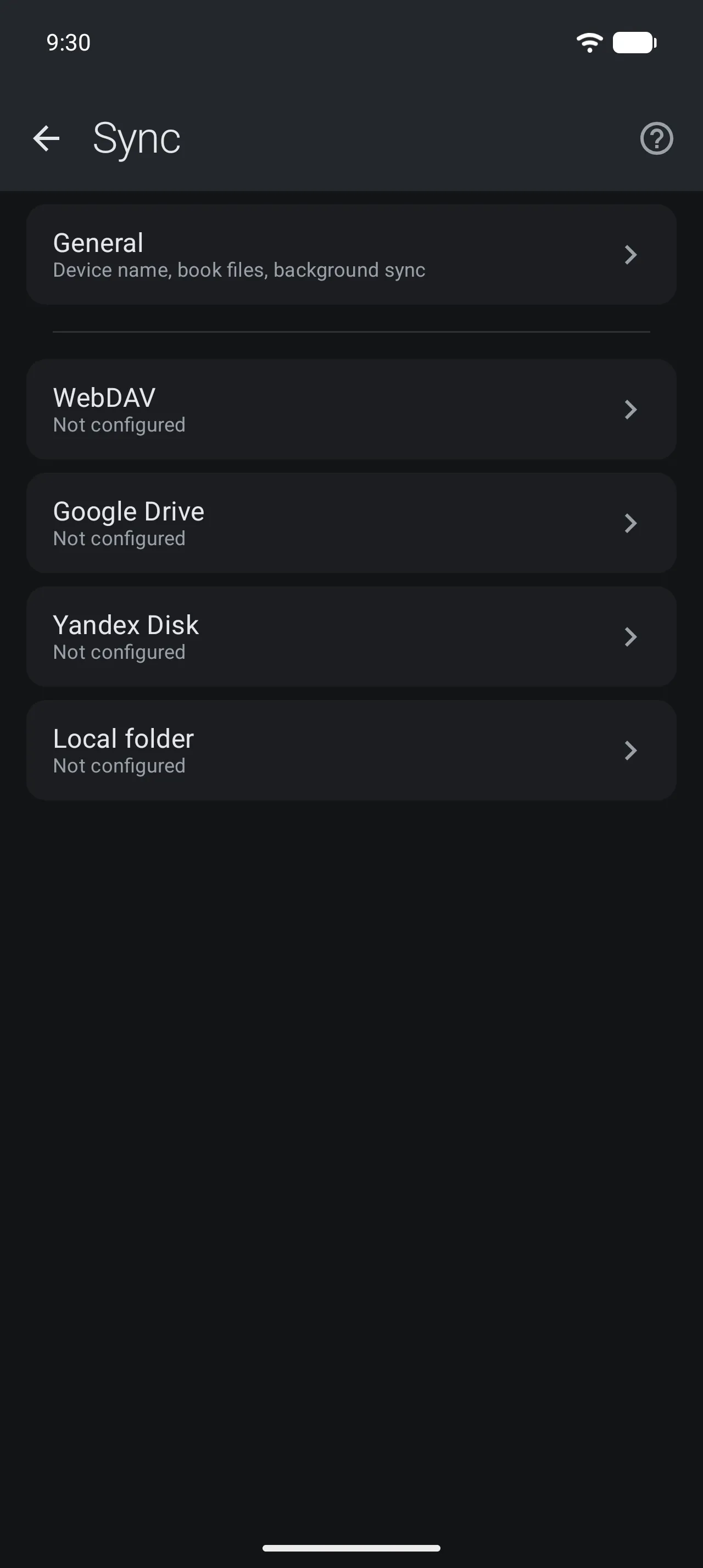
Booked has no server of its own. Sync writes data to storage you choose: a WebDAV server, Google Drive, Yandex Disk or a device folder. You can connect several providers; data is sent to all of them, and one failing does not block the others.
Open Menu → Sync. The help icon in the header opens “How sync works”.
Calibre is no longer here: it has its own screen under Settings → Network → Calibre (or Menu → Network → Calibre once you turn on its “In main menu” switch) for two-way book-file transfers over Wi-Fi. Calibre does not sync progress, quotes or notes. See Adding books for setup and controls. Sending books between two Booked apps over Wi-Fi is not sync either: it is a one-off transfer, see Books over Wi-Fi.
What is synced
- reading progress and position;
- book metadata: status, rating, series, genre, start and finish dates, read count;
- bookmarks, quotes, pinned items and personal book notes;
- reading sessions for statistics from the last 90 days;
- deletions: a book deleted on one device disappears from the others;
- appearance, font, panels and reading goals, when “Sync settings” is enabled;
- book files themselves, when “Sync books” is enabled.
Physical books, their metadata, reading journals, published personal notes and custom covers are also synced. Both devices need physical-book support: an older client transfers electronic books only. “Sync books” controls electronic book files, not physical-book covers. After deleting a book or replacing a cover, the old image file may remain in storage: these cover files are not automatically cleaned up.
Font size, margins, brightness, tap zones and E-ink mode remain device-specific.
Connect storage
WebDAV
Nextcloud, ownCloud and any WebDAV server work, including a home NAS.
- Open Menu → Sync → WebDAV.
- Enter “Server URL”, “Username” and “Password”.
- For a self-signed certificate, disable “Verify HTTPS certificate”. This is insecure: the connection can be intercepted.
- Tap “Check”.
The password is stored on your device. Addresses beginning with http:// use an unencrypted connection.
S3 · Experimental
From version 1.5.0, S3 is experimental: sync errors may occur, so keep backups of important data. S3 is off by default and hidden from the regular storage list.
Open Settings → About, tap the version itself 7 times, then open Settings → Developer mode → S3 · Experimental. Enable the switch separately on each device that will use S3: it applies only locally. Turning it off pauses S3 and keeps the connection and data.
The connection targets AWS S3 general purpose buckets and S3-compatible services with Signature V4; Google services are not required.
- Open Menu → Sync → S3 · Experimental.
- Enter an endpoint with an explicit
https://orhttp://scheme: only the server address, without a bucket, path, query, username or fragment. - Enter the region and the name of an existing bucket.
- Optionally set a prefix, such as
reading: the working area becomesreading/Booked/, orBooked/with an empty prefix. Do not includeBookeditself in the field;.and..segments are not allowed. - Enter the Access Key ID and Secret Access Key of a dedicated key with limited permissions. Temporary credentials with a session token are not supported.
- Choose addressing: path-style is the default; virtual-hosted adds the bucket to the server hostname. DNS must resolve the resulting hostname; for HTTPS with verification enabled, the certificate must match it.
- HTTP sends data without encryption: traffic can be read and modified. Use HTTPS to protect the connection. The “Verify SSL certificate” switch appears below Path-style. For HTTPS, it is on by default: the certificate chain and server hostname are verified. For HTTP, the switch is disabled and does not protect the connection; its choice is retained when you change the scheme and applies again when you return to HTTPS. For a self-signed certificate, you can explicitly turn off both checks — the certificate chain and hostname — for this S3 connection only. This is insecure: the server’s identity is not verified, so the connection can be intercepted and your data exposed. Redirects are not followed for either scheme. An HTTPS error never triggers a switch to HTTP or automatically disables verification. Other connections are unaffected.
- Tap “Check”: this tests the draft with its current endpoint scheme and certificate verification choice without saving it. Booked lists the working prefix, writes a unique
.booked-check/<UUID>object, reads and compares its contents, then deletes it. Success requires every step, including deletion. If cleanup fails, remove the remaining test object using your storage tools. - Save the connection. Saving validates fields locally without contacting the server and does not confirm access. Until you save, sync uses the previous scheme and certificate verification choice; after saving, the new scheme and choice apply to all operations for this connection. The verification choice stays on your device, outside sync, library exports and backups. Use the same bucket, region and prefix on the second device; configure certificate verification separately.
Compatibility has been tested with MinIO over HTTP and HTTPS. AWS S3 compatibility has not yet been verified; the settings below are provided as an example.
AWS: endpoint https://s3.eu-central-1.amazonaws.com, region eu-central-1, bucket my-reading-bucket, prefix reading, virtual-hosted. Use your bucket’s regional endpoint; choose a bucket name without dots for virtual-hosted. Redirects are not followed. See AWS address formats.
MinIO: for example, endpoint https://s3.example.org:9000, the region configured on your server (such as us-east-1), bucket my-reading-bucket, prefix reading, path-style. Use the S3 API address, not the web console. With verification enabled, Android must trust the certificate and the server hostname must match it. For a self-signed certificate, the switch described above is available with the risk of data interception. For a server without TLS, you can explicitly enter, for example, http://nas:9000; this connection sends data without encryption.
Limited AWS permissions
Example IAM policy for bucket my-reading-bucket and prefix reading. Replace both with your own values. ListBucket applies to the bucket with a working-prefix condition; read, write and delete apply only to objects inside it, including .booked-check/. Public access and administrator permissions are not needed. Other policies for the same key can broaden access: use a dedicated key without additional permissions. See AWS prefix conditions.
{
  "Version": "2012-10-17",
  "Statement": [
    {
      "Effect": "Allow",
      "Action": "s3:ListBucket",
      "Resource": "arn:aws:s3:::my-reading-bucket",
      "Condition": {
        "StringLike": {
          "s3:prefix": "reading/Booked/*"
        }
      }
    },
    {
      "Effect": "Allow",
      "Action": [
        "s3:GetObject",
        "s3:PutObject",
        "s3:DeleteObject"
      ],
      "Resource": "arn:aws:s3:::my-reading-bucket/reading/Booked/*"
    }
  ]
}
For an empty prefix, replace reading/Booked/* with Booked/* in both places. Test mode uses a separate Booked_Test/ root: grant that area separately if you enable it. The policy above does not allow it.
SSE-KMS also requires kms:GenerateDataKey for writing and kms:Decrypt for reading, and the KMS key policy must allow access. The example above does not grant these permissions. Booked does not set custom SSE-KMS headers: bucket policies requiring those headers may reject writes. See AWS SSE-KMS.
Data, costs and deletion
S3 transfers the same snapshots, positions, devices and deletions as other storage; book files and custom fonts are enabled separately under General. Put incoming books in reading/Booked/inbox/ (or Booked/inbox/ without a prefix). Keys stay on your device, outside sync and backups. Disconnecting S3 removes saved keys locally but leaves bucket objects in place.
Your provider may charge for storage, requests (including connection checks and frequent position updates) and data transfer. Booked does not cover these costs; check AWS S3 pricing or your provider’s rates.
With versioning, a normal deletion creates a delete marker: older versions can remain and incur storage charges. Booked does not delete versions by version ID. To erase everything, stop sync on all devices and remove the working prefix, all versions and delete markers using your provider’s tools. Retention/Object Lock may prevent deletion until its term ends. Configure lifecycle cleanup of older versions separately; do not automatically expire current positions, snapshots, books or fonts. See AWS version deletion and Data deletion.
Google Drive
- Open Menu → Sync → Google Drive → Sign in with Google.
- Grant access. The app can see only files it creates, not the rest of your Drive.
Google Play services are required; without them, the section shows “Unavailable”. “Sign out” unlinks the account and revokes app access at Google, so consent is requested again next time. Revocation requires a connection. If you signed out offline, revoke access in Google account settings; see Data deletion.
Additional actions: “Check Drive folder structure” and “Reupload book files to Drive”.
Yandex Disk
- Open Menu → Sync → Yandex Disk → Sign in with Yandex.
- Data is stored in “Applications/Booked” on your Disk. The app can access only this folder.
Yandex Disk works without Google services. Sign-in lasts about a year; sign in again when it expires. “Reupload book files to Disk” uploads book files again.
Local folder
- Open Menu → Sync → Local folder → Select folder.
- Sync that folder between devices using a tool such as Syncthing or FolderSync.
Cloud folders in the system picker do not work on every device. Use the separate Google Drive provider above for Drive. If folder access is lost, select it again with “Change”.
General settings
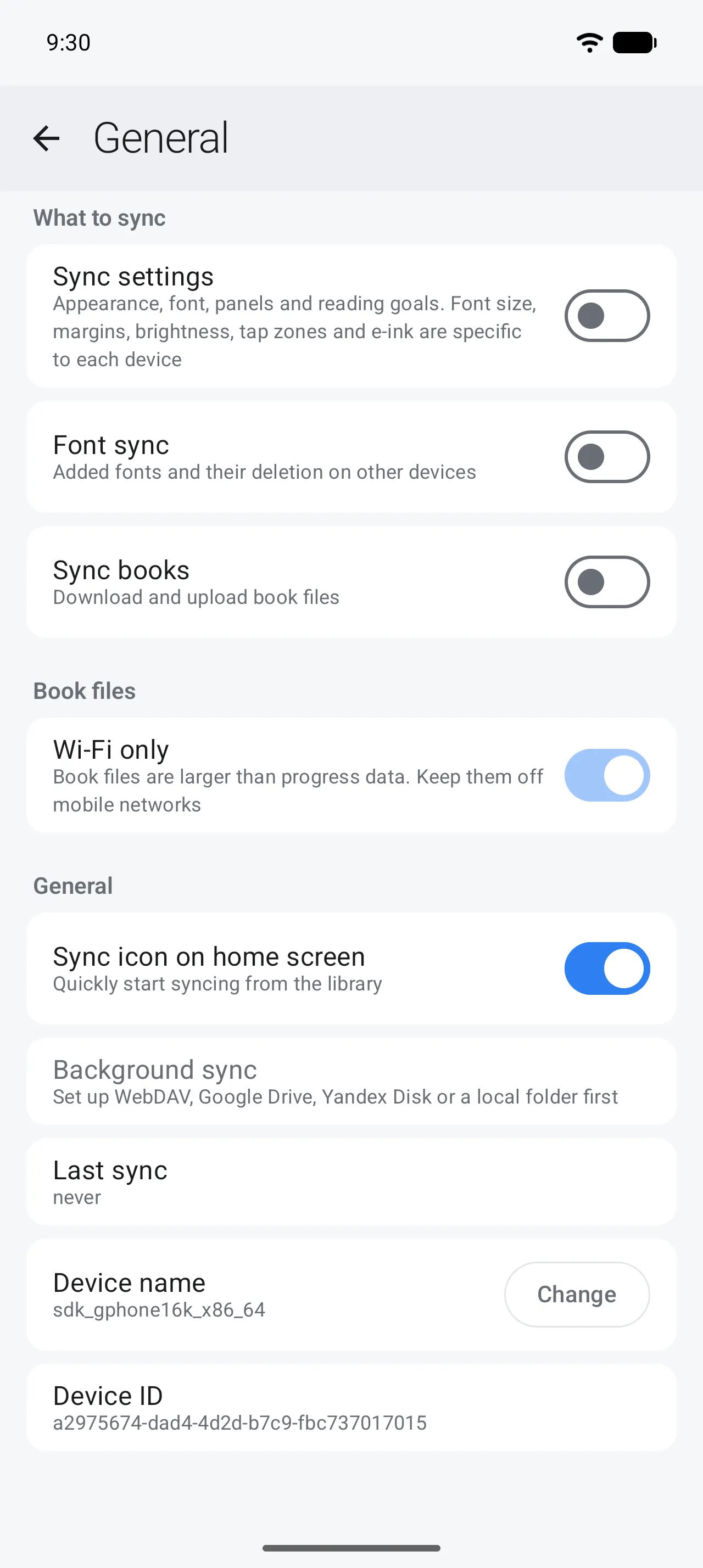
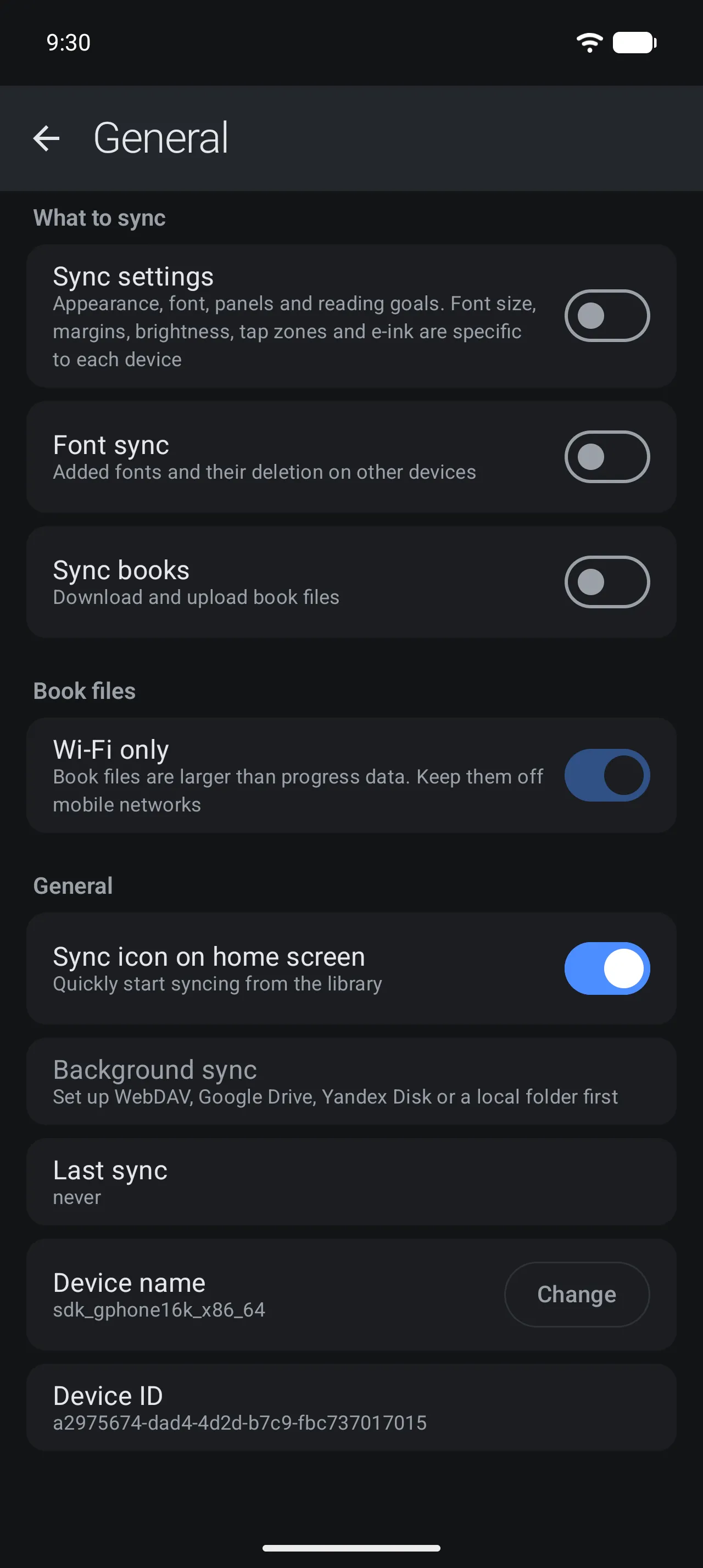
Menu → Sync → General:
- “Device name” — how this device appears on other devices and in the sync folder;
- “Sync settings”;
- “Sync books” — book files;
- “Font sync” — added fonts and their deletion on other devices;
- “Wi-Fi only” — book files are larger than progress data, so you can keep them off mobile networks;
- “Background sync” and “Sync interval”: “Off”, “Every hour”, “Every 2 hours”, “Every 6 hours”, “Every 12 hours” or “Daily”.
Background sync sends changes from this device. Changes from other devices arrive when you open the app and once a day.
Start a manual sync with the header icon (all configured providers), “Sync now” on a storage page, or the Home icon. A strip above the library shows progress. Tap it for steps, errors and “Stop”.
Menu → Sync → General → Sync icon on home screen hides the library button. Scheduled sync and buttons on storage pages continue working. The Calibre icon is configured separately on the Calibre screen (Settings → Network → Calibre).
Inbox folder
Storage contains an inbox folder at its root. Put a book there from your computer; the next sync adds it to your library and removes it from the folder.
Devices
“Devices” on a storage page lists devices that have synced. Tap “Forget” for a device you no longer use to remove its storage folder. If it is still active, it reappears at the next sync.
Conflicts
- Each device writes a snapshot to its own folder and reads the others.
- When entries conflict, the most recently modified wins. Reading progress does not move backward, and Finished does not revert to Reading.
- Reading position has a separate file per book and updates more often. When opening a book with a newer cloud position, Booked offers “Go” or “Stay”.
- After you close a book, the home screen shows a “Position of “…” sent” line (accent color, check mark) that fades after 5 seconds. If the position could not be sent, the line stays in the error color with an icon until it succeeds; tap it to retry.
- If the device clock differs from the server, Booked warns that sync might choose the wrong versions.
- Concurrent personal-note versions are preserved for you to choose; see Bookmarks, quotes, notes and pinned items.
Folder structure
WebDAV and Google Drive use a Booked/ folder. Yandex Disk stores data directly in “Applications/Booked”; local folders store it directly in your selected folder.
Booked/
├─ device_…/        device snapshots (latest three)
├─ positions/       reading position: one file per book
├─ books/           book files, if transfers are enabled
└─ inbox/           books placed here from your computer
In S3, this structure lives under <prefix>/Booked/ (or Booked/ without a prefix). The fonts/ folder holds custom fonts when font sync is enabled.
Snapshots are ordinary JSON.
Reading position file
Example Booked/positions/9f3c…a17e.json contents. Values are illustrative and some fields are omitted.
{
  "v": 1,
  "contentKey": "9f3c…a17e",
  "progress": 0.3412,
  "updatedAt": 1791102072000,
  "deviceName": "Pixel Fold"
}
contentKey identifies a book by file content; progress is the fraction read from 0 to 1; updatedAt is modification time in Unix milliseconds; deviceName is the device name.