Back up to a file
Settings → System → Backup:
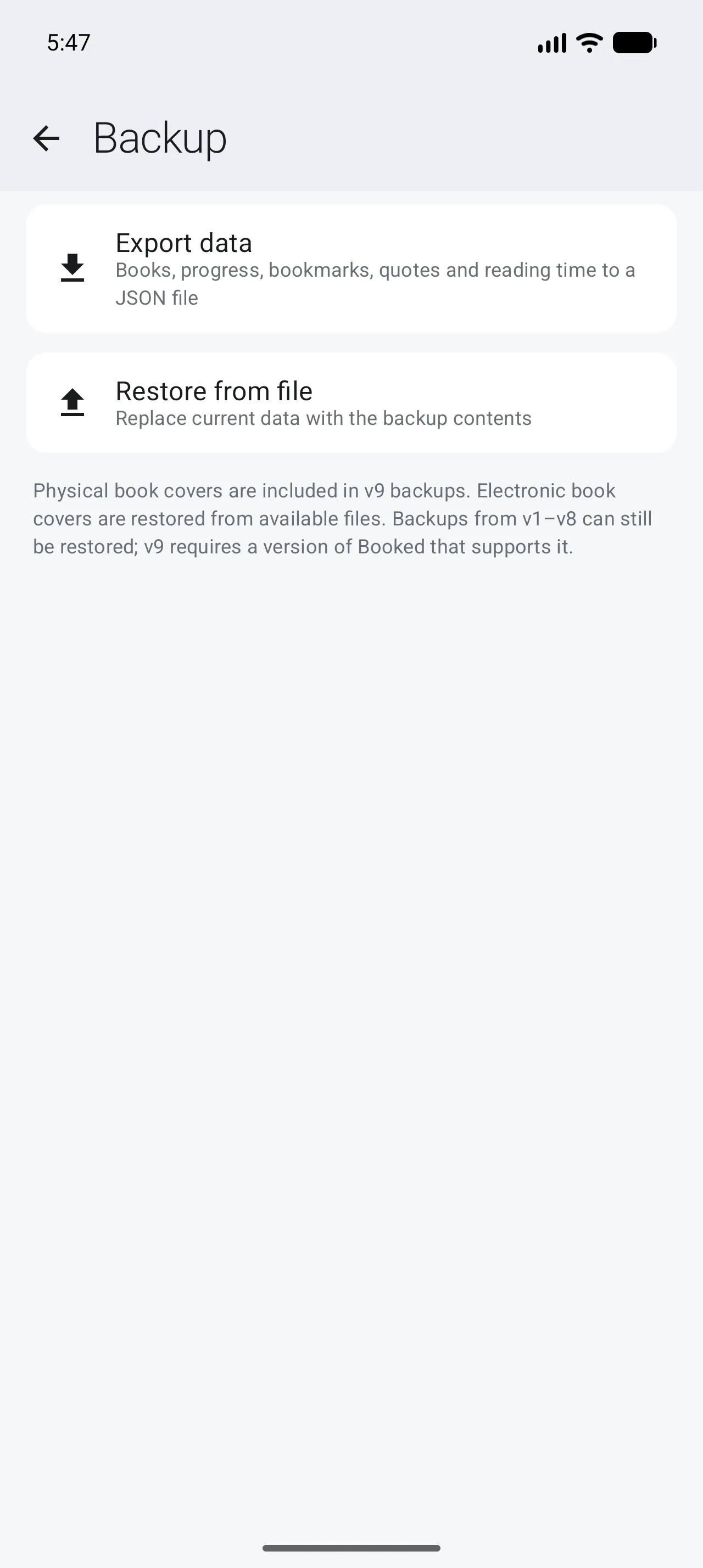
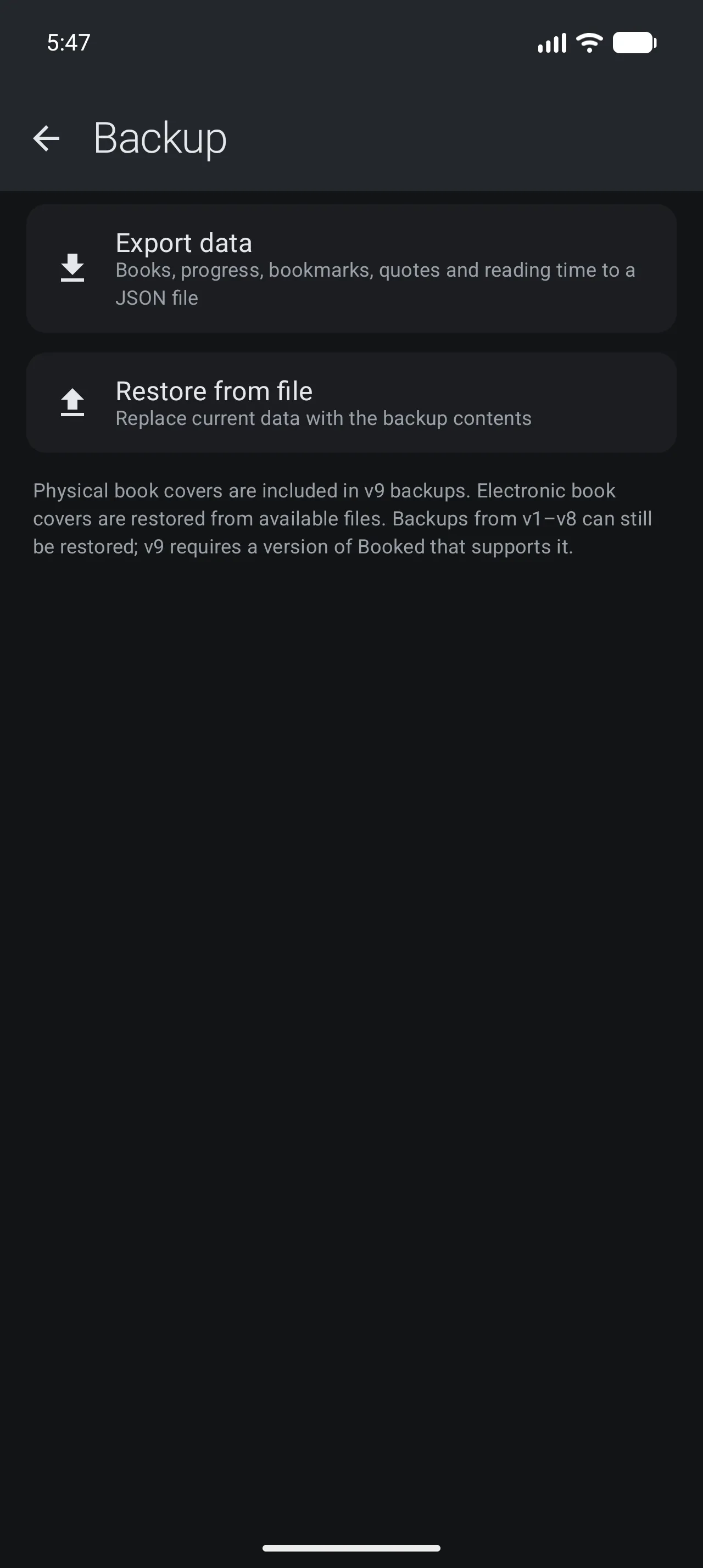
- “Export data” saves library data, progress, bookmarks, quotes, pinned items, personal notes and drafts, sessions and reading history to a JSON file. Choose where to save it.
- “Restore from file” replaces current data with the backup contents. This cannot be undone, so the app asks you to confirm.
Electronic book files, their covers and app settings are not included in the JSON backup. Electronic book covers can be extracted again from available files.
Physical books include their metadata, journal, personal notes, drafts and chosen covers: they can be restored without a network connection, the old cache or an electronic file. If a required cover has not downloaded yet or is unavailable, export fails; retrieve the cover and retry.
To move electronic books to another device, use book-file sync: a JSON backup alone is not enough to read. If a backup is damaged or has an invalid format, the app reports that it could not restore the data.
File backups are manual. Sync provides an ongoing copy of your data; see Sync.
The new backup format requires a Booked version with physical-book support. It also reads older backups; an older client rejects the new backup before replacing its library.
Move to another device
- Set up sync on the old device and, for electronic books, enable “Sync books”. Wait for sync to finish.
- Install Booked on the new device, connect the same storage and start syncing.
- Your library, progress, bookmarks, quotes, notes and statistics appear on the new device. Download electronic book files using “Download” in the book details or through book-file sync.
Booked does not participate in Android system backup or system data transfer. After reinstalling, your library is empty and settings are reset. Restore using a Booked backup file or reconnect your sync storage.
Physical books and their covers transfer without electronic files; both devices need a version with physical-book support.
Free up space
For an electronic book, open its menu and choose “Remove from device (keep in cloud)”. The local file is removed while the book and its data remain. Use “Download” to retrieve the file again. This option is available only once the file is confirmed in the cloud.
Delete a book or its data
For a physical book, “Delete” removes its record, journal, personal note and cover reference; sync transfers the deletion to other devices. Old cover files may remain in the cloud; see Data deletion for full cleanup. Edit individual reads in the journal.
For an electronic book, open “Book menu” in the book details:
- “Delete” removes the book along with its file, progress, personal note, bookmarks and quotes. With sync enabled, it also disappears from the cloud and other devices;
- “Delete data…” removes only selected items: “Quotes”, “Bookmarks”, “Pinned items”, “Reading sessions”, “Reads” or “Reading progress”. The book remains. “Reads” clears finished-reading history and the read count; the current reading position remains unless you also select “Reading progress”. For a book you are rereading, “Reading progress” returns it to “Finished” (if “Reads” is selected too, to “To read”).
Delete all data
Booked has no account or server, so all data is under your control. Clear app data under Android Settings → Apps → Booked → Storage → Clear data, or uninstall the app. Cloud copies and account access must be removed separately; see Data deletion for instructions.