How it works
Select a word or short phrase, tap “Dictionary” and choose “Translate” or “Definition”.
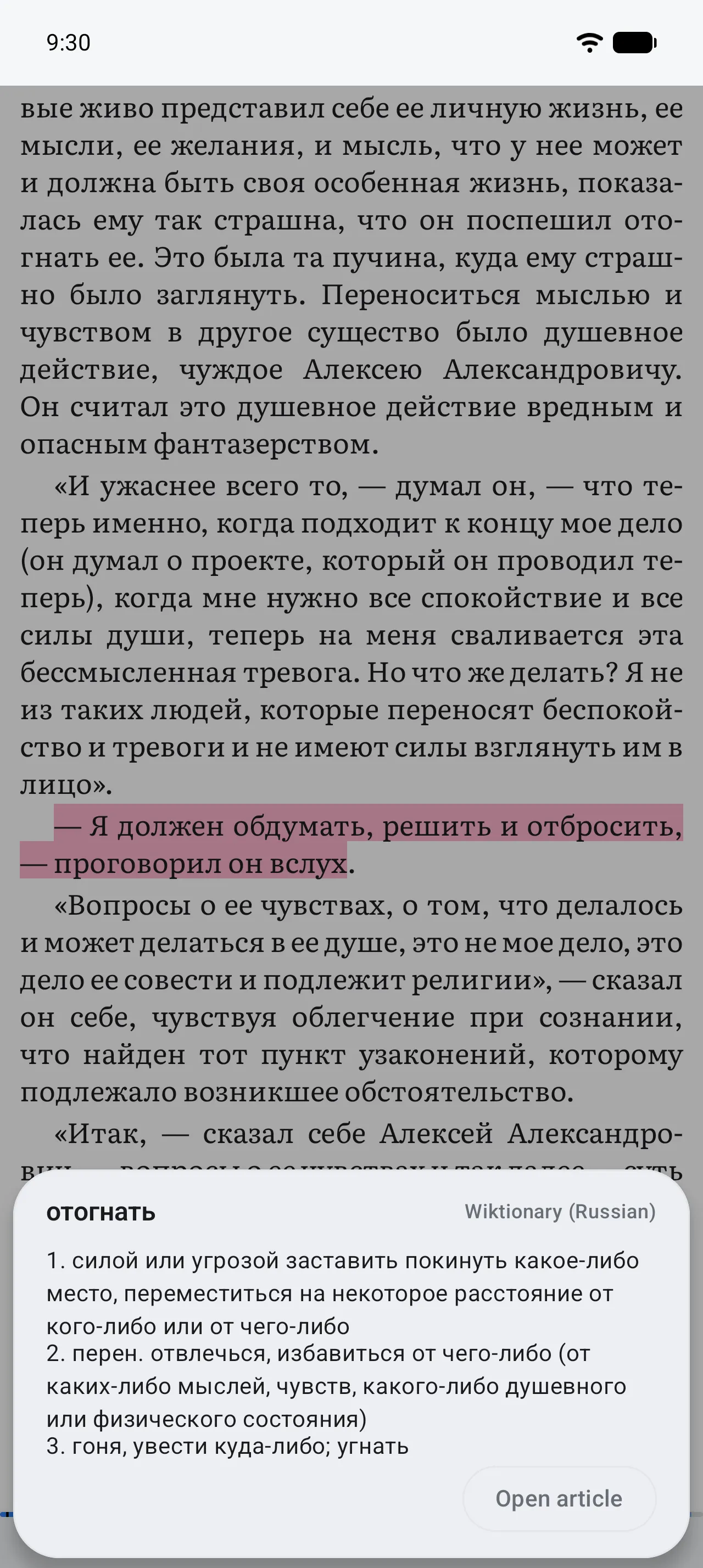
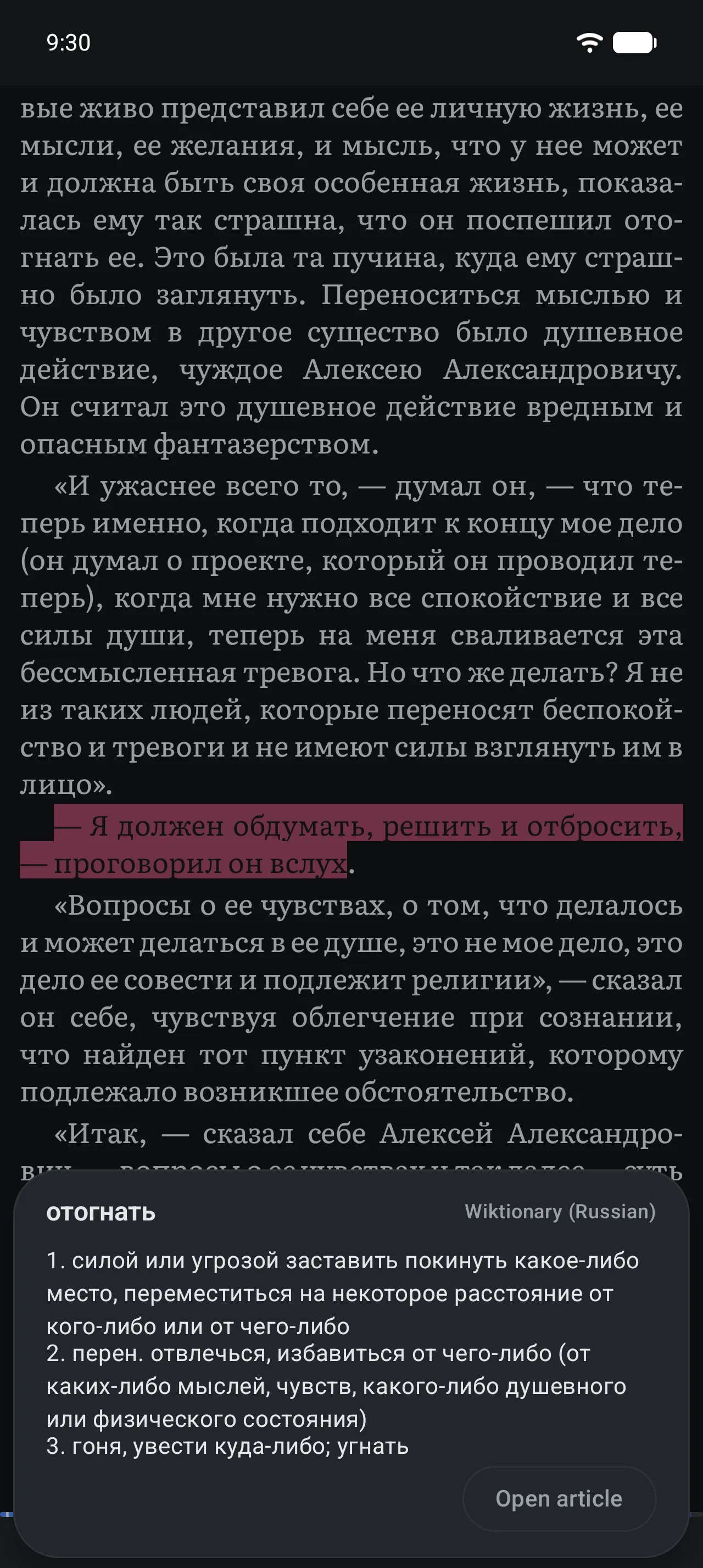
- Definition shows a definition. The built-in dictionary works online: it searches Wiktionary first, then Wikipedia. Use “Open article” to view the article in a browser.
- Translate sends the selected text to a translation app installed on your device. Booked does not translate text itself; you see the translation in the other app.
Definition searches send the selected text to Wiktionary and Wikipedia. See the privacy policy for details.
Choose apps
Settings → Integrations:
- “Translation app” — your selected translator or “System chooser (every time)”.
- “Dictionary app” — “Built-in dictionary (online)”, another installed dictionary app or “System chooser (every time)”.
Anki cards
Booked can save words as AnkiDroid cards, including the word, its translation or definition, and the sentence from the book.
Setup
- Install AnkiDroid. If it is missing, Booked settings show “AnkiDroid is not installed”.
- Open Settings → Integrations → Anki cards and tap “Enable”.
- Tap “Grant access” and allow access to AnkiDroid. Without access, cards open in the AnkiDroid editor for you to save manually.
- Choose a deck under “Anki deck”. By default, cards go to “Booked”, created with your first card. Notes use a dedicated “Booked” note type.
Create a card
- Select a word → “Dictionary” → “Translate” or “Definition”.
- Return to the book and tap “To Anki” (the selection toolbar also offers “Save to Anki”). The selection remains. You can tap “To Anki” directly and use “Find definition” inside the card.
- In “Anki card”, check “Word”, “Translation” or “Definition”, and “Context”. Tap the add action.
- “Added to Anki” confirms success. “Open in AnkiDroid” opens the card in that app.
Add a translation to the card
The translation is in another app, so Booked cannot see it. There are three ways to add it:
- tap “Copy” in the translator and return to Booked; the translation is filled in automatically;
- some translators can return text directly, such as Google Translate through “Replace”;
- enter the translation manually.
On Android 12 and later, returning to Booked shows a system “pasted from clipboard” notice as Booked retrieves the translation. The app does not read the clipboard at other times.
If the word already exists
If the word is already in the deck, the dialog says “This word is already in Anki”. “Add anyway” creates another card.