Phones and folded devices
The app rotates with your device, and the library rearranges in landscape. In the reader menu, “Portrait” and “Rotate” let you lock the orientation. Restore a hidden button from “Outside menu”: swipe up twice on the button panel to open the editor.
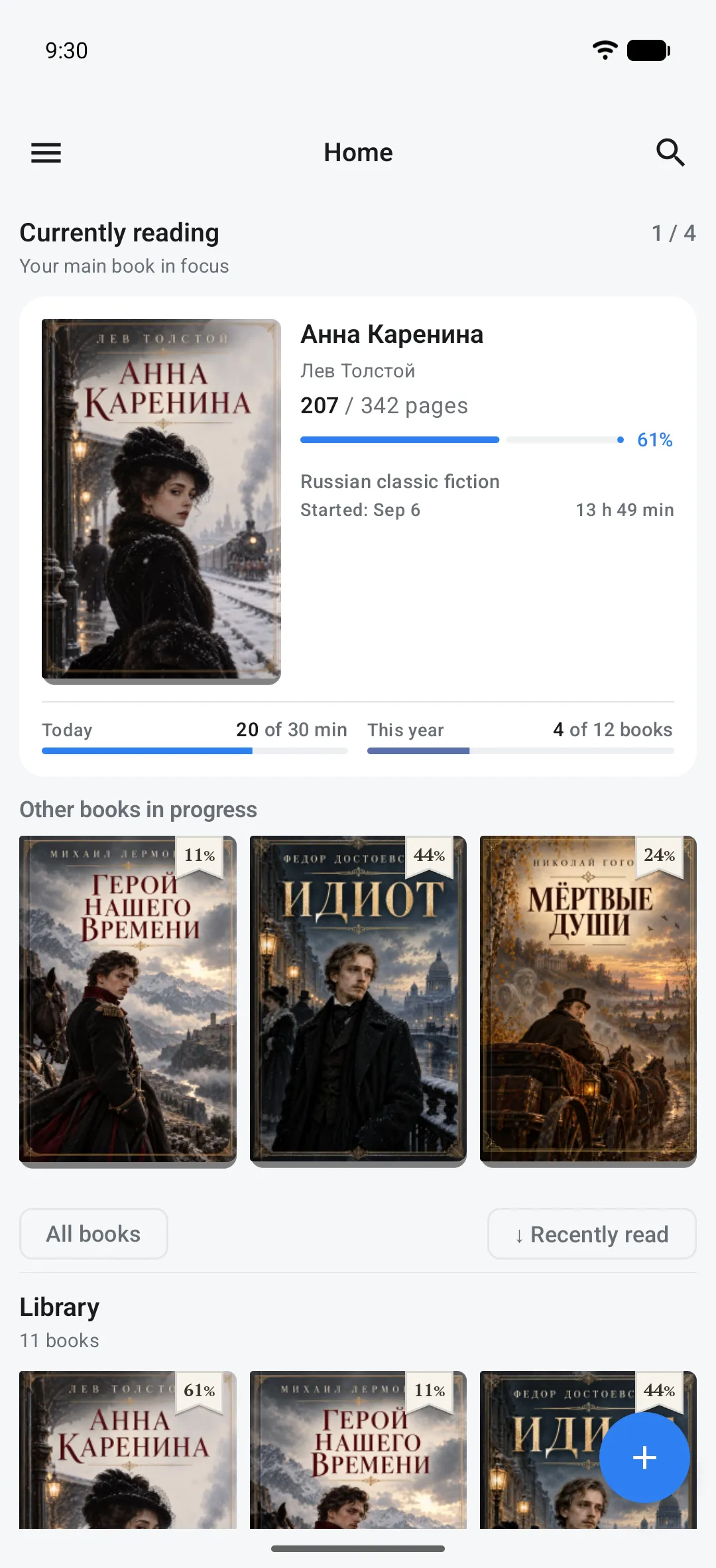
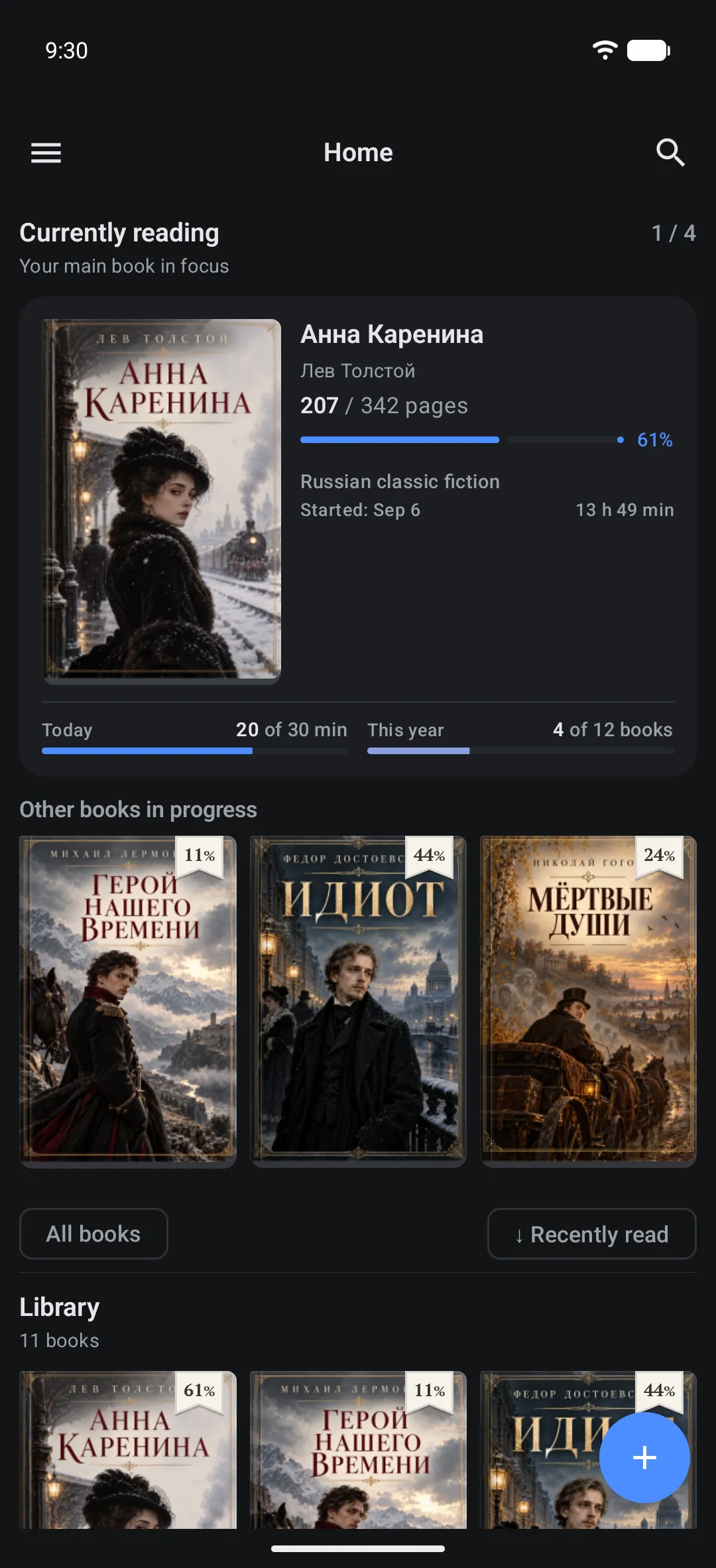
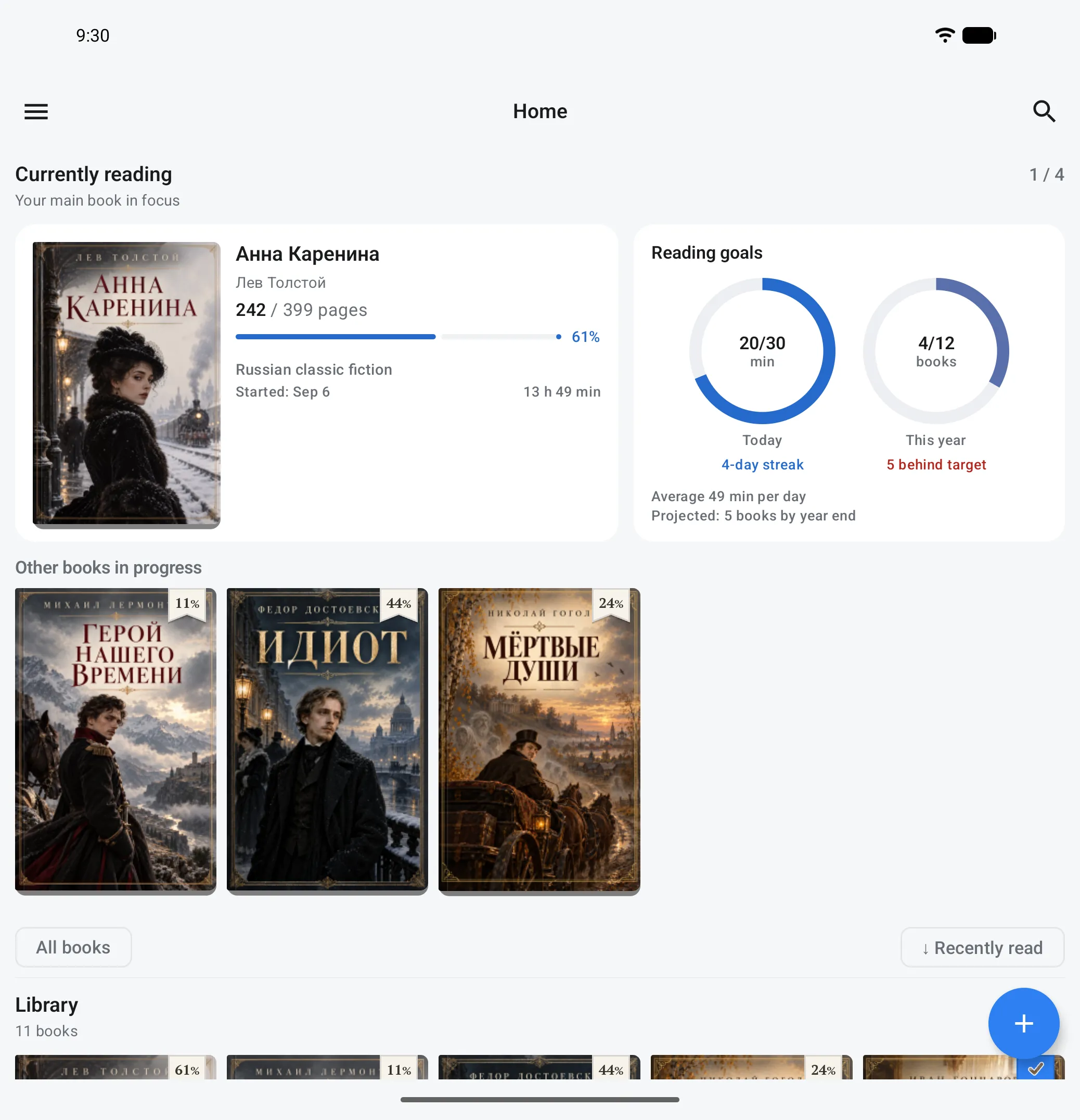
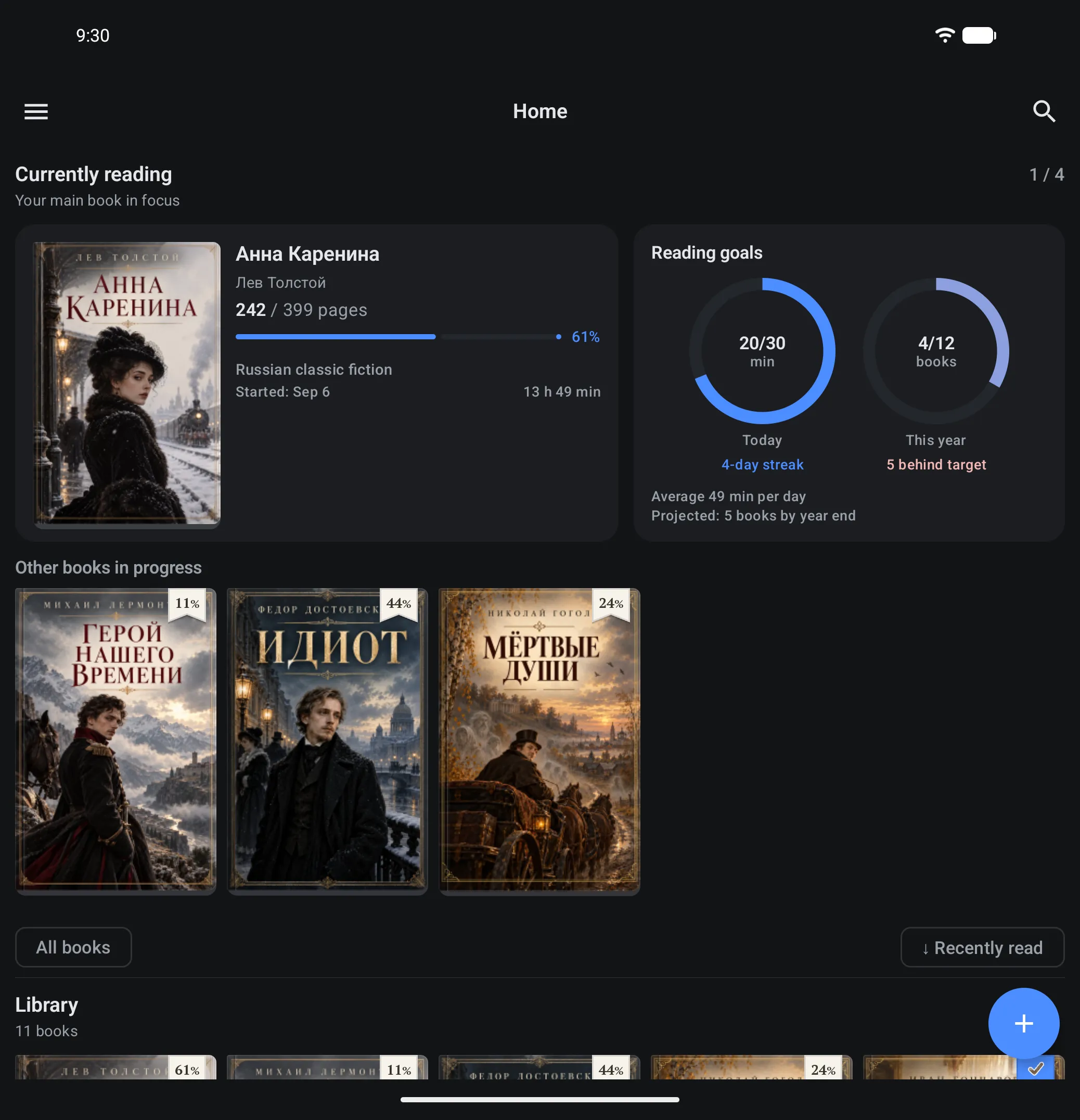
Tablets and unfolded devices
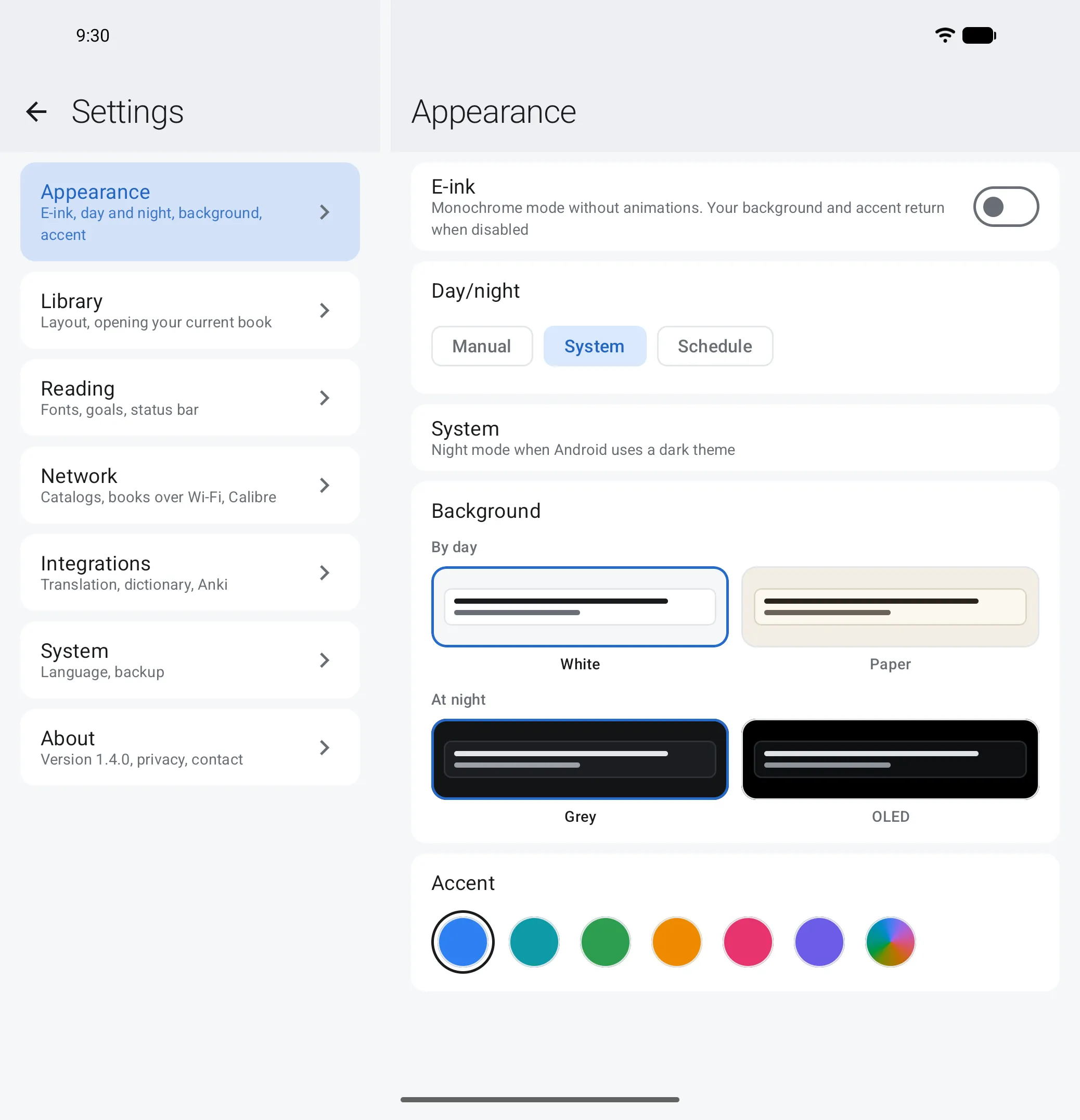
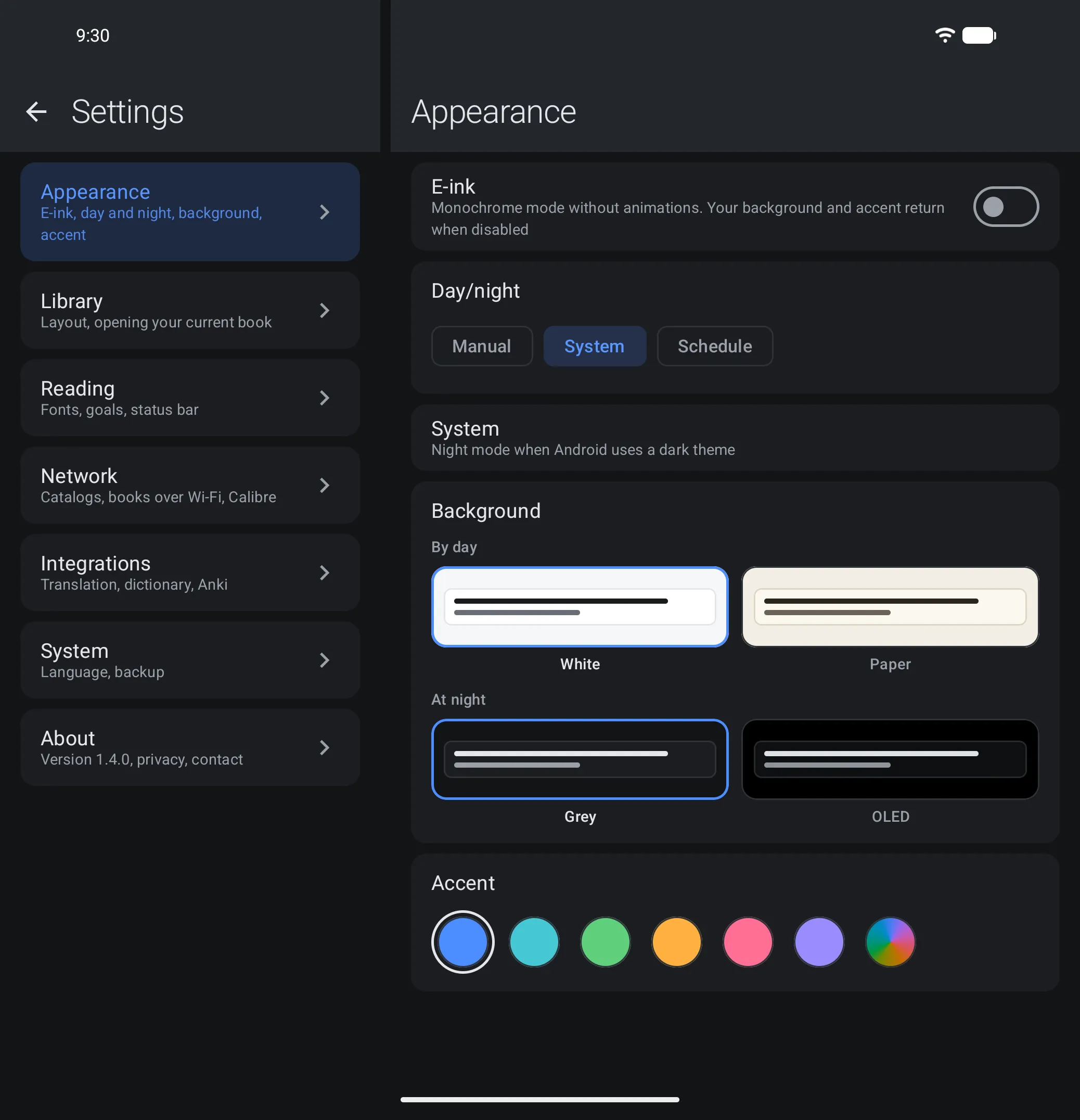
On a wide screen, the library places your current book and goals side by side. Settings and Sync use two columns: sections on the left and their contents on the right. Book details have a limited width to avoid stretching.
Two pages
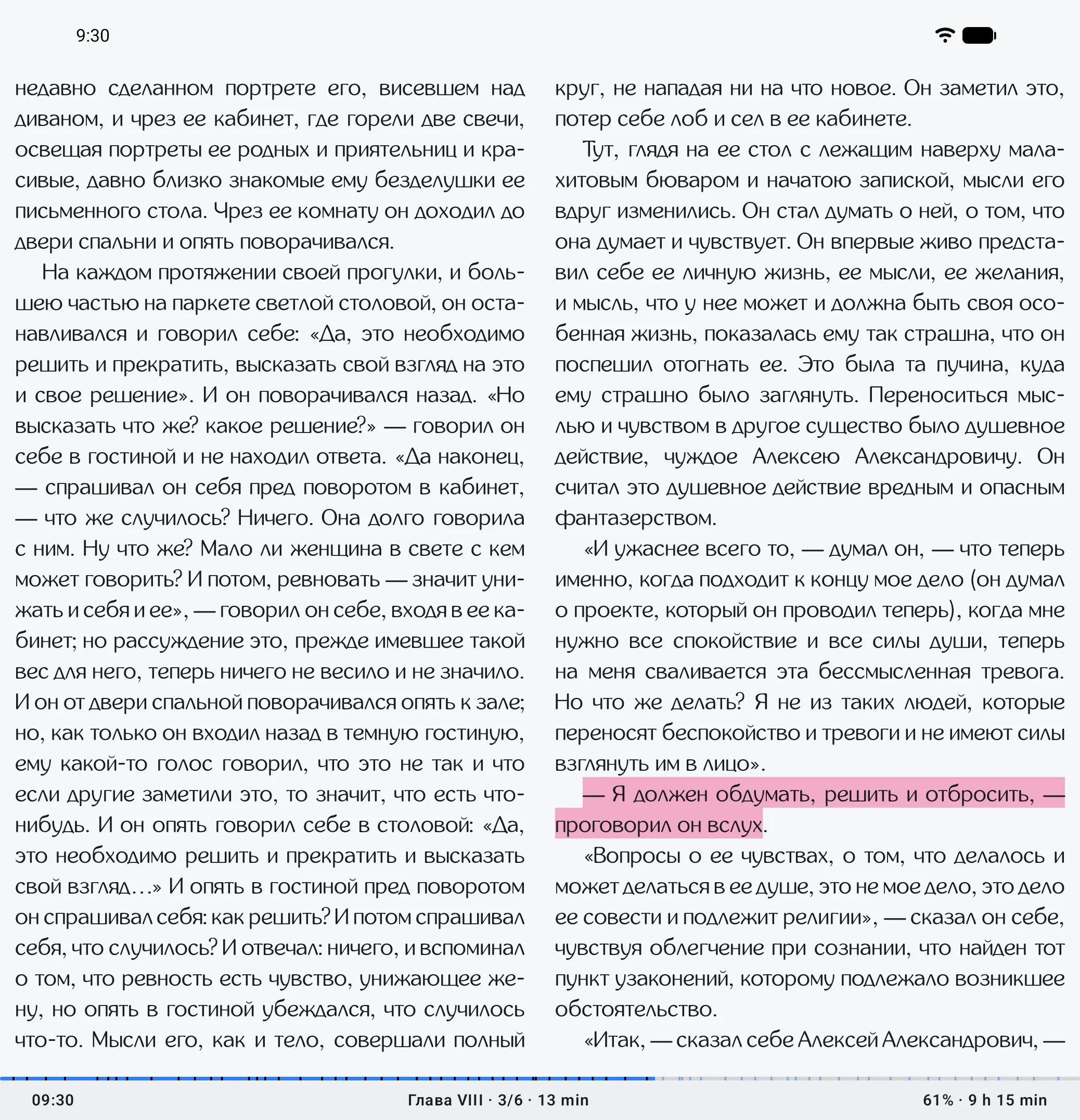
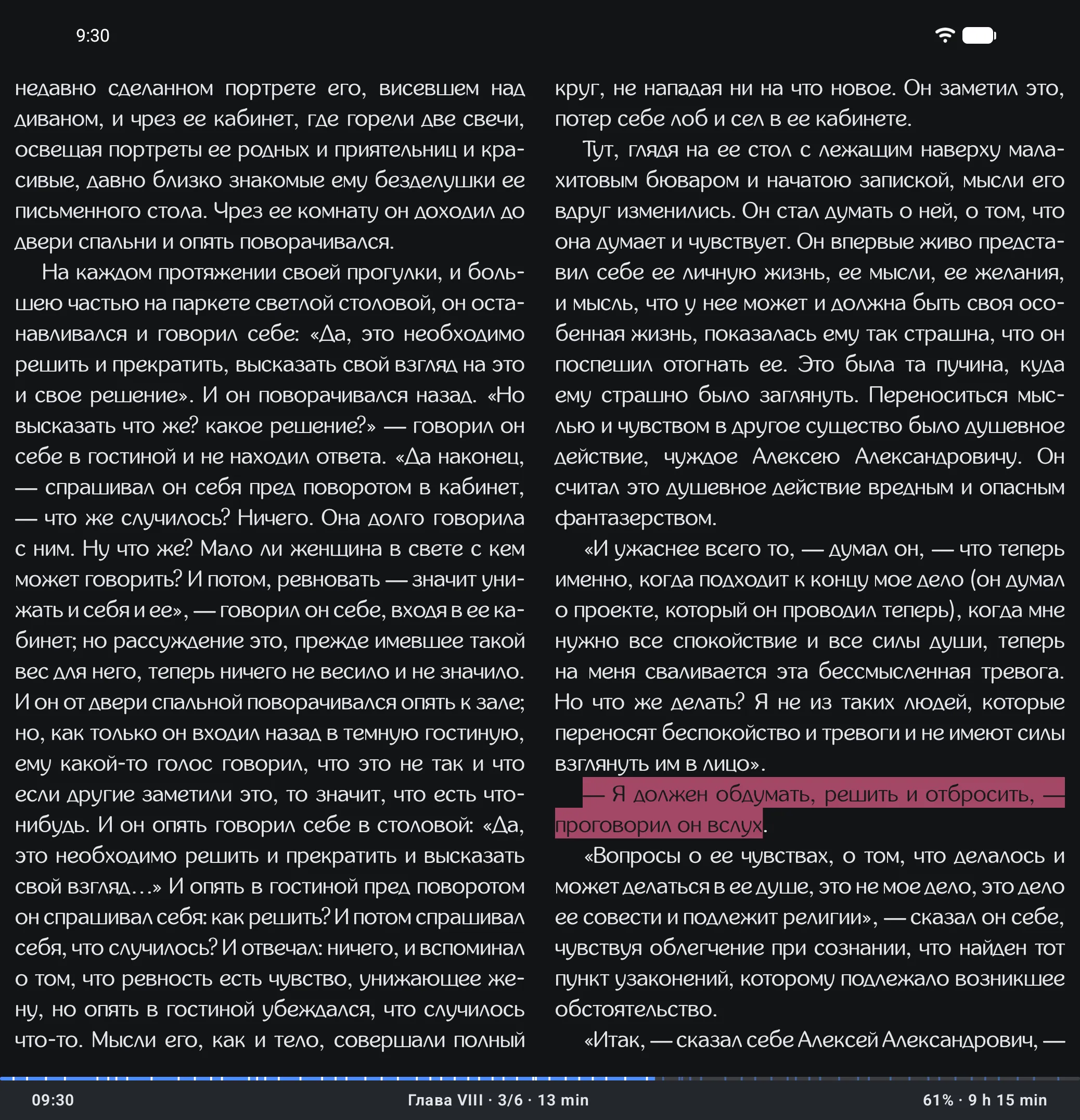
The reader “Columns” button enables a two-page spread. Restore it from “Outside menu” in the menu editor. On a wide screen, the cover and description open side by side, and scrolling text has the same width as paged text. Switching between “Pages” and “Scroll” preserves your position.
Hinge and tabletop mode
When a foldable is partly folded, the spread respects the hinge: pages do not cross the fold. With the device standing at an angle, text appears above the hinge and controls below it.
When you fold and unfold the device, your reading place is kept; it is also saved when the app goes to the background.
Separate menus for both screens
Reader button selection and order are saved separately for narrow and wide screens. A foldable outer screen uses the narrow profile; its inner screen and tablets use the wide profile. E-ink mode also uses the wide profile. Editing or resetting one profile does not overwrite the other, including during sync.
These screenshots were taken on a Pixel 10 Pro Fold emulator. If the interface behaves differently on your device, contact the developer.